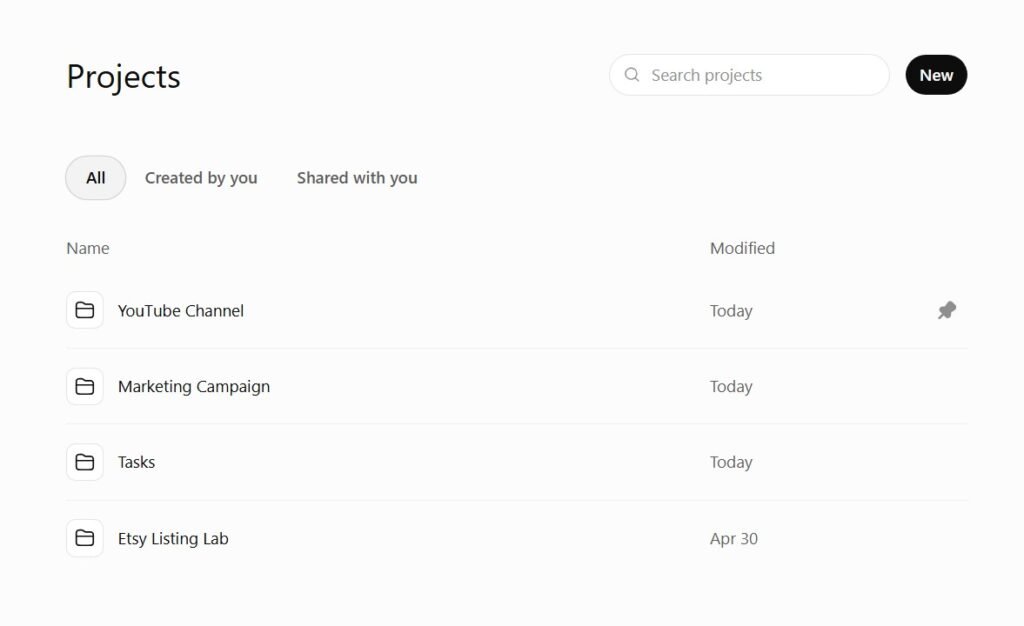
ChatGPT Projects works best when you treat it like a real project hub, not just a folder for random chats.
OpenAI describes Projects as dedicated spaces that keep chats, files, and instructions together. This is why Projects are useful for long-running work like research, writing, planning, and shared team work.
A professional setup is simple. First, define the scope. Scope means what is inside the project and what is outside it. Then break the work into smaller parts. This is often called a work breakdown structure, or WBS.
After that, choose a workflow. You can use Kanban for steady flow work, or Sprints for short planned cycles. Then add clear communication rules, file naming rules, version control, quality checks, handoff notes, and a short review at the end.
If you remember only five rules, use these
- Create one Project for one outcome, not one Project for every small task.
- Put the brief, files, instructions, and key chats in the same place.
- Build the plan in this order: scope → deliverables → milestones → tasks → timeline.
- Use Kanban if priorities change often. Use Sprints if you can plan work in 1–2 week blocks.
- Track changes, check quality, archive files, and close the project with a short review.
Set up your ChatGPT Project the right way
A good Project starts with the correct container. Do not create one giant Project called “Work.” That becomes messy very fast.
Instead, create clear Projects like:
- Website Redesign Q3
- Client Content System
- Course Launch Research
- Newsletter Launch System July 2026
Step one: name the Project by result, not by topic
Bad names are too wide. Good names tell you the finish line.
Use this pattern:
[Outcome] + [Audience or team] + [Time period if needed]
Examples:
- Solo creator: Newsletter Launch System July 2026
- Small team: Podcast Growth Plan Team A
- Larger team: Knowledge Base Migration Phase 1
This matters because Projects keep context together. A better name makes it easier to know what belongs inside the Project and what does not.
Step two: add Project instructions before you begin work
Project instructions are the rules for that one Project. This is very useful because each Project can have its own tone, audience, format, and definition of done.
Definition of done means the standard for finished work. In simple words: what must be true before we can say, “This task is complete.”
Write instructions for five things:
- Goal: what this Project must produce.
- Audience: who the work is for.
- Style: tone, format, and reading level.
- Rules: what to always include, and what to avoid.
- Done definition: what must be true before a task is complete.
A simple Project instruction example
Step three: add files and move old chats into the Project
You can upload files, add instructions, and move existing chats into a Project. This helps because you do not need to repeat the same background every time.
Best practice:
- Upload the brief.
- Upload the latest source files.
- Move only the chats that still matter.
- Leave weak, old, or messy chats outside the Project.
That last point is important. If you move everything, your Project becomes noisy.
Step four: choose the right memory style
Project-only memory is a self-contained mode. It means chats inside the Project can reference other chats in the same Project, but not chats outside it.
This is useful when you want strong boundaries, especially for client work, internal team work, or sensitive work.
| Use project-only memory when | Use a regular Project when |
|---|---|
| The work is private. | You are a solo creator. |
| The tone must stay very consistent. | The work is flexible. |
| The team needs a clean shared context. | You want your wider ChatGPT memory to help. |
| You do not want outside chats to influence answers. | The project is not sensitive. |
Step five: set expectations for collaboration
Shared Projects are powerful, but they are not the same as live document editing.
Think about it this way:
- Treat the Project as a shared context hub.
- Treat Google Docs, Notion, or similar tools as your live editing space.
- Treat branches as a safe way to explore a new direction.
For larger teams, also separate sensitive work. If every member can view and download project files, do not mix public work, private contracts, and HR notes in the same shared Project.
Ready-to-copy template for a Project brief
Scope the work before you open the task board
Many projects fail because people build the task board too early. They start creating cards before they define the work.
A better order is this:
scope → deliverables → milestones → tasks → timeline
A work breakdown structure, or WBS, is a way to break a project’s total scope into smaller, manageable deliverables and tasks.
A project timeline shows tasks, deadlines, and milestones in chronological order. Together, these two tools make complex work easier to plan and track.
Scope means inside and outside
Scope is the boundary of the work.
A strong scope note answers three questions:
- What are we making?
- What are we not making?
- What must happen first?
Example scope for a generic 6-week project
| Included | Not included |
|---|---|
| Project brief | New brand design |
| Research | Website rebuild |
| Drafts | Paid ads testing |
| Review cycles | Translation into other languages |
| Final delivery and handoff notes | Extra work without a new plan |
This small step prevents scope creep. Scope creep means extra work keeps entering the project without a new plan.
Turn deliverables into milestones
A deliverable is the thing you finish. A milestone is a checkpoint that shows progress.
For a 6-week project, your milestones might be:
- Brief approved
- Research complete
- Draft one complete
- Review complete
- Final approved
- Handoff sent
- Review meeting done
Milestones are useful because they let you measure progress without checking every small task all day.
Break the work into task layers
A simple WBS for a general project looks like this:
| Phase | Tasks |
|---|---|
| Phase 1: Plan | Write brief, confirm scope, collect files, set workflow |
| Phase 2: Build | Research, draft, create assets, internal review |
| Phase 3: Finish | Final edits, approval, delivery, archive, review |
A dependency means one task must happen before another task can start.
Sample planning time by team size
These are simple sample estimates you can use on day one.
| Team setup | Planning time | Good first workflow | Good meeting load |
|---|---|---|---|
| Solo creator | 1–2 hours | Kanban | 10-minute daily self-review |
| Small team of 2–5 | 2–4 hours | Kanban or 1-week Sprint | 15-minute daily standup + 30-minute weekly review |
| Larger team of 6–20 | 1 full kickoff session + owner prep | 1–2 week Sprint or hybrid | 15-minute pod standups + 45-minute lead sync + review rhythm |
Example work breakdown by team size
| Solo creator | Small team | Larger team |
|---|---|---|
| Plan on Monday morning | Kickoff on Monday | Kickoff with leads first |
| Work in two focused blocks per day | Assign one owner per deliverable | Create workstreams, such as research, production, and review |
| Review at the end of each day | Use one board for everyone | Use one main board plus one short summary board for leadership |
| Publish or deliver by Friday | Review work mid-week | Keep one owner for each milestone |
| Archive and write lessons on Friday afternoon | Final review on Friday | Review progress by workstream, not by every tiny task |
Choose a workflow that matches the work
Your workflow is the path tasks follow from idea to done.
The two easiest systems are Kanban and Sprint.
Kanban is a visual workflow method. It helps teams see work, limit work in progress, and improve flow.
A Kanban board uses cards, columns, and work-in-progress limits. These are often called WIP limits. WIP limits stop too much work from piling up at once.
Use Kanban when work arrives all the time
Kanban is best when:
- requests come in every day,
- priorities change often,
- work is not easy to lock into a 2-week plan,
- you want a clear flow from request to done.
A simple Kanban board keeps work moving.
Use Sprints when you can plan in short cycles
A Sprint is a short work cycle, usually one or two weeks. A Sprint works well when the team can agree on a clear set of tasks for that cycle.
Sprint review and retrospective are not the same thing.
- Sprint review: look at the finished work and get feedback.
- Retrospective: look at the process and decide what to improve.
Quick rule:
Use Kanban if your team says, “Priorities changed again.”
Use Sprint if your team says, “Let us commit to a small plan for the next 1–2 weeks.”
Ready-to-copy template for task board columns
Practical WIP limits that actually help
A WIP limit is the maximum number of tasks allowed in one active column.
Simple starting point:
- Solo creator: 1–2 in progress
- Small team: 1 active task per person
- Larger team: set WIP by team or workstream, not the whole company
If review keeps piling up, the bottleneck is not production. The bottleneck is review.
Task workflow flowchart
Six-week sample timeline
| Week | Main focus |
|---|---|
| Week 1 | Brief and scope, tool setup, file intake |
| Week 2 | Research and outline |
| Week 3 | Draft round one |
| Week 4 | Internal review and revisions |
| Week 5 | Final build and QA |
| Week 6 | Approval, delivery, handoff, and post-project review |
Example Sprint plan for a small team
| Sprint one | Sprint two |
|---|---|
| Brief | Revisions |
| Scope | QA |
| Research | Final approval |
| Outline | Delivery |
| First draft | Review meeting |
That is enough structure for most content, ops, and knowledge projects.
Build a simple tool stack and communication plan
A good stack has four jobs:
- think,
- plan,
- talk,
- store.
You do not need twenty tools. You need a clean chain.
Recommended tool stack comparison
| Tool | Purpose | Best for |
|---|---|---|
| ChatGPT Projects | AI workspace for grouped chats, files, and project instructions | Research, drafting, recurring workflows, shared context |
| Asana | Structured task and project management with list, board, and calendar views | Solo creators or very small teams who want one main system |
| Trello | Simple visual Kanban board | Fast, simple boards and low-friction workflows |
| Jira | Planning, tracking, reporting, and agile work management | Technical teams, cross-functional teams, sprint-based work |
| Slack | Team messaging and quick coordination | Fast updates, standups, review requests, approvals |
| Google Docs and Drive | Shared documents, file storage, co-editing, and revision history | Shared notes, briefs, approvals, file storage, light version control |
The easiest “pro” stack by team size
| Solo creator | Small team | Larger team |
|---|---|---|
| ChatGPT Projects for thinking and drafting | Shared ChatGPT Project for context | ChatGPT Project per workstream |
| Trello or Asana for tasks | Trello or Asana for board and owners | Jira or Asana for structured planning |
| Google Docs and Drive for files | Slack for daily messages | Slack channels by team or stream |
| Google Docs and Drive for live editing | Google Docs and Drive for documents, GitHub for technical assets |
Build a communication plan before problems start
A communication plan says how project information will be shared, which channels to use, how often to communicate, and who is responsible.
A simple communication plan needs only five fields:
- message type,
- audience,
- channel,
- timing,
- owner.
Mini communication plan template
| Message type | Audience | Channel | Timing | Owner |
|---|---|---|---|---|
| Daily progress | Team | Slack or board comments | Every workday | Task owner |
| Weekly status | Team + stakeholders | Email or shared doc | Every Friday | Project owner |
| Blocker alert | Needed reviewers or leads | Slack | Same day | Task owner |
| Approval request | Approver | Email or Slack + linked file | When item is review-ready | Project owner |
| Final handoff | Stakeholders | Email + shared folder + board update | Delivery day | Project owner |
Meeting rhythm that stays light
Not every team needs heavy agile language. Keep the idea, but use simple words.
| Team setup | Meeting rhythm |
|---|---|
| Solo creator | Monday: 20-minute planning. Daily: 10-minute reset. Friday: 20-minute review. |
| Small team | Monday: 30–45 minute kickoff. Tue–Thu: 15-minute standup. Friday: 30-minute review. |
| Larger team | Monday: 45–60 minute lead planning. Daily: 15-minute standup by pod. Weekly: 30-minute cross-team sync. Every 2 weeks: demo and retrospective. |
Ready-to-copy template for a meeting agenda
Control files, versions, quality, handoff, and review
This is where teams either look professional or messy.
A strong project system does not end at “done.” It also covers:
- where files live,
- how names work,
- how changes are tracked,
- how quality is checked,
- how the work is handed off,
- how lessons are saved.
Use one folder structure every time
Use one folder tree:
This is simple, but it removes a lot of stress.
Use one naming system every time
Try this pattern:
Example:
Use these stages:
- draft
- review
- approved
- final
- archive
If you use the same pattern every time, search becomes much easier.
Choose the right level of version control
For documents, Google Docs version history is often enough.
For code, technical files, or high-risk changes, use real version control. GitHub branches and pull requests are better when people need to discuss and review changes before merging them.
A simple rule:
- Docs, briefs, meeting notes: Google Docs revision history
- Website files, code, structured technical assets: GitHub branches + pull requests
Build a short quality check before approval
A quality check should be boring. That is good.
Use five quick checks:
- Does the work match the brief?
- Is the audience correct?
- Are names, dates, and numbers checked?
- Are files named and stored correctly?
- Is the next owner clear?
Make handoff easy for the next person
A handoff should answer one question:
“If I leave today, can another person continue this work without guessing?”
A clean handoff package includes:
- final approved deliverable,
- source files,
- latest brief,
- known issues,
- next steps,
- owner list,
- review date,
- archived chat or summary.
Post-project review is not optional
A post-project review helps the next project start smarter.
Keep the review simple. Ask:
- What worked well?
- What slowed us down?
- Which instructions or prompts helped most?
- Which files were hard to find?
- Which step should become a template next time?
- What should we stop doing?
If you use Sprints, remember the difference:
- Review/demo: look at the work.
- Retrospective: look at the process.
The 10-step project organization checklist
- Create one ChatGPT Project for one real outcome.
- Add Project instructions with goal, audience, style, rules, and done definition.
- Upload the brief, key files, and only the chats that still matter.
- Write scope before making tasks. Include what is in and out.
- Break work into deliverables, milestones, dependencies, and tasks.
- Choose Kanban or Sprints based on how your work arrives and changes.
- Set one communication plan with channels, timing, and owners.
- Store files in one folder tree and use one naming format.
- Run a final quality check, get sign-off, and send a handoff package.
- Close with a short post-project review so the next project starts smarter.
Continue Learning About AI Writing & ChatGPT
If you found this ChatGPT Projects tutorial helpful, you may also enjoy these step-by-step guides, AI tool reviews, comparisons, and practical tutorials from AI Content Tools.
Getting Started with ChatGPT
- ChatGPT Tutorial (Complete Beginner Guide)
- How to Write Better AI Prompts
- What Is AI Writing?
- Beginner’s Guide to Writing with AI
- Common Beginner Mistakes with AI
Best AI Writing Tools
- Best AI Writing Tools in 2026
- Writesonic Review
- Jasper Review
- Frase Review
- Rytr Review
- Simplified Review
- Scalenut Review
- Grammarly Review
AI Tool Tutorials
- Writesonic Tutorial
- Jasper Tutorial
- Frase Tutorial
- Scalenut Tutorial
- Rytr Tutorial
- Simplified Tutorial
- Grammarly Tutorial
AI Content Creation
- Complete AI Content Creation System
- Automate Content Creation
- Plan Content with AI
- Turn One Article into 10 Posts
- Generate Content Ideas
- Write Better Hooks
- Create Viral Content
- Get Traffic with AI
SEO & AI Search
- AI SEO Guide
- Advanced AI SEO
- AI SEO Strategy
- Rank in AI Overviews
- AI Search Visibility
- AI Overviews Keyword Research
AI Humanizers
- Best AI Humanizers
- Free AI Humanizers
- Paid AI Humanizers
- QuillBot Humanizer Test
- Can AI Replace Humanizers?
Career & Resume AI
Etsy AI Guides
- Best AI Tools for Etsy Sellers
- Write Etsy Descriptions with AI
- Rank Etsy Listings with AI
- Free Etsy Listing Generator
- Etsy AI Toolkit
Browse hundreds of AI tutorials, comparisons, reviews, and practical guides on AI Content Tools.