When I first started using ChatGPT, I thought there was almost nothing to learn.
You type a question. It gives you an answer. Simple.
For the first few weeks, that was exactly how I used it. I asked questions, got answers, and closed the browser. Honestly, I thought I already knew everything.
I couldn’t have been more wrong.
Since then, I have spent hundreds of hours using ChatGPT. I use it almost every day while writing articles, testing AI tools, comparing software, programming, planning projects, and even organizing everyday tasks.
The funny part?
Even after all that time, ChatGPT still surprises me.
Sometimes I accidentally discover a new button.
Sometimes I find a hidden setting.
Sometimes a feature appears after an update and changes the way I work completely.
One thing that surprised me the most is that not everyone is using the same ChatGPT.
A guest user, a free user, and a paid subscriber can ask exactly the same question and receive different answers.
They may have access to different models, different tools, different limits, and even different buttons.
Many beginners don’t realize this, and it creates a lot of confusion.
That is exactly why I decided to write this guide.
This is not another article about writing prompts. I have already written several guides about prompts, prompt engineering, and how to get better answers from AI.
Good prompts are important, but they are only one piece of the puzzle.
In this tutorial, I want to focus on something else.
I want to show you ChatGPT from the user’s perspective.
Do You Really Need an Account?
Technically…
No.
You can open ChatGPT and start asking questions without creating an account.
Many people do exactly that.
If you only want to ask one quick question, this is perfectly fine.
My advice: after testing both versions for a long time, I recommend creating a free account almost immediately.
Why?
Because the experience is completely different.
Without an account, ChatGPT is simply a chatbot.
With an account, it slowly becomes your personal AI assistant.
- Your conversations are saved.
- You can return to older chats.
- Some features become available.
- Later, if you decide to upgrade, even more tools appear.
It takes less than two minutes to create an account, and in my opinion it is worth doing from the beginning.
One Thing Many Beginners Don’t Know
One thing confused me for a long time.
I thought everyone was using the same version of ChatGPT.
That is not true.
Today there are actually several different experiences.
- A guest user.
- A free user.
- A paid user.
- Sometimes even two paid users may see different features because OpenAI rolls out updates gradually.
This explains why you may watch a YouTube tutorial and think:
“Wait… I don’t have that button.”
Or:
“My ChatGPT looks completely different.”
Usually nothing is wrong.
You simply have a different account type or your update has not arrived yet.
Understanding the Interface
When you first open ChatGPT, the screen may look very simple.
That is actually a good thing.
You only need to know a few important areas.
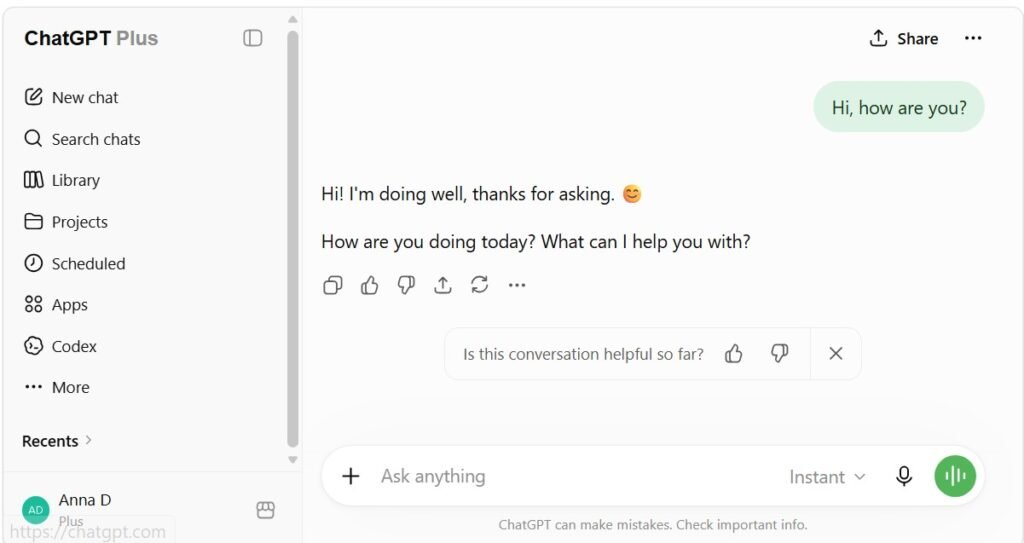
Sidebar
The sidebar stores your previous conversations. Whenever you start a new chat, it appears here.
One tip that helped me stay organized is giving important conversations meaningful names.
New Chat
This button starts a completely fresh conversation.
Use it when you switch to a different topic. For example, don’t mix vacation planning with programming questions.
Message Box
This is where you type your questions.
Simple. Almost everything starts here.
Upload Button
This small button is much more powerful than it looks.
You can upload documents, images, spreadsheets, presentations, and many other files.
Voice Button
Instead of typing, you can simply speak.
This feels surprisingly natural, especially on your phone.
Model Selector
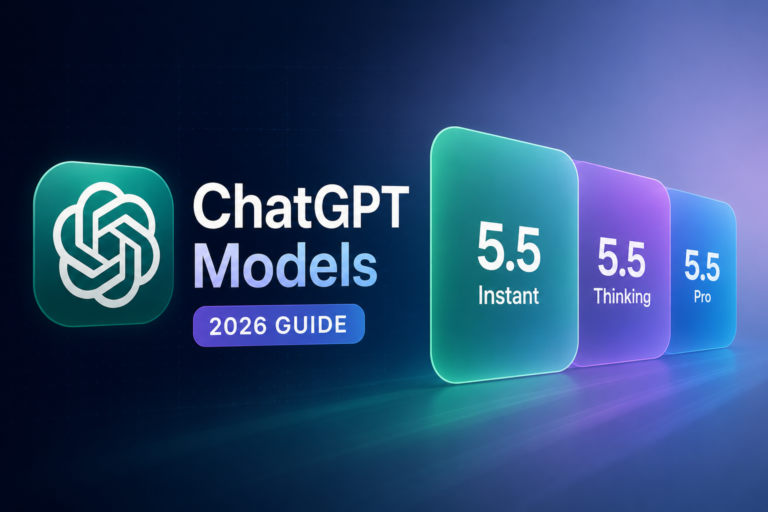
Depending on your account, you may see a menu where you can choose an AI model.
This is another feature that many beginners ignore.
Choosing an AI Model
The first time I noticed the model selector, I ignored it.
I thought every model was almost identical.
After testing them for many months, I realized they are quite different.
- Some models answer very quickly.
- Some spend more time thinking.
- Some are excellent at writing.
- Others are better at coding or analyzing large documents.
The good news is that beginners do not need to worry about this immediately.
The default model is usually the best choice.
As you gain more experience, you can experiment with other models and decide which one works best for your tasks.
There is no single best model.
It depends on what you are trying to do.
Uploading Files
This is one of my favorite features.
I still remember copying long sections from PDF documents into ChatGPT.
Then one day I noticed the upload button.
It completely changed my workflow.
Today I simply upload the file.
You can either click the Upload button or simply drag and drop a file directly into the chat window.
I use drag and drop most of the time because it is faster and feels more natural.
ChatGPT can work directly with:
- PDF files
- Microsoft Word documents
- Excel spreadsheets
- PowerPoint presentations
- CSV files
- Images
- Text files
Instead of copying hundreds of lines, you simply upload the document and start asking questions.
It saves an incredible amount of time.
Working with PDF Files
Uploading a PDF is only the beginning.
Many people think ChatGPT can only summarize documents.
It can do much more.
For example, you can ask it to:
- explain difficult chapters,
- summarize long reports,
- create study notes,
- compare two PDF files,
- find deadlines,
- list important dates,
- answer questions about the document,
- explain technical language in simple words.
I use this feature constantly while researching AI tools.
Reading long documentation becomes much easier.
Creating Images
One feature that still surprises many people is image generation.
ChatGPT is no longer only a writing assistant.
It can also create images from your ideas.
For example, you can ask for:
- blog illustrations,
- social media graphics,
- logos,
- icons,
- realistic photos,
- cartoons,
- fantasy artwork,
- product concepts.
Even better, you can edit existing images.
- remove an object,
- replace the background,
- improve image quality,
- extend the borders,
- change the style,
- add new objects.
I use this feature regularly when creating graphics for my website.
Sometimes it takes only a few minutes to create something that would have taken much longer in a traditional graphics editor.
Voice Conversations
I honestly thought I would never use Voice Mode.
Typing seemed easier.
I was wrong.
Voice conversations feel surprisingly natural.
Instead of typing every sentence, you simply speak.
ChatGPT responds almost immediately.
I especially like using it when I am walking, driving, or thinking through new ideas.
Sometimes talking feels much faster than typing.
If you have never tried Voice Mode, I recommend testing it at least once.
You may be surprised how quickly it becomes part of your daily routine.
Signing In and Personalizing ChatGPT
Once you create your free account and log in, ChatGPT becomes much more personal.
Your conversations are saved automatically, so you can come back to them days, weeks, or even months later.
One feature I use all the time is continuing an old conversation.
Instead of explaining everything again, I can simply say something like, “Let’s continue working on the article we discussed yesterday,” or “Do you remember the website we were improving?”
ChatGPT can use the previous conversation as context, which saves a lot of time.
This is another feature that I didn’t pay much attention to at first.
I simply opened ChatGPT, asked my questions, and started working.
Later I realized that spending just a few minutes on personalization makes the experience much better.
Where to Find Your Settings
Click your profile picture or account icon in the bottom left corner of the screen.
Then select Settings.
This is where you can manage your account, subscription, appearance, personalization, memory, and other useful options.
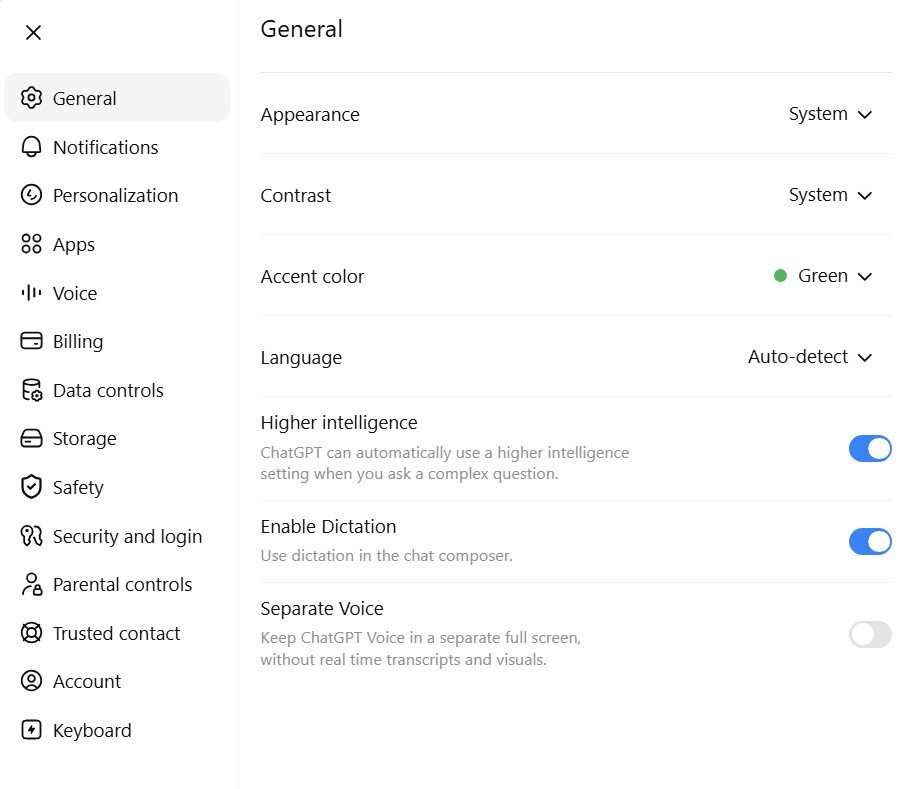
Don’t worry if your menu looks a little different.
OpenAI updates the interface quite often, so some buttons may move slightly over time.
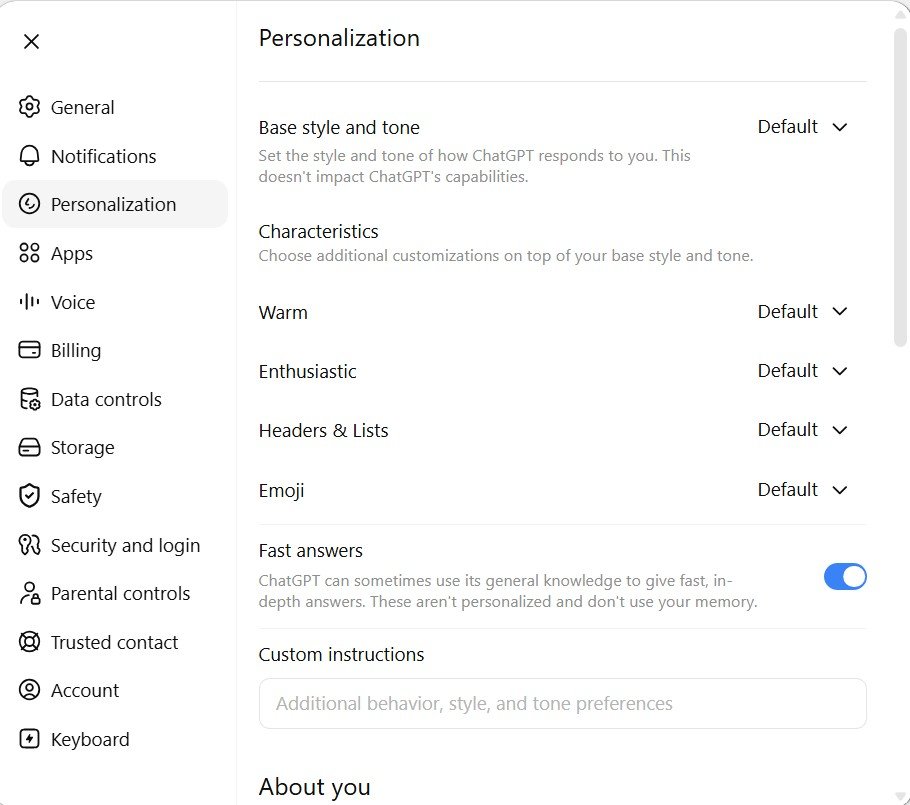
Personalization
One section I recommend visiting is Personalization.
Here you can tell ChatGPT a little about yourself and how you like to work.
For example, you can add information such as:
- your job,
- your hobbies,
- your preferred language,
- the writing style you like,
- your learning goals.
This does not mean you have to fill in every field.
Even a few details can help ChatGPT understand you better over time.
For example, I often work on AI tutorials and software reviews.
If ChatGPT knows that, it can sometimes provide more relevant examples or explanations without me repeating the same information in every conversation.
Custom Instructions
One of my favorite personalization features is Custom Instructions.
Think of it as introducing yourself before every conversation.
Instead of writing the same request every day, you tell ChatGPT once how you prefer to work.
For example, you can ask it to:
- explain things using simple English,
- keep answers short,
- write step-by-step guides,
- avoid technical language,
- always include examples,
- format answers with headings and bullet points.
My advice is simple.
Start with only one or two preferences.
You can always improve them later as you learn what works best for you.
Don’t Spend Too Much Time Here
It is easy to spend an hour trying to create the perfect personalization.
I wouldn’t do that.
When I first started using ChatGPT, I changed my settings many times because I thought they had to be perfect.
The truth is that your needs will change.
As you use ChatGPT more often, you will naturally discover what kind of answers you like.
You can always come back and update your preferences later.
For now, spend five minutes setting up your account and then start using ChatGPT.
Learning by doing is much more valuable than trying to configure every option before your first real conversation.
What Do You Get with a Paid Subscription?
After using both the free and paid versions for a long time, I can say that the free version is a great place to start.
You can learn how ChatGPT works, create documents, ask questions, generate images, and use many of its core features.
However, if you use ChatGPT every day, sooner or later you will probably start thinking about upgrading.
That is exactly what happened to me.
I reached the point where I was using ChatGPT for several hours every day.
The paid version simply made my work easier.
Higher Limits
The first thing you will notice is that you can use ChatGPT much more without reaching usage limits.
If you only chat occasionally, this may not matter.
If you use ChatGPT for work, the extra limits become very useful.
Access to More AI Models
Paid users usually have access to more AI models and new models often arrive there first.
Some models are faster.
Others are better at writing.
Some spend more time thinking before answering difficult questions.
Earlier Access to New Features
One thing I have learned is that OpenAI releases many new features gradually.
Paid users often receive access before free users.
Sometimes I read about a new feature online and already have it available the same day.
Other times, I still have to wait.
That is perfectly normal.
Deep Research
If I had to choose one paid feature that impressed me the most, it would probably be Deep Research.
This is completely different from asking a normal question.
Normally you ask ChatGPT something, and within a few seconds you receive an answer.
Deep Research works differently.
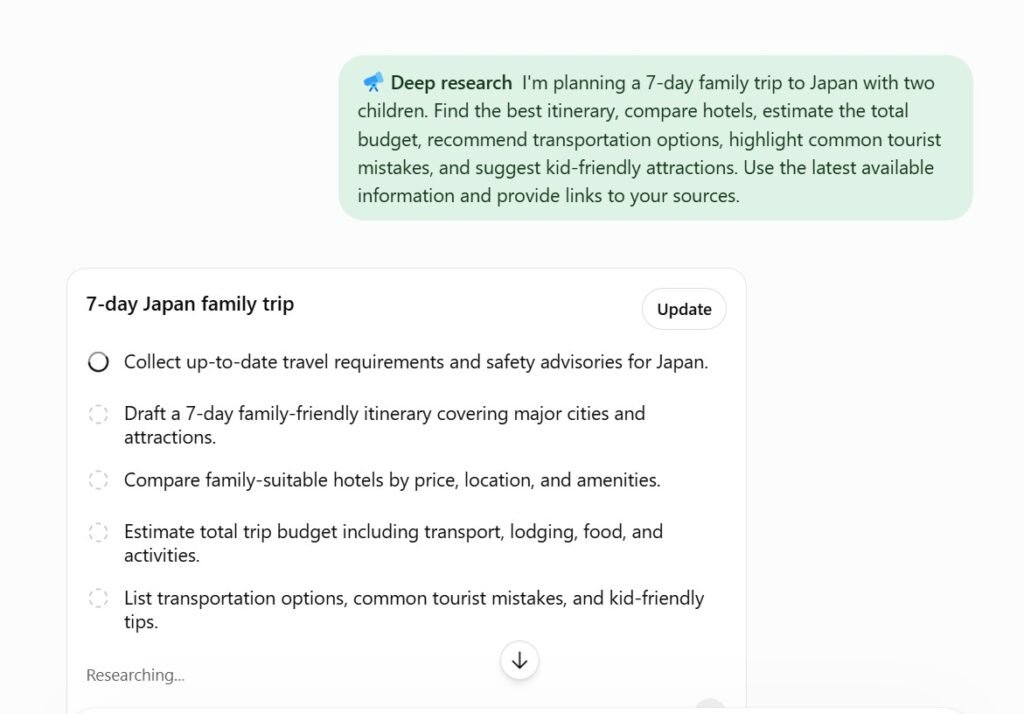
It spends much more time collecting information, reading many online sources, comparing them, and building a much more detailed report.
Instead of a quick answer, you receive something that often feels like a small research paper.
For example, instead of asking:
“What is the best AI writing tool?”
You could ask:
“Compare the ten most popular AI writing tools. Include pricing, strengths, weaknesses, recent updates, and explain which tool is best for bloggers, students, marketers, and businesses.”
Deep Research will usually spend several minutes working on your request.
During that time you can even watch its progress.
It searches multiple sources, gathers information, compares findings, and then builds one complete report.
The first time I used it, I was honestly surprised.
The report was much longer and much more organized than a normal ChatGPT response.
I now use Deep Research whenever I need to understand a completely new topic or compare several products before making a decision.
When Should You Use Deep Research?
I would not use it for simple questions.
For example:
- writing a short email,
- fixing grammar,
- explaining one word,
- creating a social media post.
That would be unnecessary.
Instead, use Deep Research for larger tasks such as:
- researching a new business idea,
- comparing software,
- planning a long trip,
- learning a new subject,
- creating detailed reports,
- collecting information from many different sources.
The more complex your question is, the more useful Deep Research becomes.
It Is Not Instant
One thing that surprises many beginners is that Deep Research is slower than a normal conversation.
That is expected.
It is spending extra time searching, reading, and organizing information.
Sometimes it takes several minutes before the final report is ready.
In my opinion, the extra waiting time is usually worth it.
Is the Paid Version Worth It?
People ask this question all the time.
My answer is always the same.
If you only use ChatGPT once or twice a week, stay with the free version.
It is already very powerful.
If ChatGPT becomes part of your daily work, the paid version starts making much more sense.
For me, it saves enough time every week that the subscription easily pays for itself.
I would still recommend that every beginner starts with the free version first.
Once you understand how ChatGPT fits into your daily workflow, it becomes much easier to decide whether the extra features are worth paying for.
My Advice for Every Beginner
After spending hundreds of hours with ChatGPT, I think the biggest mistake beginners make is trying to learn every feature on the first day.
You don’t need to.
- Start with simple conversations.
- Use ChatGPT every day for one small task.
- Then slowly explore file uploads.
- Try image generation.
- Test Voice Mode.
- Experiment with different models.
Little by little, ChatGPT will become much more than a chatbot.
It will become one of the most useful tools on your computer.
In the next guide, I will show you the advanced features that most users never discover, including Memory, Projects, Custom GPTs, Deep Research, and many hidden tricks that can save you hours every week.
Continue Learning ChatGPT and AI
Now that you understand the basics of ChatGPT, you may want to explore more advanced topics. The guides below will help you write better prompts, understand AI limitations, choose the right AI tools, and learn how to use AI for real projects.
- How to Write Better AI Prompts — Learn simple prompting techniques that produce much better answers.
- Does AI Always Know Today’s Data? — Understand when ChatGPT can give outdated information and how to verify it.
- Can You Trust AI Answers? — A beginner-friendly explanation of AI hallucinations and how to avoid mistakes.
- Beginner’s Guide to Writing with AI — Learn how to use AI without making your writing sound robotic.
- Best AI Writing Tools — Compare today’s most popular AI writing assistants.
- Best AI Tools by Profession — Find the best AI tools for students, teachers, bloggers, marketers, freelancers, and businesses.
- How to Use AI for Content Creation — A complete workflow for creating articles, social media posts, and marketing content.
- AI Search Visibility Guide — Learn how websites are discovered inside ChatGPT, Google AI Overviews, and other AI search engines.
If you’re just getting started, I recommend reading these guides in order. Together they cover everything from basic ChatGPT skills to advanced AI workflows and content creation strategies.