Simplified now includes much more than an AI writer. You can use it for blog content, Riley AI workflows, Brand Brain, social posts, images, video, publishing and automations. That can make the first login confusing. This tutorial shows the shortest useful path for a beginner: set up your brand, understand the dashboard, create a real article, check whether the result is complete, use the editor correctly and then explore Riley and social publishing.
You do not need to learn every Simplified feature on your first day. The platform is much easier to understand when you follow one real workflow from start to finish.
I also recommend checking the result at every important step. During my own testing, one Instant Blog article looked structured but contained only 161 words because several planned sections had no paragraph content. I will show you where to check that before you use the article.
Create your Simplified account
Start by creating an account. Simplified begins the setup by asking for information that will later help personalize the workspace.

If you are testing Simplified for a real business, use a real brand rather than a made-up company. It becomes much easier to judge whether the AI understands your audience, offer and writing style correctly.
Choose the role that best matches your work
Simplified asks what type of user you are. Options in my onboarding included roles such as Content Creator, Business Owner, Freelancer and Marketing/Growth.

Do not overthink this step. It mainly helps Simplified suggest useful starting points. You can still explore other parts of the platform later.
Tell Simplified what you want to create
The next onboarding step asks which content and marketing areas matter to you. In my account, the options included social posts, UGC video ads, campaigns, content repurposing and brand context.

Start with only two or three real needs. For example: blogs + social posts + brand context. Selecting everything does not help if you do not yet know which workflow you actually need.
Add your website and business context
Simplified can ask for your website, preferred language, target audience and business description. This information can later support Brand Brain and other AI workflows.
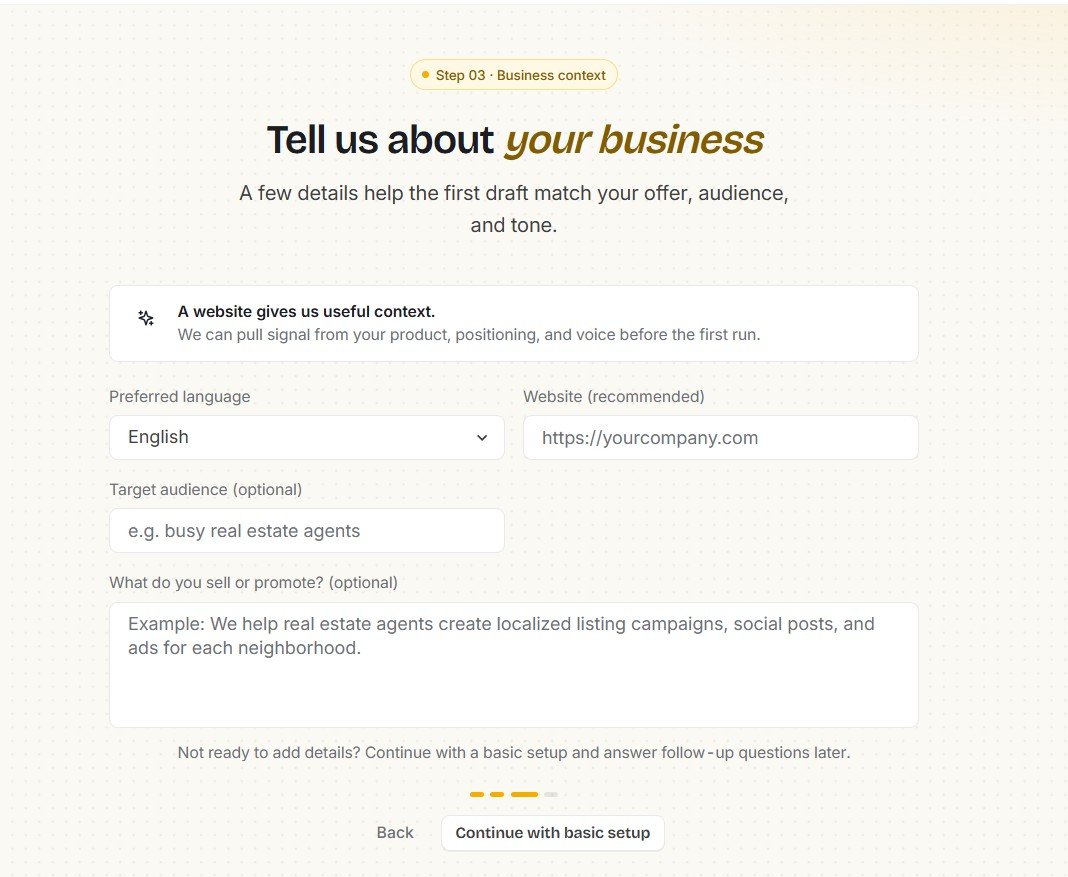
I recommend writing the audience and business description yourself instead of relying only on website analysis. AI website extraction can fail.
In my test, Simplified tried to fetch AIContent-Tools.com and returned an HTTP 403 Forbidden error.
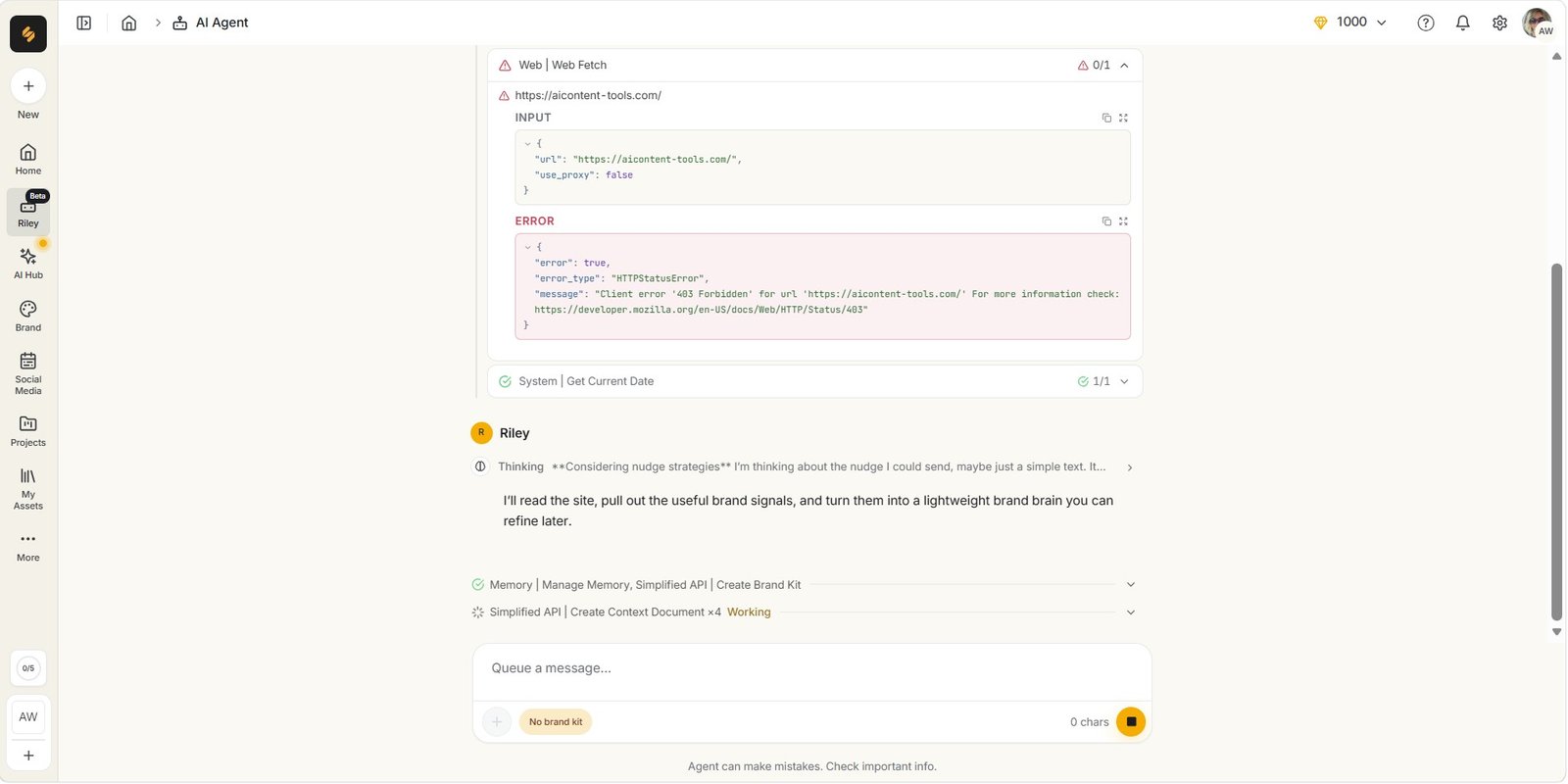
A 403 error can happen because a website blocks automated access. If you see one, manually provide the important brand information instead of assuming Simplified already knows it.
Review your Brand Brain before using it
Simplified can create a Brand Brain with reusable information about your business. This can include voice, audience, visual identity, rules, context and other brand details.

Do not treat this as a finished brand document. Read through it and correct anything that does not match your real business.
Check these first
- Target audience
- Business description
- Brand voice
- Products or services
- Content rules
- Visual preferences
Do not assume
- The website was fetched successfully
- Every AI-generated brand fact is correct
- Generic labels such as “professional” are useful enough
- Old brand information will update itself automatically
I tested this feature more deeply with my own site. See the full Simplified Brand Brain review if you want to see the 403 result and the later Brand Info Generator test.
Learn the main Simplified dashboard
After setup, the main dashboard gives you access to Riley, content creation categories, publishing tools and other parts of the platform.

Simplified now covers images, video, audio, writing, social media, workflows and more. For this beginner tutorial, stay focused on one real task.
Open the Blogs & Articles section
To create a long-form article, go to the writing area and look for the blog and article tools.
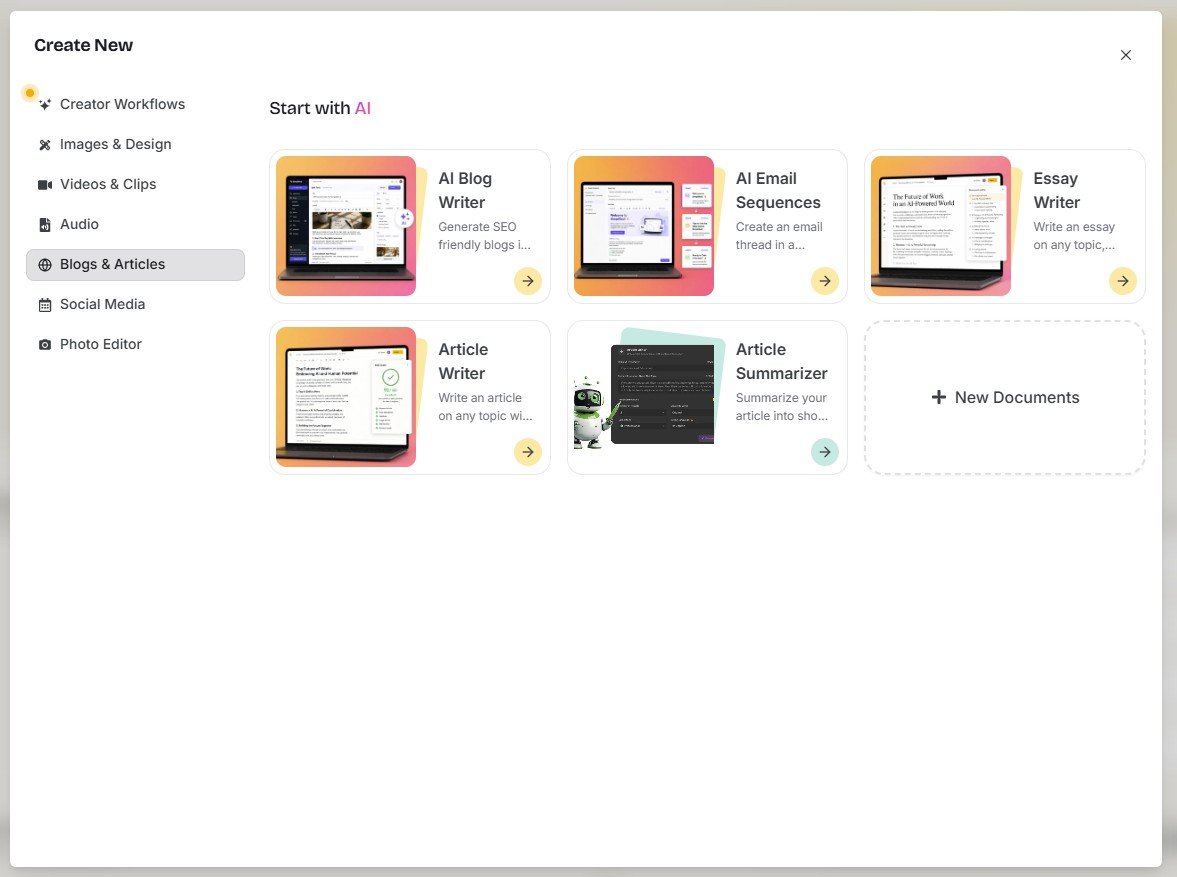
Do not start by testing every writing template. Choose one clear task, such as a blog article, and learn that workflow first.
Choose Instant Blog or Agentic Workflow Blog
Simplified shows more than one blog-generation route. In my account, I saw both Agentic Workflow Blog and Instant Blog.
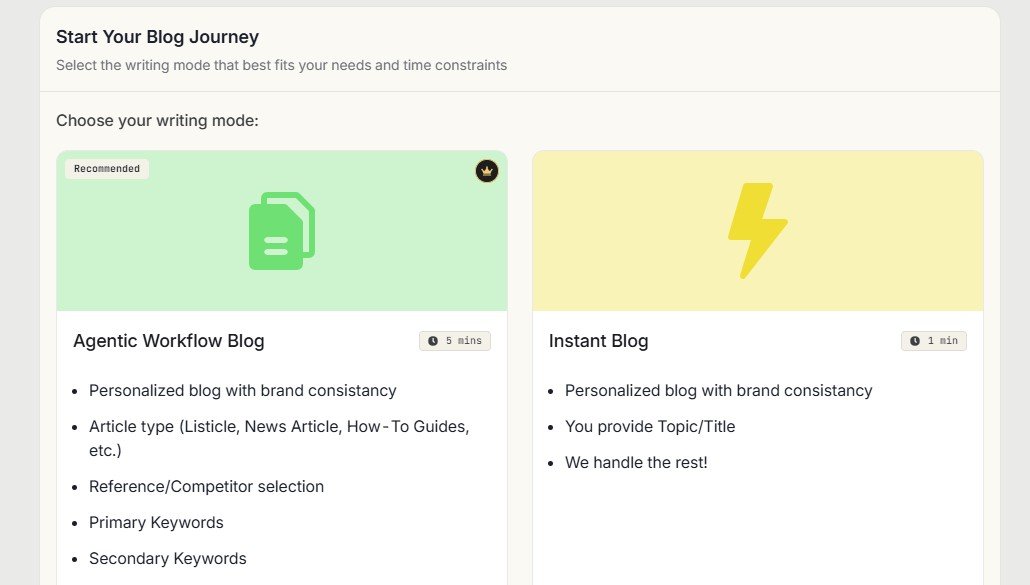
For the example in this tutorial, I used Instant Blog. It is useful for learning the basic flow because the setup is simple.
But fast generation does not mean you should skip the review step. My own Instant Blog tests found incomplete article sections.
Choose Brandbook, language, tone and creativity
Before generating the article, set the context instead of using every default.
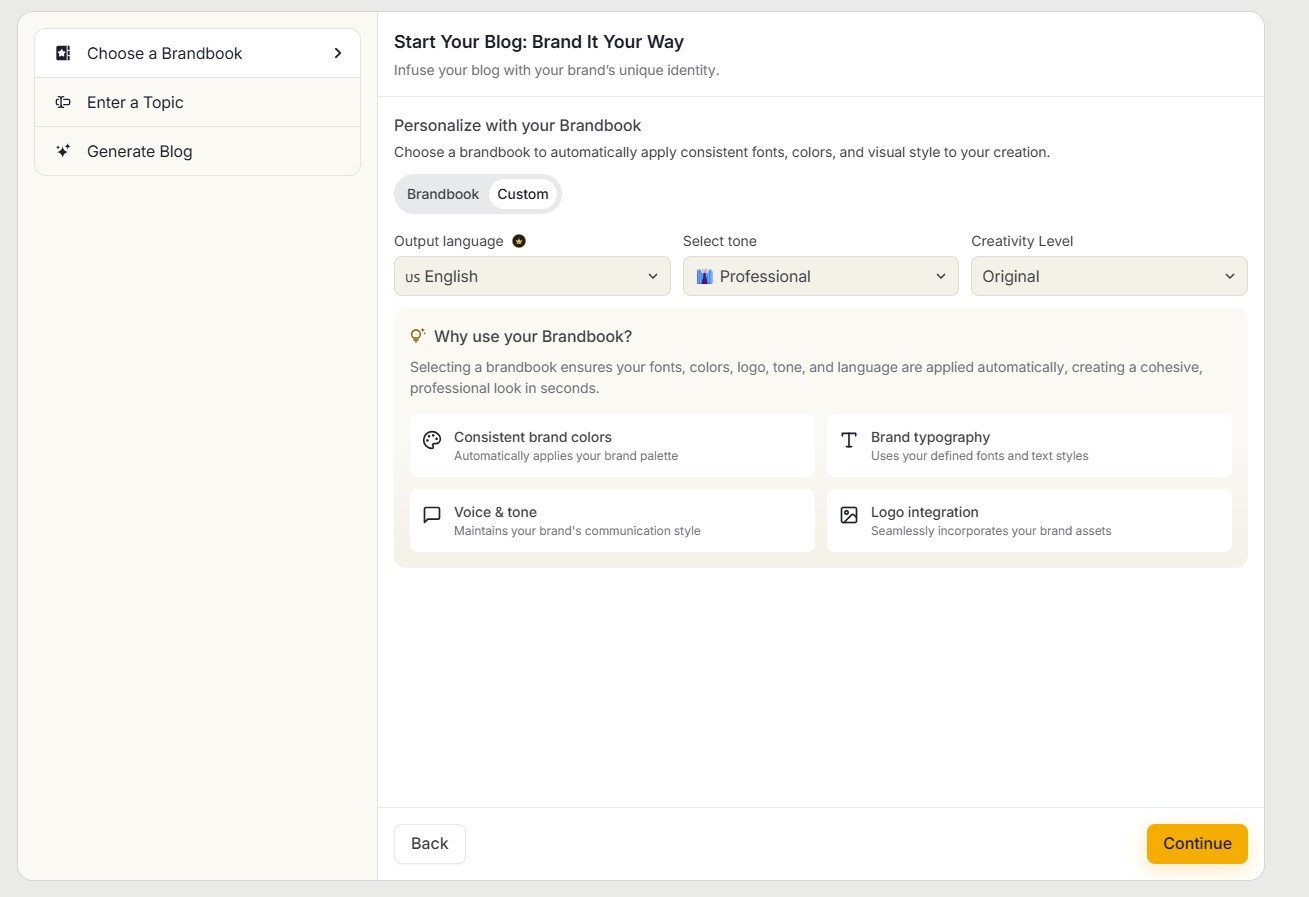
If you already created a Brandbook, select it. Then choose the output language and a tone that actually fits the article.
The more useful context you provide before generation, the less the AI has to guess. That does not guarantee a good article, but it gives the model a better starting point.
Enter a specific article topic
Avoid vague topics such as “AI tips” or “marketing ideas.” Give Simplified a clear subject and audience.
In my test, I used: “7 Ways to Improve Etsy Product Descriptions With AI.”
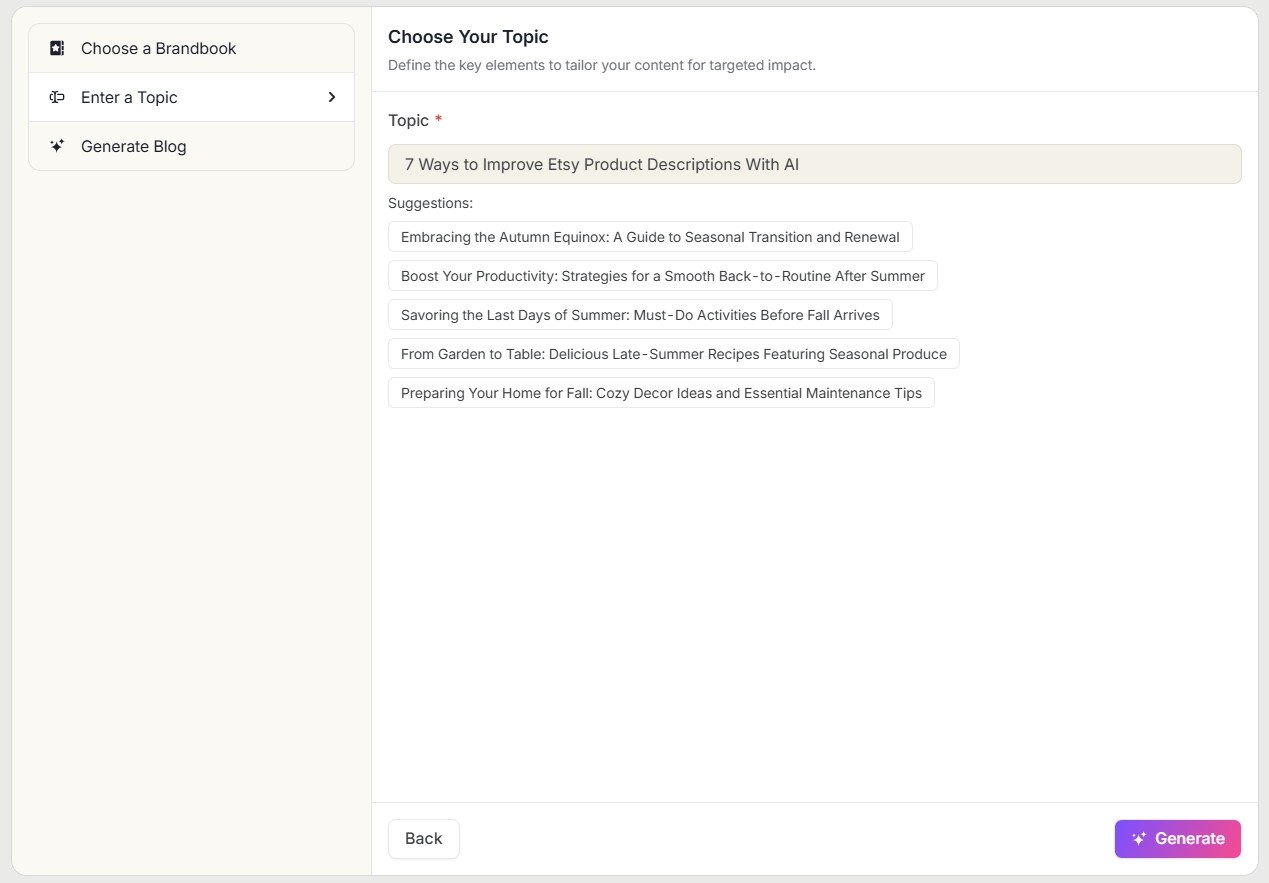
A useful article topic normally includes at least: subject + audience + outcome. For example, “Improve Etsy product descriptions with AI for beginner sellers” is easier for an AI to follow than “Write about Etsy AI.”
Generate the article and wait for the document to open
Simplified shows a generation progress screen before opening the article in Docs.

When the article opens, do not judge it from the title and introduction alone.
My first generated article looked complete at first glance because it had a title, introduction, section headings and an image.
Scroll through the entire article before editing anything
This is one of the most important steps in this tutorial. Check every section before you spend time polishing the introduction or SEO settings.
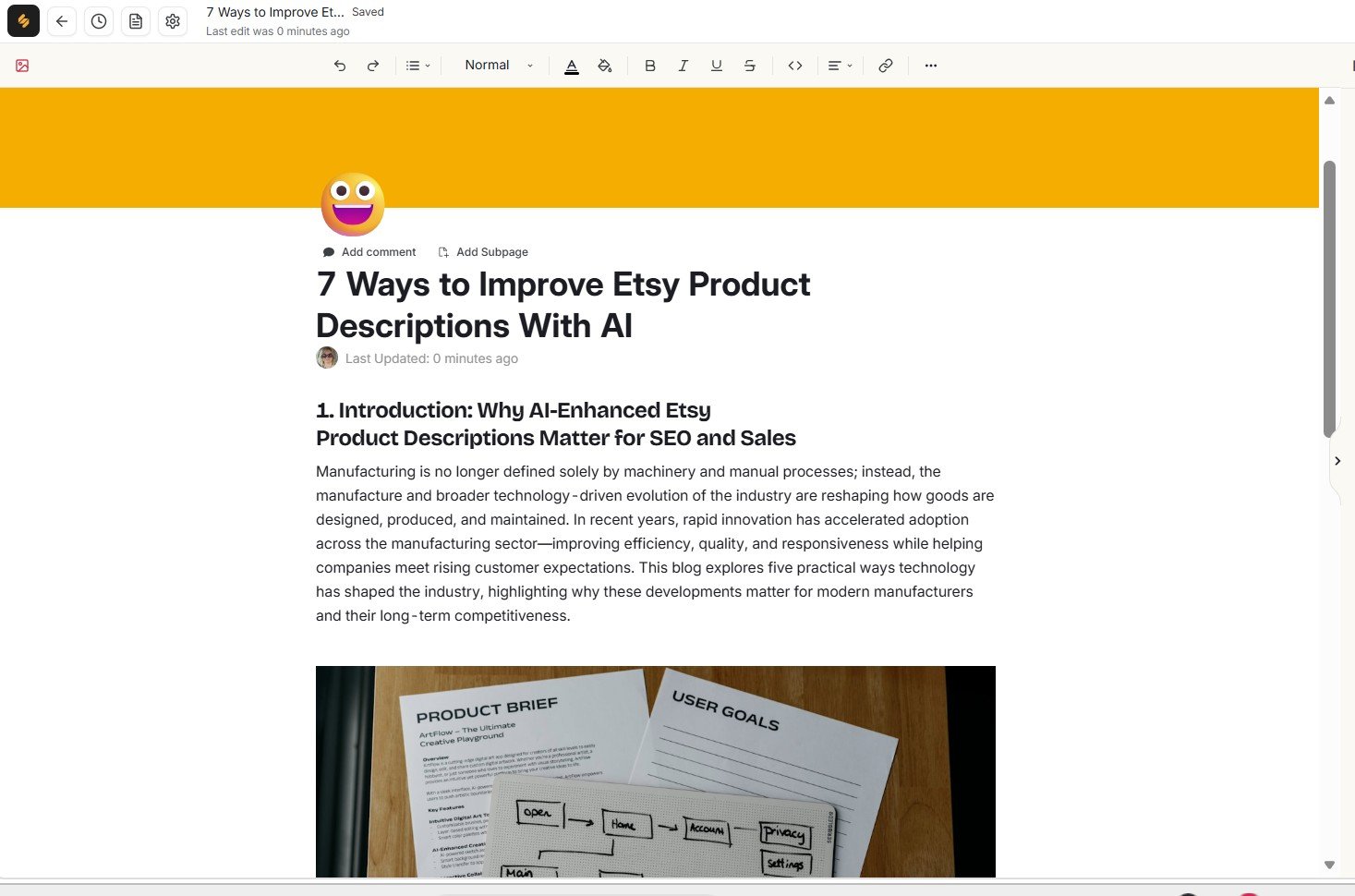
A structured document can look finished even when major parts are missing. Check every heading and make sure there is actual content underneath it.
I also found a relevance problem in this article. Part of the Etsy article discussed manufacturing and technology instead of staying focused on product descriptions.
That is why the next check is just as important.
Open Page Settings and check the word count
Page Settings gives you a quick way to confirm whether the document contains roughly as much text as its structure suggests.
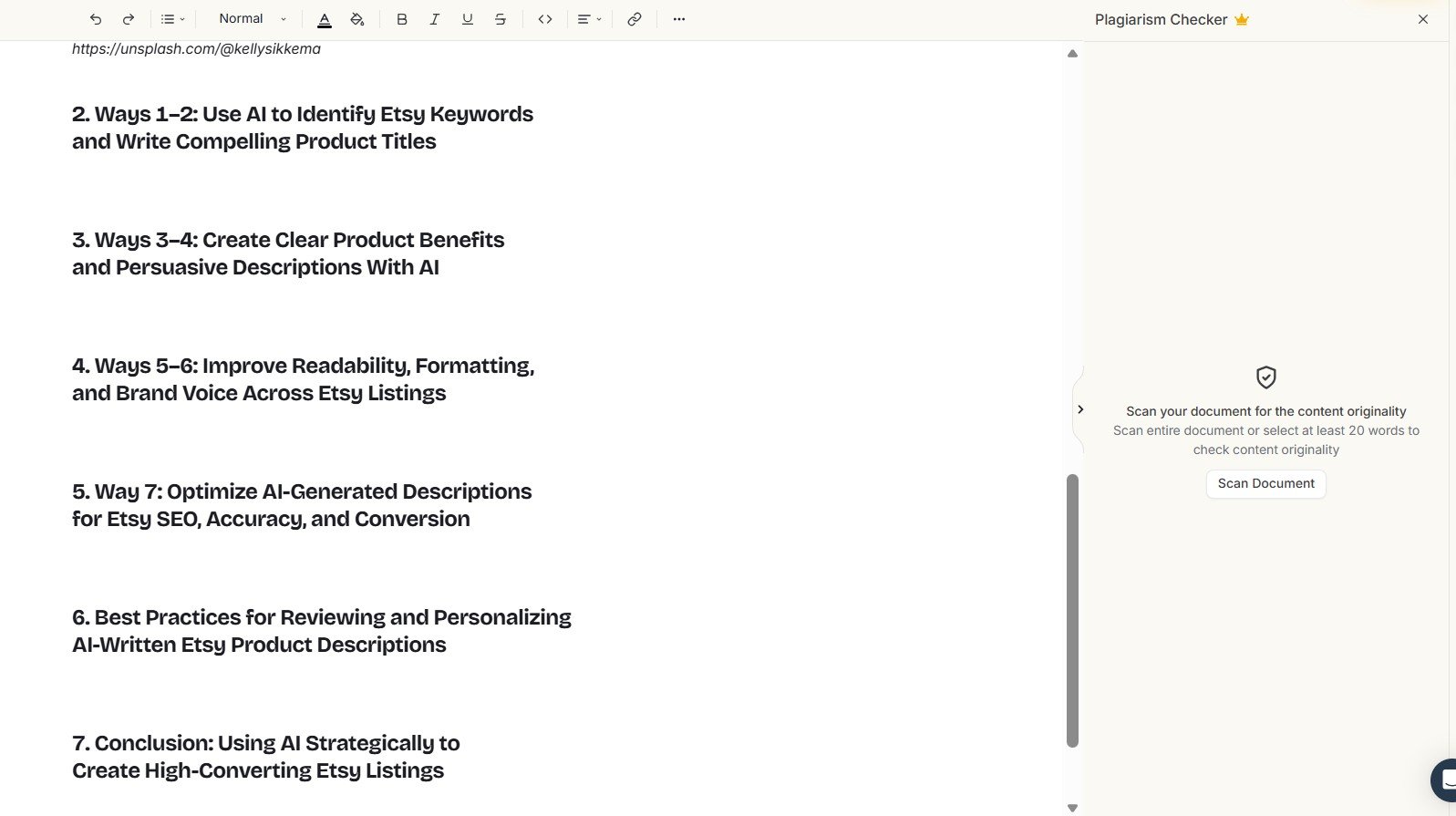
That number confirmed what I saw in the editor: this was not simply a concise article. The planned sections existed, but much of their body content was missing.
Word count alone does not tell you whether an article is good. But a surprisingly low count can alert you to missing content, especially when the document has many visible headings.
I repeated the Instant Blog test with a second topic. That document again had missing section paragraphs and showed only 165 words.
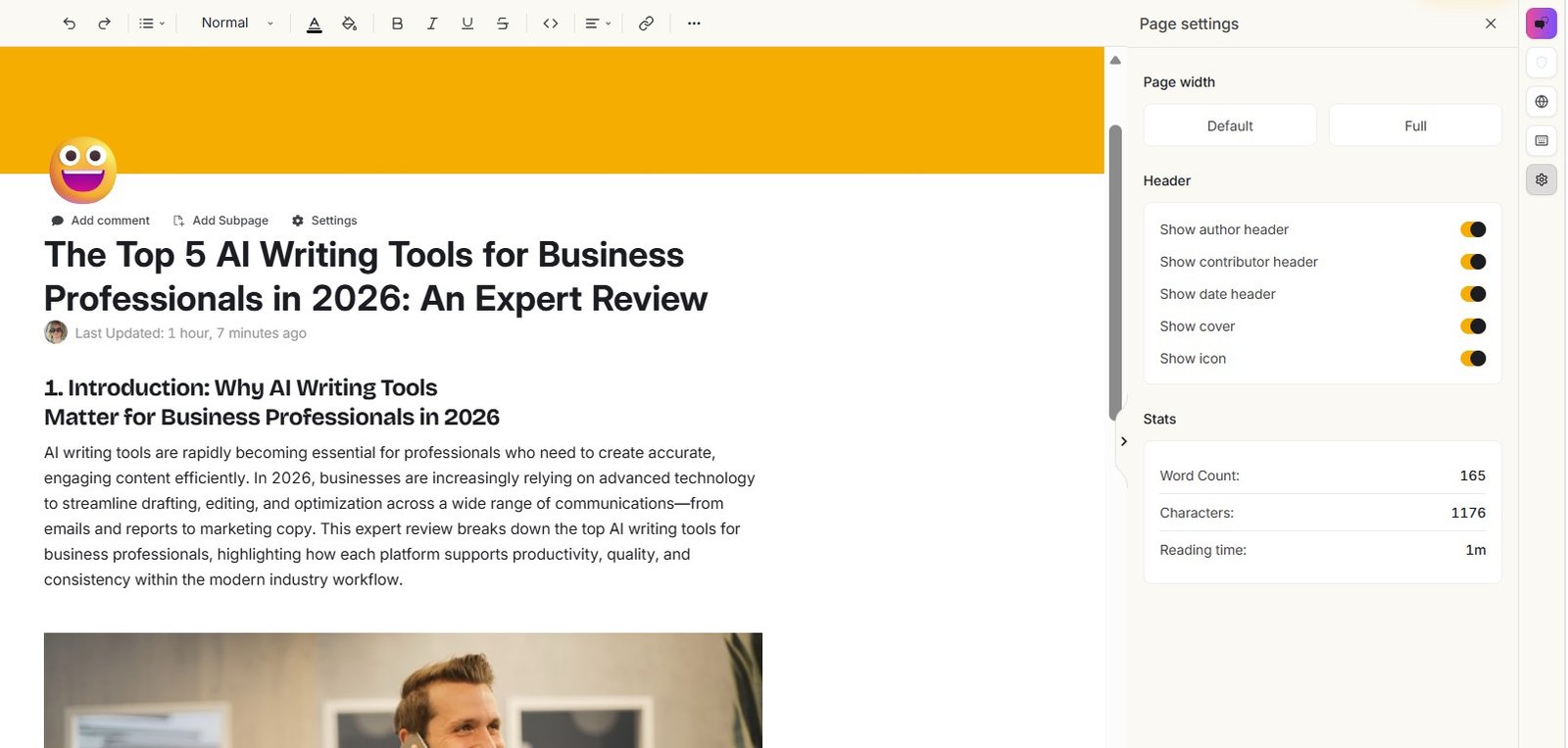
If you want to see both tests in full, including the missing sections and relevance issue, read my Simplified AI Writer review .
Edit the article only after checking completeness and relevance
Once you know the document is complete enough to work with, start editing. Do not treat AI text as the final version.
What to improve
- Add specific examples
- Remove generic filler
- Check facts and claims
- Improve weak headings
- Add original screenshots or tests
- Make sure every section answers the reader’s problem
What not to do
- Publish the first AI output immediately
- Assume every heading has body text
- Trust unrelated facts without checking
- Keep generic AI wording because it sounds polished
- Optimize SEO before confirming the article is useful
Use Simplified SEO Settings for the title and meta description
Simplified Docs includes SEO Settings with fields for a meta title, meta description and a search-result preview.
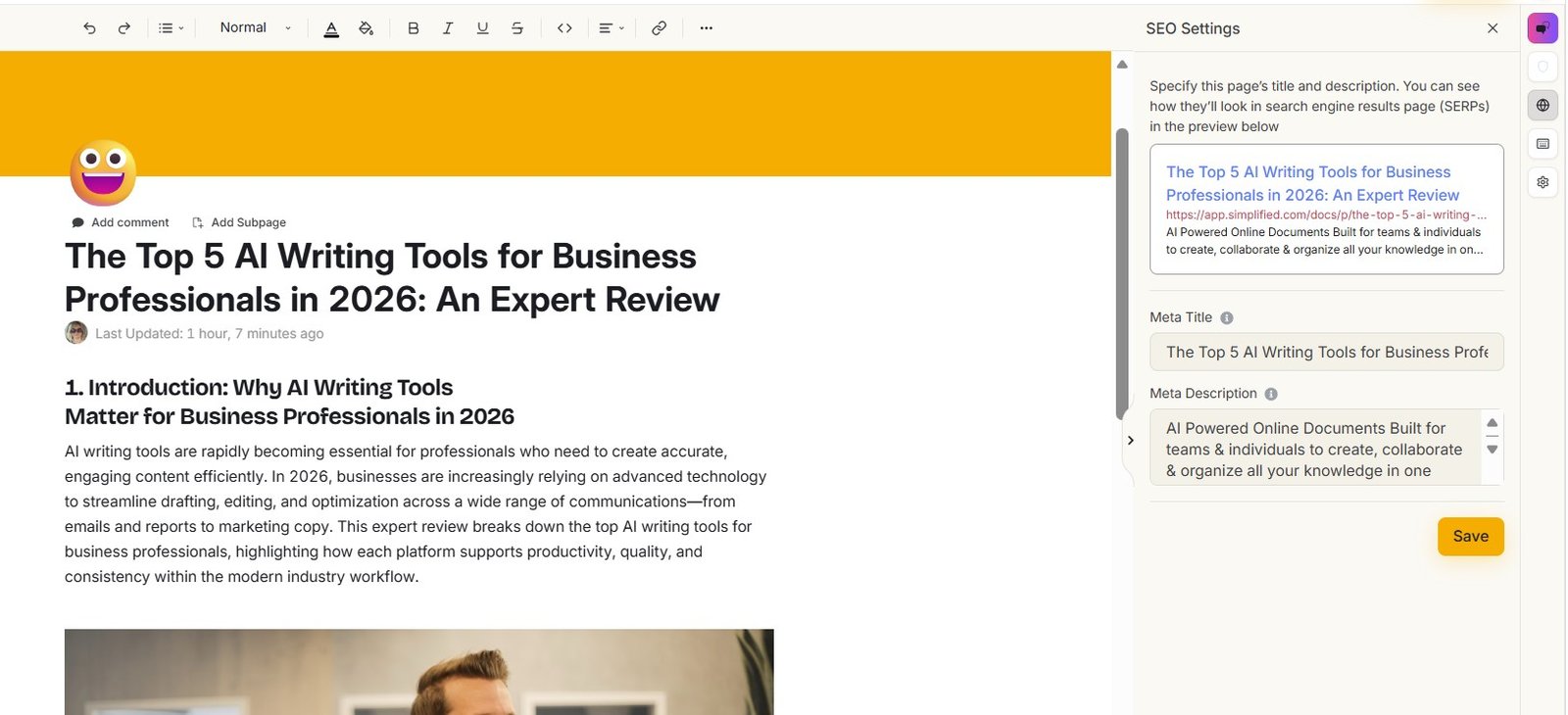
Write the article for the reader first. Then create a clear title and meta description that accurately describe what the page contains. A good meta description cannot rescue an incomplete or irrelevant article.
Use Riley for help — but give it the context it needs
Riley can help with writing, ideas, social content and other tasks. But do not assume it automatically sees everything already open inside Simplified.
I asked Riley to complete missing paragraphs in an article that was open in Simplified Docs.
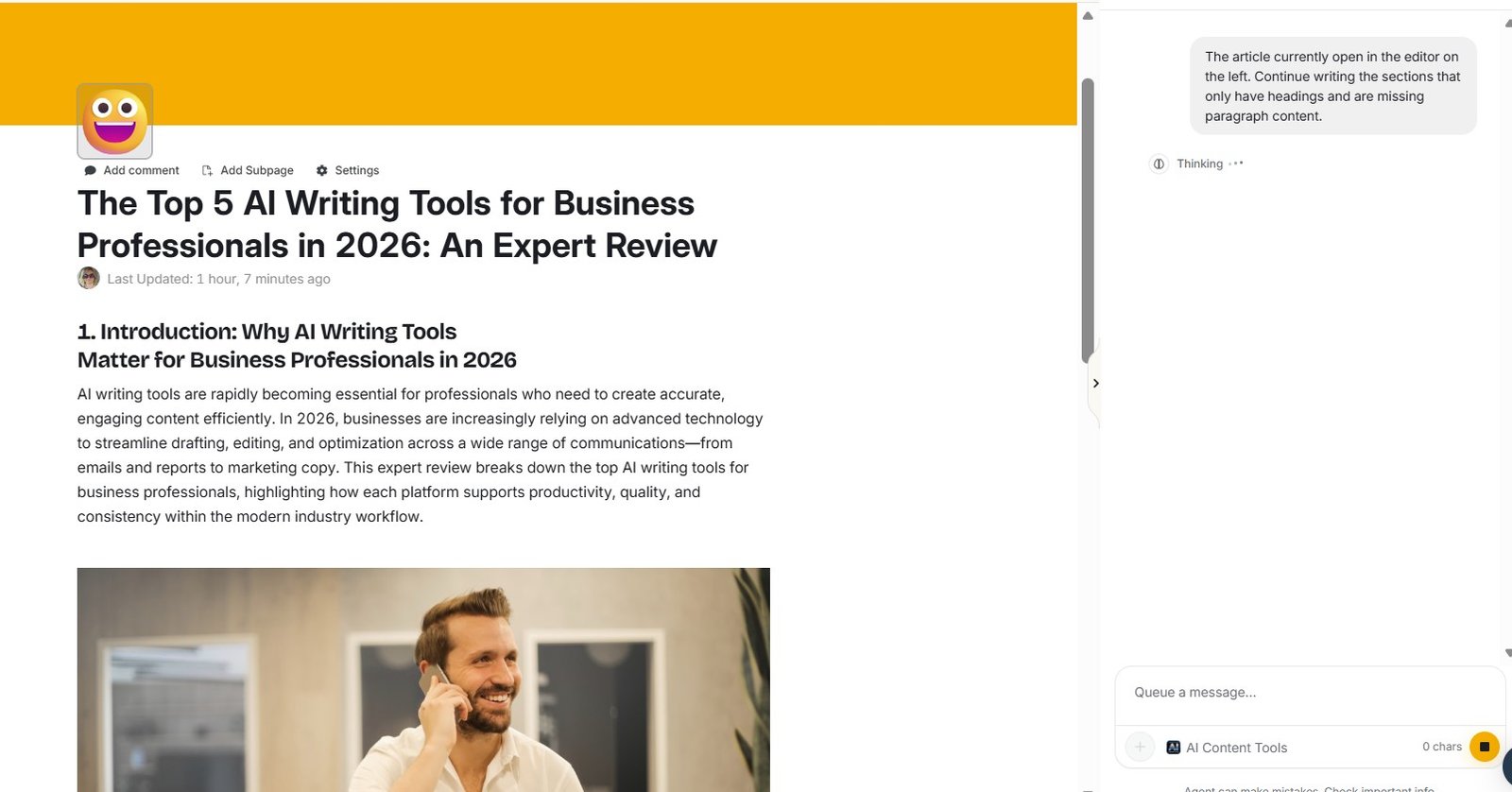
Riley then asked me to provide the article text.
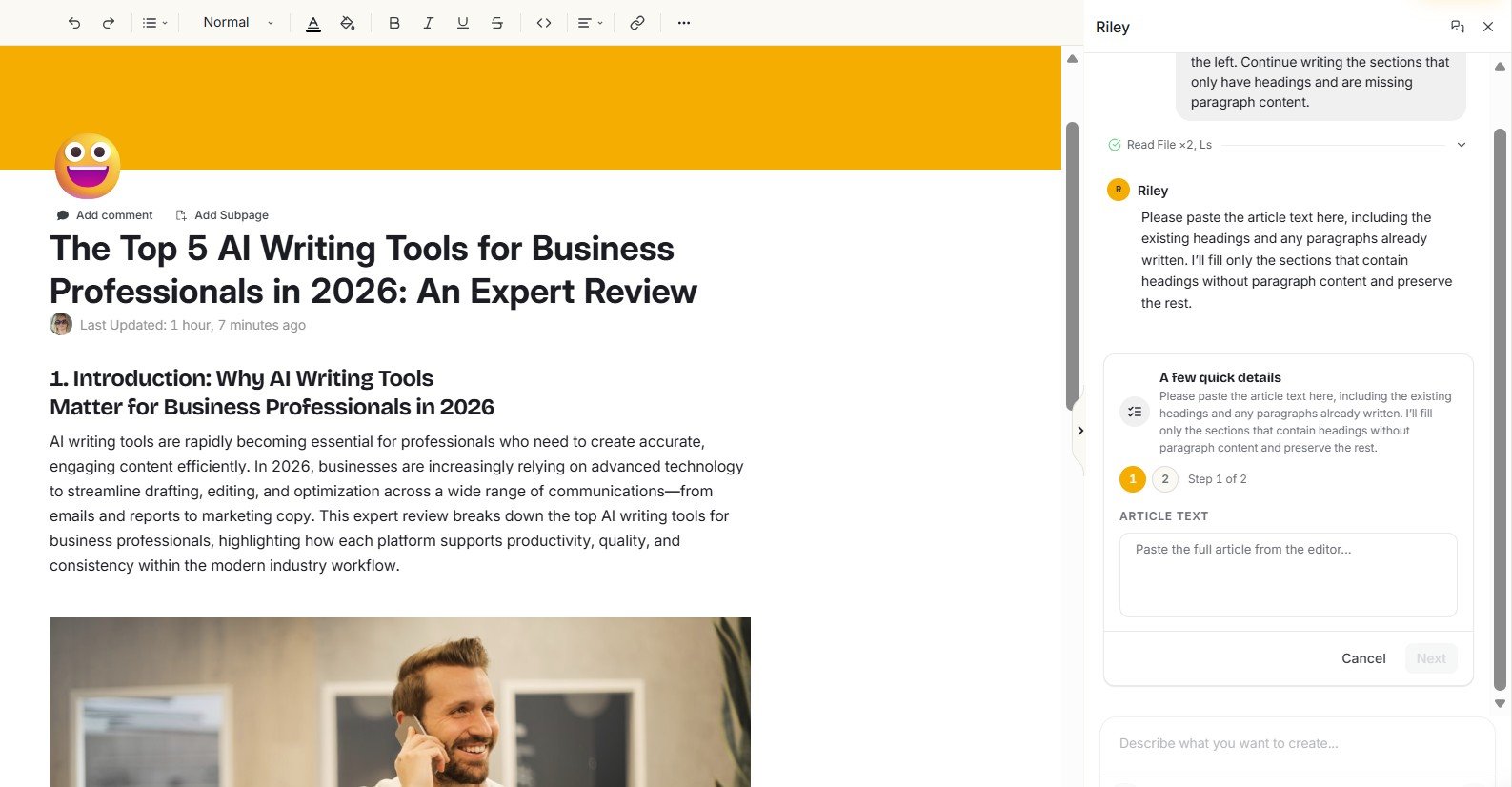
It then explained that it could not see the article content in the editor.
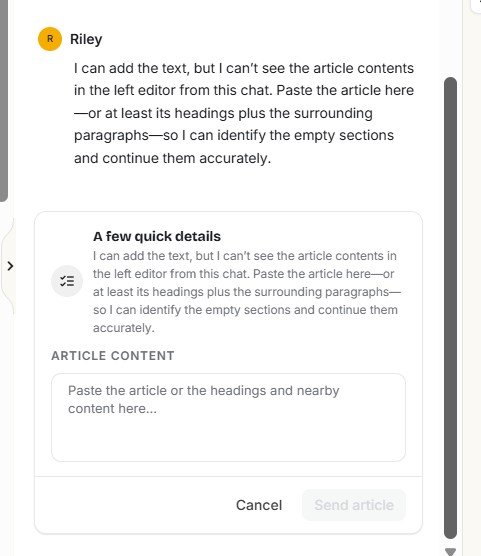
If Riley seems confused about the current document, paste the exact text or clearly provide the section you want it to work on. Do not assume visual proximity in the interface means automatic context sharing.
Riley can do much more than article editing. I tested it separately with research, LinkedIn content, brand context and multi-step workflows. See my Simplified Riley review for the full results.
Optional: create social media content from the same workspace
Simplified becomes more interesting if you also need social content and publishing. This is where its all-in-one approach starts to save more steps.
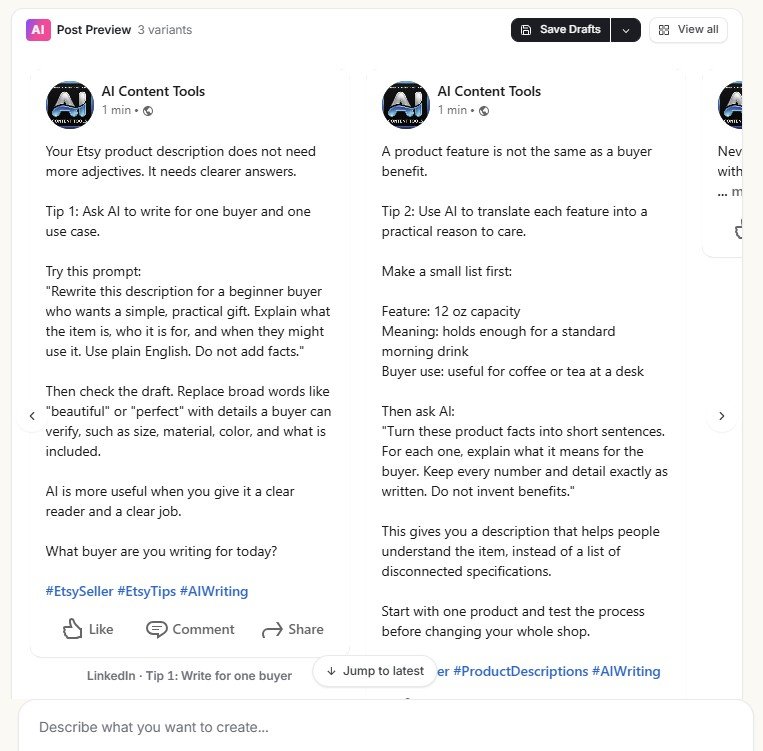
I tested a practical prompt for beginner Etsy sellers about improving product descriptions with AI.
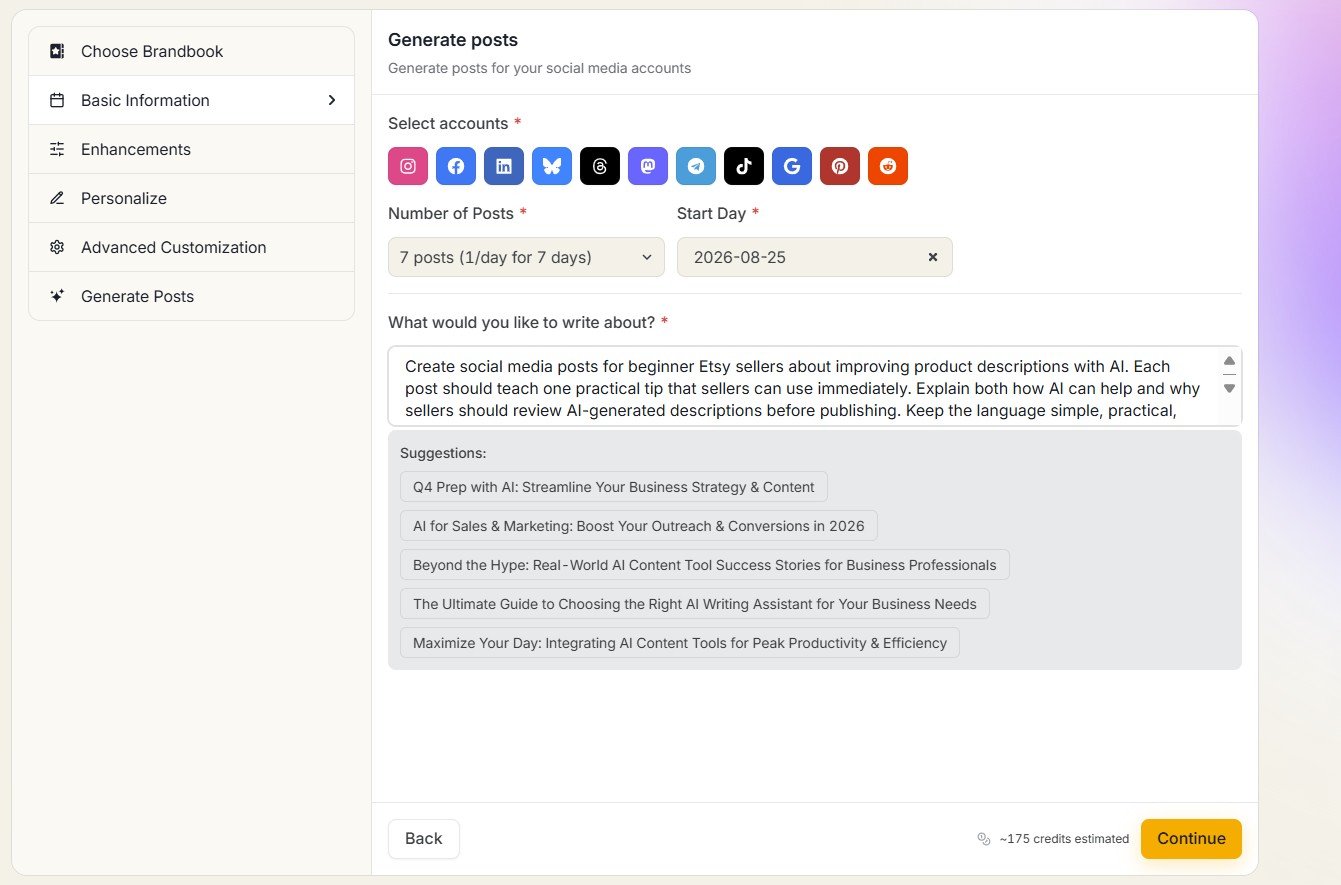
Riley later generated three LinkedIn post variants from the same general theme.
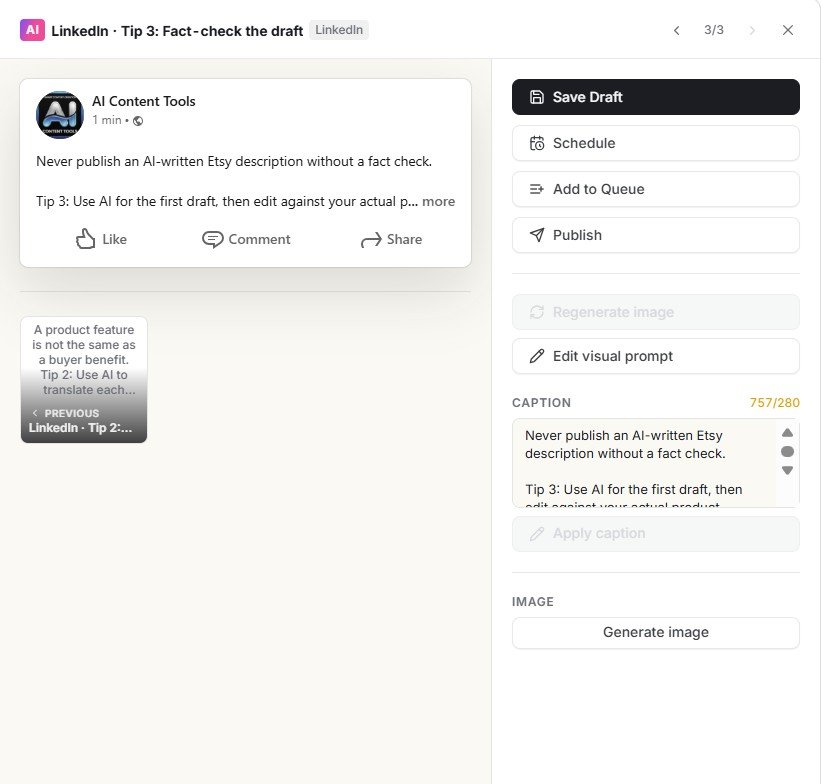
Save, schedule, queue or publish your social post
The finished post can move into Simplified’s social workbench. In my test, the interface included Save Draft, Schedule, Queue and Publish options.
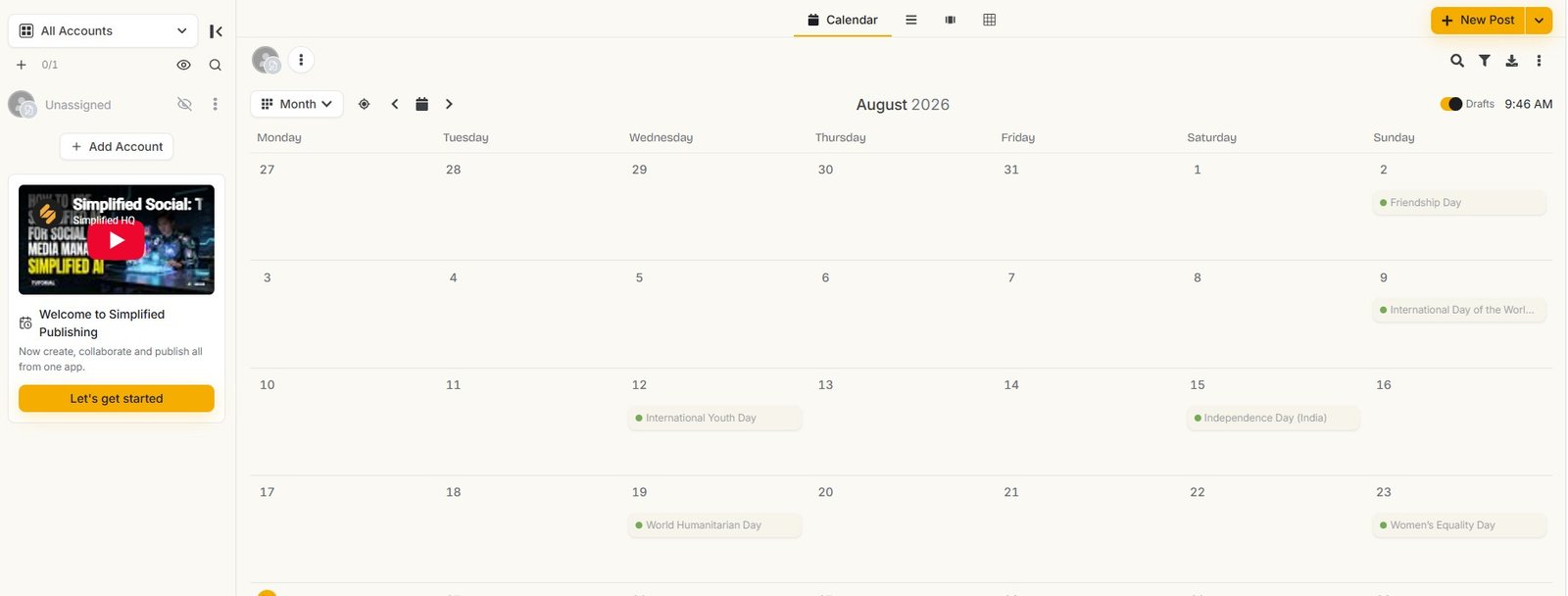
Simplified also has a publishing calendar for organizing scheduled content.
If social publishing is an important part of your workflow, see my full Simplified Social Media review .
A simple beginner workflow I recommend
You do not need to use every feature in Simplified. If I were starting from zero today, I would use this sequence:
| Stage | What to do | What to check |
|---|---|---|
| Brand setup | Add website, audience and business context | Verify Brand Brain facts manually |
| Article setup | Choose Brandbook, language, tone and topic | Make the topic specific |
| Generation | Create the first draft | Do not judge only the introduction |
| Quality check | Scroll every section and open Page Settings | Missing paragraphs, relevance and word count |
| Editing | Add examples, facts and original observations | Remove generic AI language |
| SEO | Add title and meta description | Make them match the actual content |
| Repurposing | Create social posts or other assets | Edit each format for the real audience |
What should a beginner explore next?
Want to know if Simplified is worth using overall?
See the strengths, failed tests, social workflow, Brand Brain, Automations and overall verdict.
Read the full Simplified Review →Want to create long-form content?
See my two Instant Blog tests, missing sections, word counts and article quality findings.
Read the Simplified AI Writer Review →Want to use Riley?
See how Riley handled research, writing, LinkedIn posts and document context.
Read the Simplified Riley Review →Want to build consistent brand context?
See my real website test, 403 issue, Brand Brain settings and brand-analysis limitation.
Read the Brand Brain Review →Want social scheduling and publishing?
Follow my real workflow from prompt to LinkedIn drafts, scheduling and calendar.
Read the Social Media Review →Interested in AI automations?
I tested two Simplified automation templates and both returned null outputs.
Read the Automations Review →Try Simplified with one real content task
Start with something you already understand well. That makes it easier to notice when the AI misses information, produces incomplete content or gets the context wrong.
Try SimplifiedAffiliate disclosure: this is an affiliate link. If you sign up through it, AIContent-Tools may earn a commission at no extra cost to you. This does not affect the tutorial, screenshots or test results shown on this page.
My advice for using Simplified as a beginner
Learn one workflow first — and check the AI result before trusting the interface.
Simplified can look overwhelming because it includes writing, Riley, Brand Brain, social media, images, video, automations and many smaller tools.
You do not need to learn all of them.
Start by giving Simplified accurate brand context. Then choose one real content task, such as a blog article. Generate the draft, scroll through every section, check the word count, verify the topic and only then start editing.
This checking step matters. In my own testing, two Instant Blog generations contained missing paragraph sections. The first showed only 161 words and the second 165 words. A polished editor and visible headings did not mean the articles were complete.
Riley can help with additional tasks, but it also needs clear context. During one test it could not automatically see the article already open in Simplified Docs.
Social media was more convincing because the AI content could continue into a real workflow with editing, Save Draft, Schedule, Queue and Publish controls.
The best way to learn Simplified is not to explore every button. Use one real task from beginning to end, check what worked, notice what failed and then add more parts of the platform only when they solve a real problem for you.
Frequently asked questions
Is Simplified easy for beginners?
Individual workflows are fairly easy to understand, but the platform contains many different tools. I recommend learning one workflow at a time instead of trying to understand the whole dashboard immediately.
What should I do first in Simplified?
Set up your business context and review your Brand Brain. Then choose one real task, such as creating a blog article or social post.
How do I create a blog post in Simplified?
Open the Blogs & Articles section, choose a blog workflow, select your Brandbook and writing settings, enter a specific topic and generate the draft. After generation, inspect every section and check Page Settings before editing.
Should I publish a Simplified AI article without editing?
No. I recommend checking completeness, relevance, facts, examples and wording first. In my tests, two Instant Blog articles contained missing body paragraphs.
Can Riley edit my Simplified article?
Riley can help with writing tasks, but during my test it said it could not see the contents of the article already open in the editor. I had to provide the relevant text manually.
Does Simplified have SEO settings?
Yes. Simplified Docs included SEO fields for a meta title and meta description plus a search-result preview in my test.
Can Simplified schedule social posts?
The social workbench I tested included Save Draft, Schedule, Queue and Publish options. Simplified also includes a publishing calendar.
Do I need to use every Simplified feature?
No. Most beginners will get more value by learning two or three workflows that match their real needs instead of trying every available generator and template.
Testing note: This tutorial is based on my hands-on Simplified testing in August 2026. The screenshots document the interface and results I saw during those tests. Simplified can change its interface, AI behavior, plans and available features over time.