This guide is a full, practical look at resume.io in March 2026. It covers what the tool is, what you get inside the dashboard, what each menu item does, and how to build a resume from scratch (plus a matching cover letter).
You can use resume.io as a classic resume builder (templates + editor), but it’s also positioned as a bigger “career toolbox” with job search, job tracking, interview practice, and more tools under the same account.
What resume.io is and what you get today
resume.io is an online resume and cover letter builder with an editor that walks you through common resume sections (personal details, summary, work history, education, skills, and optional sections). It also includes customization tools like template switching, theme colors, and line spacing.
A key “current” change is the sign-up flow: resume.io says you can start building right after choosing a template without creating an account first, so you can test templates and preview the resume before you commit to sign-up.
On the “career platform” side, the dashboard includes Job Search (a job board), a Job Tracker board, and additional tools such as Interview Prep, Career Assessment, and Salary Analyzer (availability can depend on plan/region).
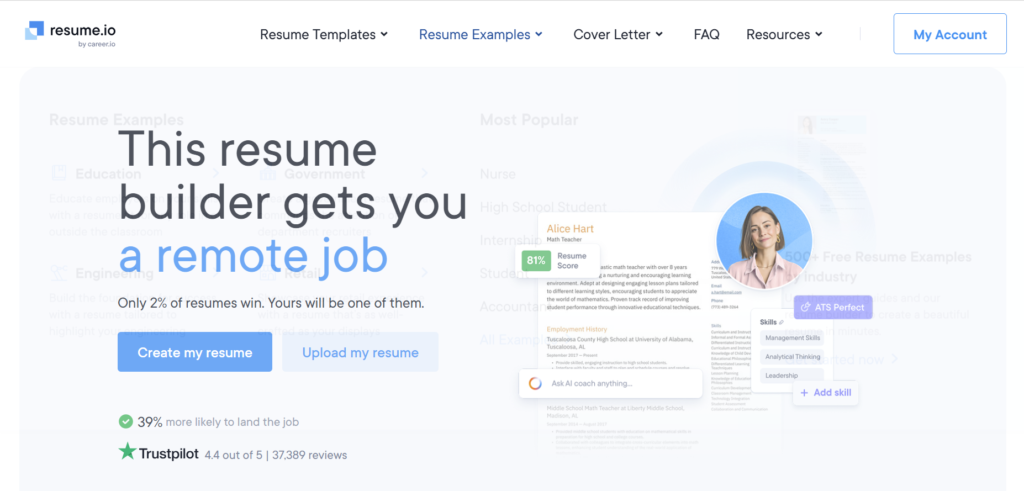
In terms of scale and social proof, the company page states over 62 million resumes created, 20 languages supported, and a 4.2/5 rating based on 55,345 reviews on Trustpilot (as displayed on resume.io’s site).
Who this tool is for
resume.io is a strong fit if you want a clean resume fast, and you like guided structure. The help center and builder workflow are designed around standard recruiter-friendly sections, with templates you can swap at any time.
It’s also a good fit if you want more than a document editor. The platform connects resume building with job search tools (job board, tracking columns, and optional services like Auto Apply / Resume Distribution).
It may be a weaker fit if you only want a one-time PDF download and you don’t want a subscription workflow. resume.io’s own plan pages explain that premium access is tied to an ongoing subscription (trial → auto-renew unless canceled), and exporting formats/sharing features are restricted by plan.
Menu and dashboard tour
This section is the “map.” If you open resume.io today, you will usually interact with three layers: the public website navigation, the documents dashboard, and the editor itself.
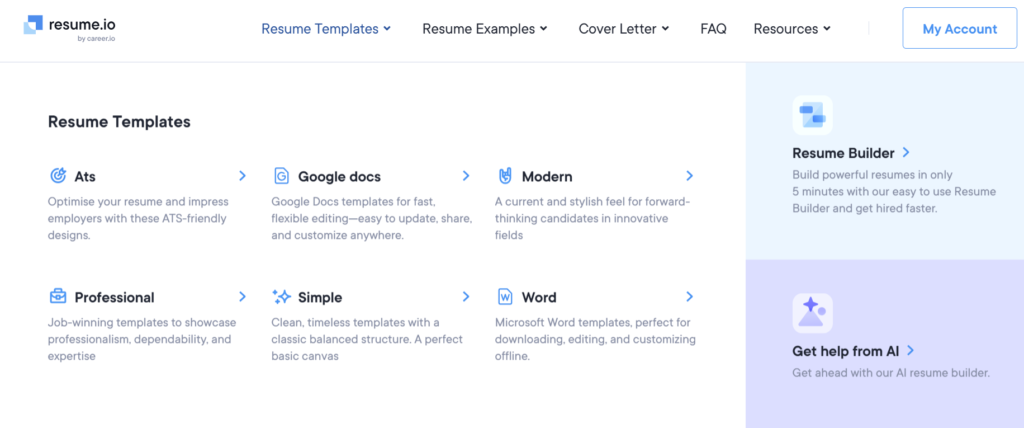
Website navigation
On the public site, the main navigation is organized like this:
- Resume: “AI Resume builder,” “ATS Scorer,” “Resume examples,” “Resume templates”
- Cover Letter: examples and templates
- Job seekers: Job Search
- Resources: Blog + guidance categories (Resume Help, Job Interview, Career, Writing a Resume, Writing a Cover Letter)
- Company/support links in the footer: About, Pricing, Updates, FAQ, Contact, Terms/Privacy, etc.
Documents dashboard
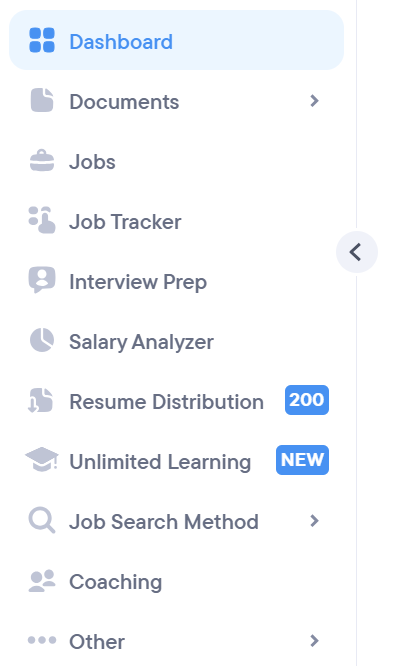
Inside your account, resume.io refers to a “documents dashboard” where you manage files and versions (resumes and cover letters). From official help articles, this dashboard supports actions such as duplicating and renaming documents, and combining writing from two documents into one.
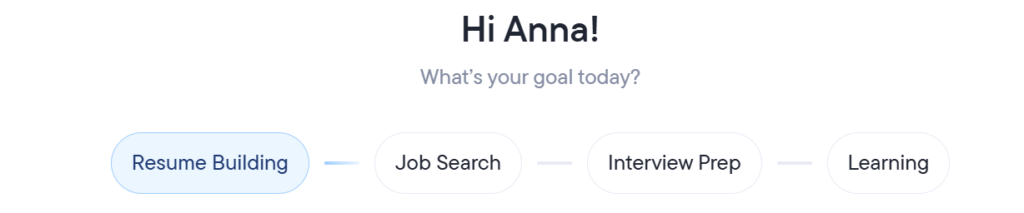
This is also where some “smart” features live. For example, resume.io describes a “tailor to the job listing” feature that you can access from the dashboard (and it can create an auto-tailored version saved as a new tab in the documents panel).
Resume editor layout and controls
Inside the editor, there are several important control areas mentioned across the help center and product updates:
- Left-side section list: you can add custom sections at the bottom, and you can reorder/rename/delete sections using icons and drag handles.
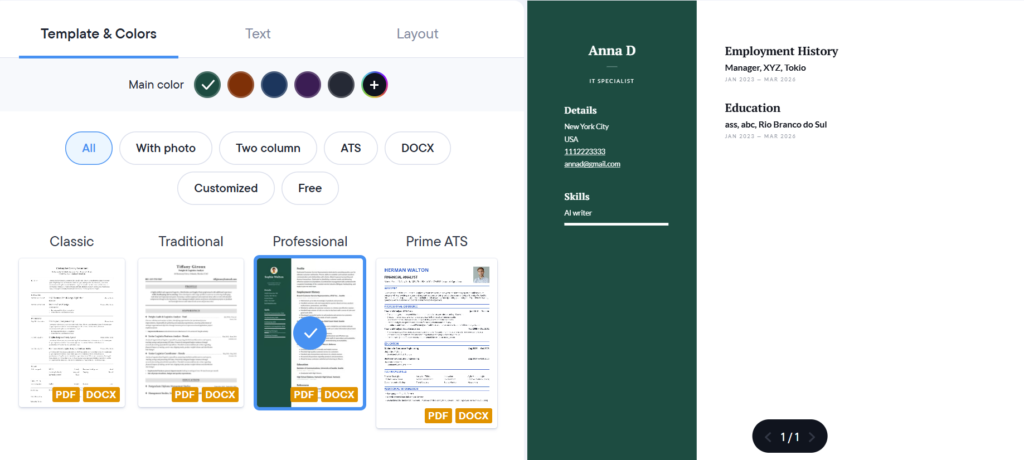
- Template selector: the help center describes “Select template” above the preview area, plus theme colors and line spacing controls.
- Recommendations / “improve resume” panel: resume.io updates describe a progress bar in the top-left of the builder and an “improve resume” drop-down that groups tools such as summary writer, keyword suggestions, and cover letter generator in one place (to boost a completeness score).
- Download and share: the help center describes a “Download PDF” button in the top right, plus a three-dot menu for export options (DOCX/TXT) and sharing a link (plan-dependent).
A limitation that matters for many users: the help center states you cannot freely change font styles inside a template; the workaround is to switch templates (templates use different font styles).
Career tools menu
resume.io links its wider “career tools” to a “Services” menu in the dashboard (top-left), and it states premium users can access tools and resources from the same dashboard.
The help center explicitly documents tools such as Job Search, Job Tracker, Interview Prep, Career Assessment, and Salary Analyzer.
Key features that matter most
resume.io has many features, but most users care about five outcomes: creating a clean resume quickly, tailoring it to a job, passing ATS scans, exporting it correctly, and staying organized during a job search. These features map directly to those outcomes.
Templates, customization, and structure
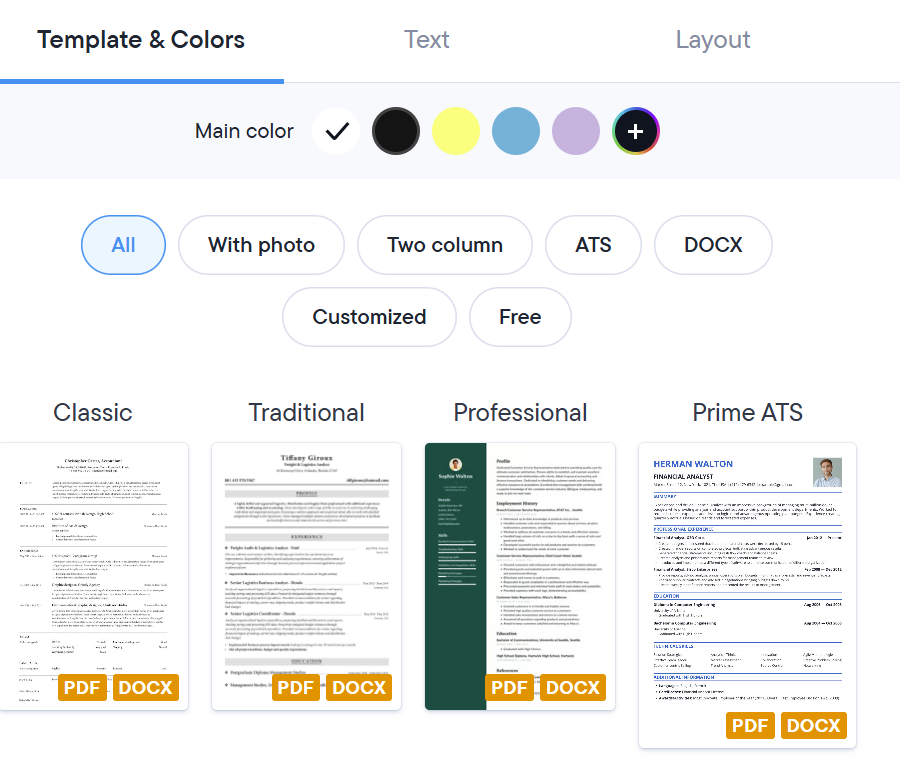
resume.io’s resume creation guide describes 30+ templates grouped into categories such as modern, creative, professional, simple, and ATS-friendly, and you can change templates during the process.
Customization includes theme colors (including a color picker), line spacing, skill bars (toggle on/off for skills and languages), adding/removing/reordering sections, and adding custom sections.
Writing help and “AI” support
The help center describes AI-generated sample sentences by job title, skills suggestions, and word-count suggestions under key areas (summary and employment history).
On the product side, resume.io updates describe AI tools inside the recommendations panel such as a summary writer and keyword suggestions, plus a cover letter generator.
Tailoring your resume to a job post
resume.io updates describe a “one-click customization” approach: paste a job link and the tool analyzes it for keywords and relevant information, then offers suggested changes you can accept (or selectively deselect).
ATS scoring and resume checking
The ATS resume checker page describes a free checker that runs multiple checks, produces a score, and can “job-match” your resume by comparing it to a pasted job description with improvement steps.
Exports, sharing, and versioning
Export is a common pain point with resume builders, so the details matter:
- From the editor: “Download PDF” in the top right, plus a three-dot menu that can show options like DOCX/TXT export and sharing a link.
- DOCX availability: the help center lists specific templates compatible with DOCX (for example Stockholm, New York, Sydney, Dublin, plus ATS templates like Athens, Brussels, Prague, Shanghai).
- Sharing analytics: the help center says link sharing includes a “statistics tab” where you can track views/downloads and view history (premium feature).
- Version control: the dashboard supports duplicating and renaming resumes for different applications.
Job search and tracking
resume.io’s Job Search help article describes a job board that aggregates more than 12 million positions, with a “Recommended Jobs” view and a search view; you can click “Apply” to go to the original posting or “Save Job” to return later.
The Job Tracker help article describes a board with columns like Recommended, Shortlist, Applied, Interview, Offer, and Rejected, plus drag-and-drop movement between columns and a sidebar for job details (location, salary, notes, and attaching documents).
Auto Apply and resume distribution services
If you see “Auto Apply” or “Resume Distribution” in the dashboard: these are more than templates. resume.io updates describe Auto Apply as matching you to jobs, customizing applications, and submitting them on your behalf; Resume Distribution sends your resume directly to hiring managers/recruiters (with weekly or monthly reach depending on plan).
The help center adds operational details: Auto-Apply has credits, is processed in a stated timeframe, and has rules about cover letters (auto-generated by default, with a limited window to attach a custom cover letter to a job card).
How to build a resume from scratch in resume.io
Below is a start-to-finish workflow built from resume.io’s own “create a resume” steps, plus the key editor controls and current updates (recommendations panel, auto-tailoring).
- Start with a template (or upload an old resume)
You can begin by choosing a template and going straight into the builder (no account required upfront, per resume.io updates). If you already have a resume, resume.io also says you can upload it from the homepage and quickly format it into a new template, then improve it using AI tools. - Add personal details first
The official resume creation guide says to fill the top-left personal detail boxes (name, job title, email, phone), plus location details that match your target country. It also notes that adding a photo depends on country norms (for example: not recommended in the U.S., Canada, and the UK). - Add links that support your story
resume.io specifically recommends adding an up-to-date LinkedIn profile link, and a portfolio link if your work benefits from samples. - Write a short summary (then refine it)
The guide recommends a short professional summary (about a few lines) to make a strong first impression. If you get stuck, resume.io describes AI sample sentences and a resume-examples library, and updates describe a summary writer in the recommendations panel. - Add employment history in reverse order
resume.io’s official steps say to list roles from most recent to oldest, include basics (company, title, dates, location), and focus on relevant experience (it references the last 10 years as a common window). It also recommends 4–5 bullet points per role with action verbs and measurable results. - Add education with the right level of detail
The guide recommends listing education from most recent backward, trimming older details as you progress in your career, and using education bullets mainly for students/recent grads when it adds value. - Build a job-matched skills section
resume.io’s guide warns that ATS tools pay close attention to skills, so you should tailor skills to the job description. The builder also offers skills suggestions to help you add relevant items faster. - Add special sections only when they help you
The editor offers extra sections at the bottom, and the guide gives examples: references or extra-curriculars for students, courses or internships if relevant, hobbies in regions where that’s expected, and languages (with proficiency level support). If you need something specific (awards, publications), you can add a custom section and rename it. - Reorder sections so the best content appears first
resume.io explains you can drag section handles to reorder, use a pencil icon to rename, and a bin icon to delete entries. This is one of the fastest ways to “customize” for different roles without rewriting everything. - Use “improve resume” to tighten the resume for a real vacancy
resume.io updates describe a progress bar and an “improve resume” drop-down in the top-left of the builder that collects tools such as keyword suggestions and summary support, and boosts a completeness score. - Tailor to a job post (fast)
If you are applying to a specific job, resume.io updates describe pasting a job link to generate suggested edits based on keywords and job-relevant information. It can save an auto-tailored version in a new tab in the documents panel so you can keep multiple job-specific versions. - Run an ATS check before exporting
The ATS checker is designed to score your resume and offer action steps; it also supports comparing against a job description for job-match feedback. - Adjust the design carefully
You can switch templates, pick theme colors (including custom colors), and change line spacing. But the help center states you cannot freely change font styles inside a template, so if you dislike the font, switch templates. - Create a matching cover letter
resume.io’s cover letter builder is designed as a guided process: choose a template, add personal info, fill sections, customize the layout, then download (PDF is highlighted as a format that preserves layout). - Export or share the final version
The help center describes the “Download PDF” button and the three-dot menu for options like DOCX/TXT export and link sharing (depending on plan). If you share a link, you can view stats (views/downloads) in a statistics tab. - Duplicate and rename for each application
resume.io supports duplicating and renaming documents so you can keep clean versions for each employer and avoid overwriting your “base” resume.
Pricing, free plan limits, and cancellation details
As displayed on the pricing page in March 2026, resume.io shows:
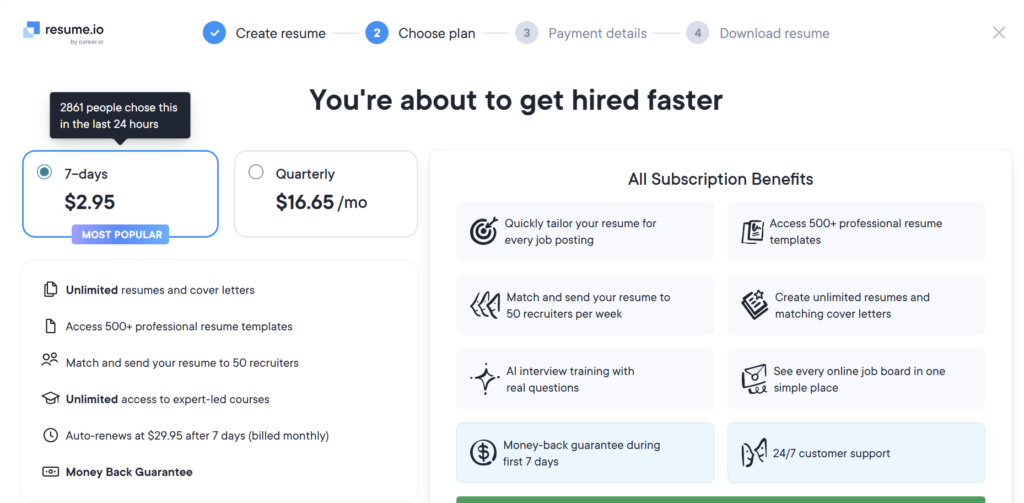
- a 7-day trial for $2.95, then auto-renewing to $29.95 billed every 4 weeks unless canceled, and
- a Quarterly plan shown as $49.95 billed every 3 months, also auto-renewing.
The same pricing page shows a free plan limited to one resume and one cover letter, with downloads only in TXT format, and limited sharing/analytics.
resume.io also states there is a 7-day money back guarantee, and the trial is described as having “full access” during the trial window (with auto-subscription after the trial if you don’t cancel).
On billing infrastructure, the pricing page says payments are processed with Stripe (SSL secure checkout), and a separate billing FAQ explains you may see Adyen or “Resume.io/billing” in statements due to centralized international billing.
For cancellation, resume.io provides a cancellation page that asks for the email used at registration and describes canceling through that flow.