I wrote the text myself, then asked Rytr to help only where I needed it
A lot of AI writing tests start with a blank page. You give the AI a prompt, click Generate, and judge whatever comes back.
That is not always how I want to use AI.
Sometimes I already know what I want to say. I only need help with one paragraph, a transition, a rewrite, or a section where I am stuck.
So I tested Rytr in a different way: I wrote my own text first, placed the cursor where I wanted more content, and asked Rytr to insert one paragraph inside the existing draft.
Why I tested Rytr this way
The most useful AI workflow is not always “AI writes everything.” For bloggers and freelancers, it can be much better to keep control of the draft and bring AI in only when it solves a specific problem.
I write
I start the article in my own words and decide what I actually want to say.
I find a gap
I stop at a point where another explanation or transition could help.
AI helps
I ask Rytr to add only that missing piece instead of generating the whole article.
I edit
I decide what to keep, shorten, rewrite, or remove before publishing.
What the Rytr document editor looks like
Rytr’s editor is simple. That was one of the things I liked about the platform during the full test.
The main screen keeps the writing controls on one side and the document on the other. I did not need much time to understand where things were.
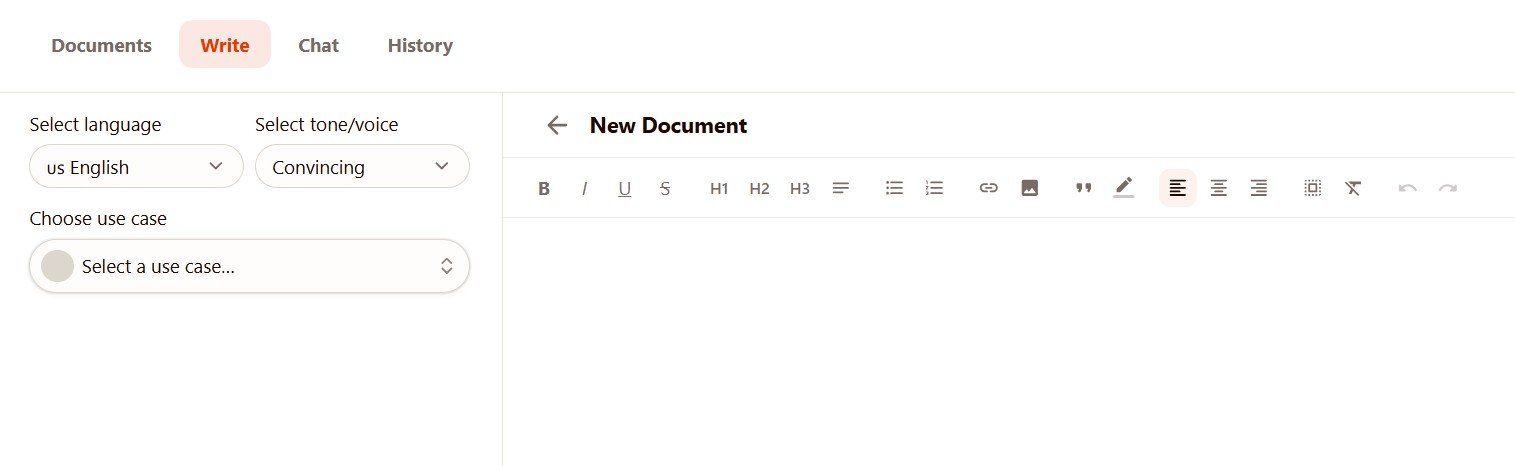
This simplicity has two sides.
Easy to understand
I rarely had to search for a feature or wonder what to click next.
Good for beginners
The editor feels closer to a normal writing document than a complicated AI workspace.
Not a full AI canvas
It does not feel as flexible as a larger creative workspace where you can combine many different AI tasks on one canvas.
Test 1: I started with my own writing
No full AI-generated draft.
I manually wrote a short section about AI writing tools.
I have been testing several AI writing tools to see how useful they are for beginners. One thing I noticed is that a long list of features does not always make a tool easier to use.
Rytr takes a simpler approach. The main writing area is easy to understand, and you can choose a use case depending on what you want to create.
This simple workflow can be useful when you need a quick first draft. However, I would still check and edit the generated text before publishing it.
This is important because the text already had a direction, tone, and structure before Rytr touched it.
I was not asking the AI what the article should be about. I only wanted help explaining why the simple interface may be useful for a beginner.
Test 2: I opened AI inside the document
I asked Rytr to add content at one specific point.
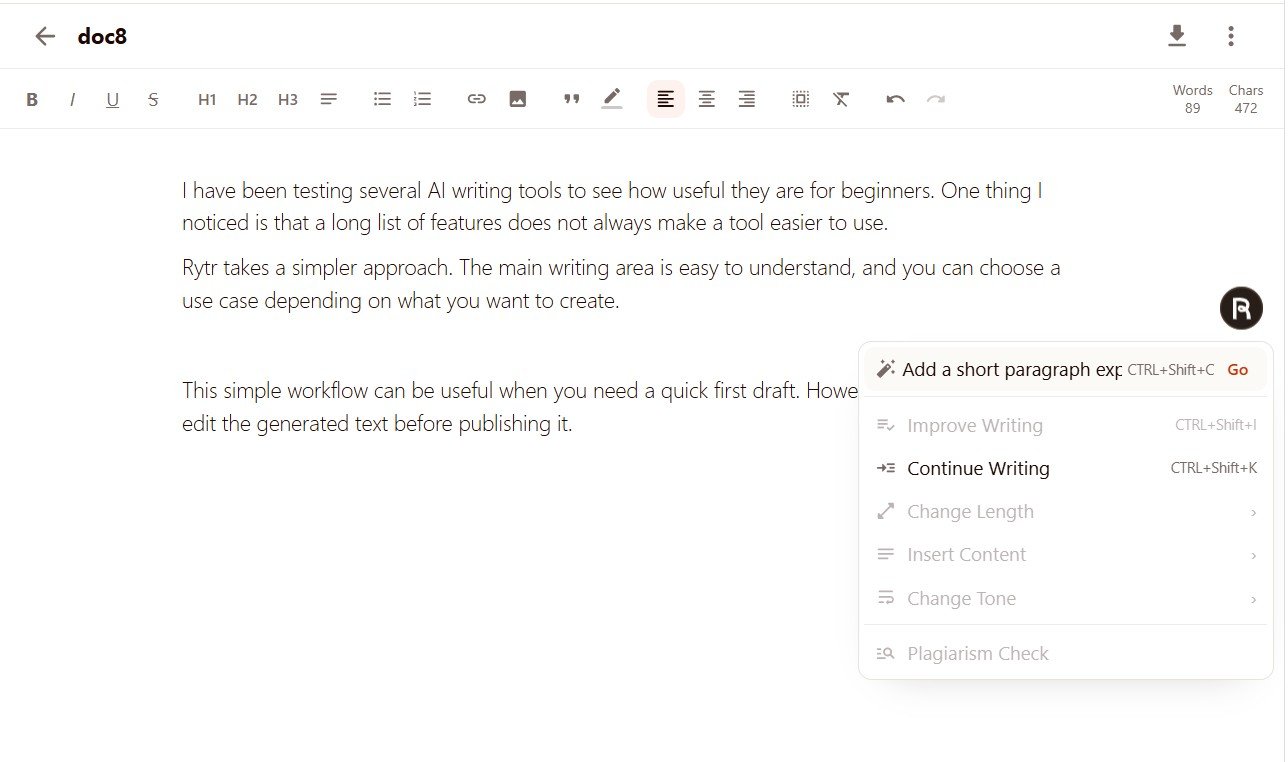
This screenshot also shows several editing actions available from inside the document, including options such as:
Test 3: Rytr inserted the paragraph
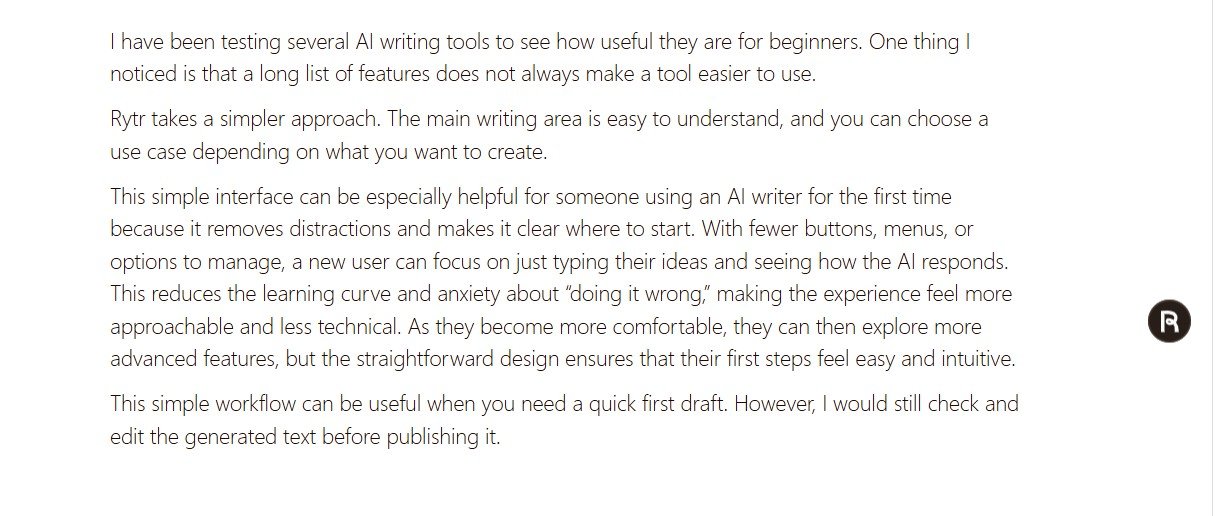
Technically, the workflow worked very well.
What worked
The technical part was almost exactly what I wanted.
Rytr inserted the new paragraph in the right place. My earlier paragraphs stayed above it. My conclusion stayed below it. I did not have to copy the result from another screen and paste it manually.
But did the new paragraph fit my writing?
This is where the test became more interesting.
The AI-generated paragraph was much longer than the surrounding text. It expanded a simple idea into a detailed explanation about the learning curve, anxiety about using AI incorrectly, technical knowledge, and first steps feeling easier.
Some of that was useful. But visually and stylistically, I could clearly see where my writing stopped and the AI writing started.
Human text vs Rytr’s inserted text
This comparison explains the result better than a simple star rating.
Short and direct
My paragraphs were simple. Each one made one clear point and moved on.
I did not explain every possible benefit of a simple interface. I only gave enough information for the reader to understand the idea.
Useful, but longer
Rytr understood the topic, but it explained the idea in much more detail.
The paragraph was not bad. It simply did not match the length and rhythm of the surrounding human-written text.
What I would do with the AI paragraph before publishing
I would not delete the whole thing. Rytr understood the purpose of the missing section.
I would simply reduce it to one or two ideas.
Lower learning curve
The idea that a simple interface helps beginners start faster fits the surrounding text well.
Extra explanation
I would remove repeated explanations about why simplicity reduces stress and technical barriers.
Paragraph length
I would make the inserted paragraph similar in size to the paragraphs before and after it.
Why I liked this workflow more than generating a full article
During my other Rytr tests, I generated complete Facebook posts, LinkedIn content, a cover letter, and creative writing.
Those tests were useful, but this editor test felt closer to how I would personally work on a real article.
I keep the direction
I decide the argument and structure before asking AI for help.
Less generic content
Most of the draft still comes from my own observations, tests, examples, and decisions.
AI solves small problems
I can use it when a paragraph is missing instead of handing over the full article.
Easier fact-checking
A small AI insert is easier to review than a long article containing many generated claims.
My voice stays visible
The article is still mainly mine, even when AI helps with individual sections.
Faster editing
If the AI section is weak, I only fix that section instead of rewriting an entire generated draft.
One editor behavior confused me at first
During my Free-plan tests, I learned something about Rytr’s document workflow by accident.
I generated several different pieces of content inside the same document. I did not immediately realize that new generations were being added to the bottom while the older results stayed above them.
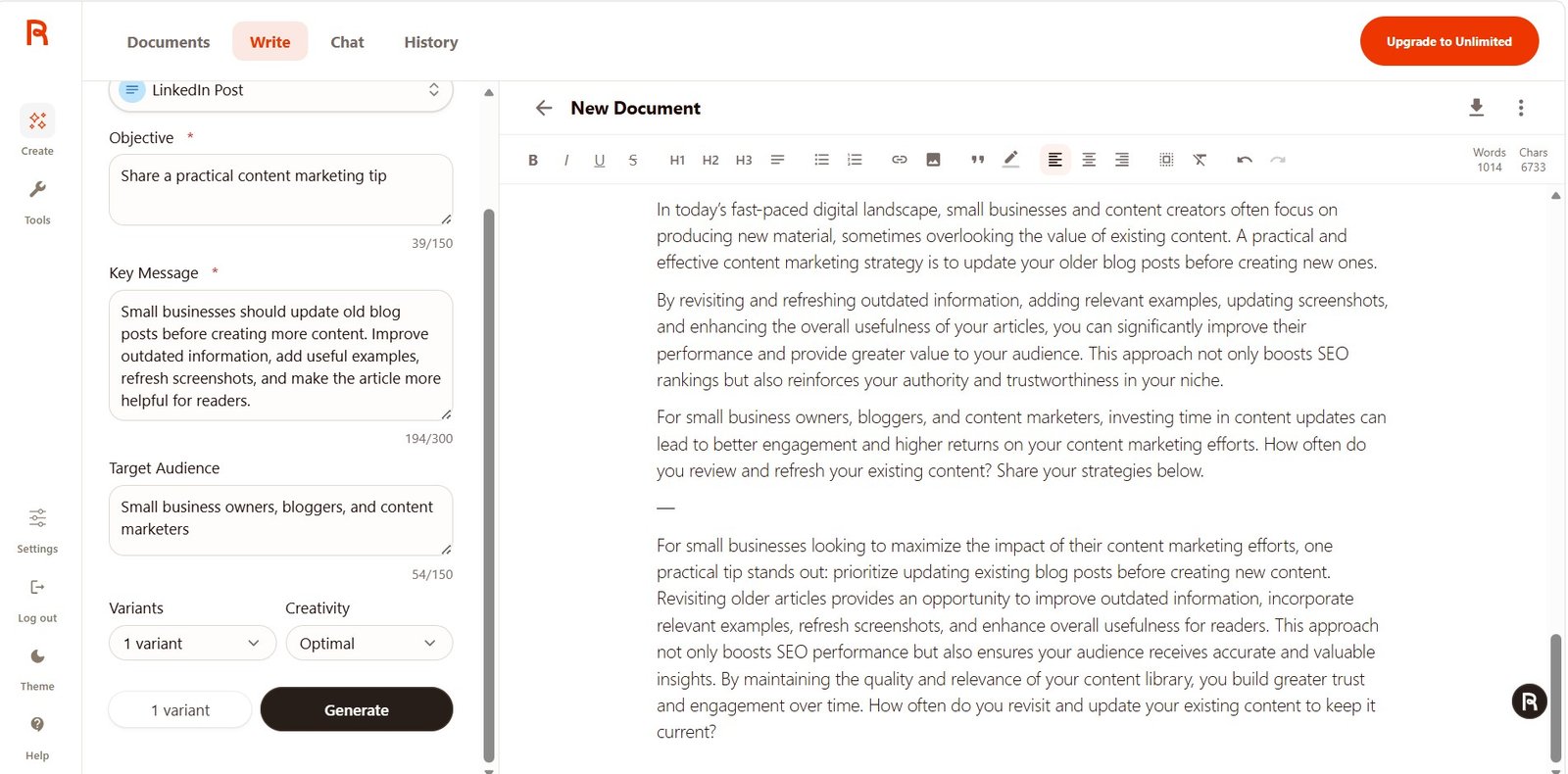
This is not necessarily a bad feature.
It means you can keep multiple generations together and compare them. But a new user may not notice what is happening at first.
Document organization was one of the easiest parts of Rytr
Once I understood how generated content was being added, managing the workspace itself was easy.
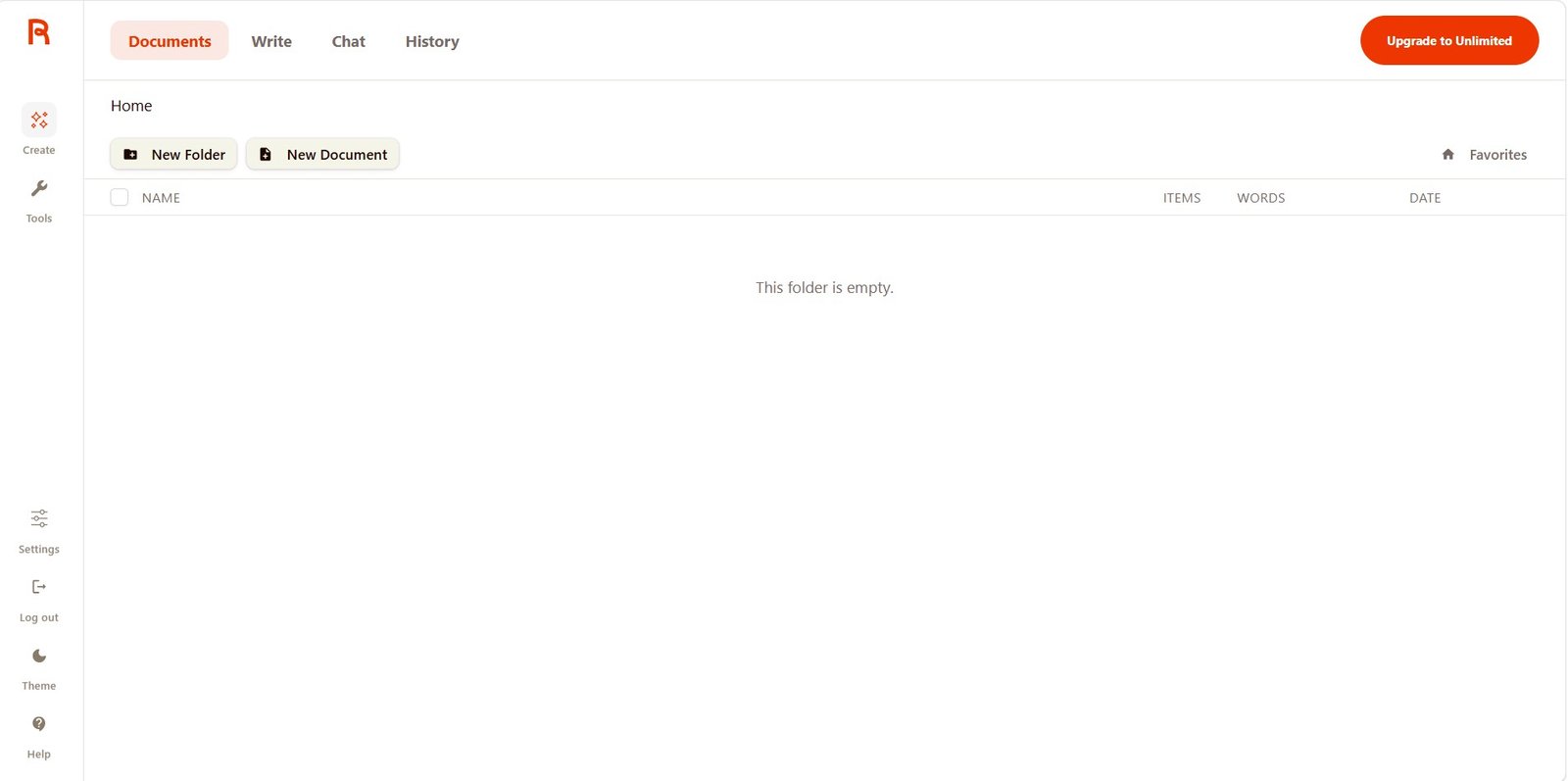
I liked this part of Rytr a lot. There are clear buttons for New Folder and New Document, and the main navigation does not feel crowded.
Rytr does not give you a huge number of workspace options, but that can actually be a benefit if you want to start writing quickly.
What is missing from the Rytr editor?
The editor is useful, but I would not describe it as a full creative AI workspace.
It feels like a normal writing document with AI tools added around it. For many users, that is enough.
But if you like larger workspaces where you can freely organize research, drafts, ideas, multiple AI outputs, and other content elements together, Rytr can feel limited.
I would not want Rytr to become overloaded with features. Its simplicity is one of its strengths. A flexible canvas would just give advanced users another way to work without making the basic editor harder for beginners.
My Rytr Editor test results
| What I tested | Result | My observation |
|---|---|---|
| Writing manually | Very good | Simple document editor without unnecessary complexity. |
| Insert AI in one place | Very good | Rytr added content exactly where I wanted it. |
| Preserve original text | Pass | My surrounding paragraphs stayed unchanged. |
| Understand context | Good | The inserted paragraph correctly explained why a simple interface can help beginners. |
| Match my length | Mixed | The AI paragraph was much longer than the surrounding text. |
| Match my writing style | Mixed | The result was useful but more generic and explanatory than my own paragraphs. |
| Document organization | Very good | New documents and folders are easy to create. |
| Creative workspace | Limited | I would like a more flexible canvas-style workspace. |
Who will like the Rytr editor?
Bloggers
Useful when you write most of an article yourself but occasionally want AI help with a missing paragraph or rewrite.
Freelancers
A simple place to draft content, make quick changes, and use AI without moving between many tools.
Beginners
The editor is easier to understand than many large AI content platforms.
Human-first writers
Useful if you want AI to assist parts of the draft instead of generating everything.
Complex content teams
The workspace may feel too simple if your process involves research, planning, collaboration, and many content assets at once.
Canvas power users
If you want a large visual AI workspace rather than a document editor, Rytr is more limited.
More of my Rytr tests
The editor is only one part of Rytr. I also tested its AI writing quality, Chat, Brand Voice, Free plan, and Unlimited plan.
My Rytr Editor verdict
This is one of the ways I would actually use Rytr.
I liked writing my own draft first and bringing AI in only when I needed help. Rytr inserted the new paragraph exactly where I wanted it and did not interfere with the rest of my document.
That gave me much more control than asking AI to generate an entire article.
The generated paragraph was not perfect. It was longer, more generic, and more explanatory than the text around it. I would definitely shorten it.
But that did not make the feature useless. In fact, it showed me where Rytr fits best in my workflow: AI gives me material; I decide what belongs in the final article.
I also liked the general editor experience. Creating documents and folders is easy, navigation is clear, and there are enough AI actions to help without turning the screen into a complicated dashboard.
The biggest thing missing for me is a more flexible canvas-style workspace. Rytr’s editor is good at writing and editing a document, but it does not yet feel like a larger creative environment.
My final take: Rytr Editor is best when you stay in control. Write what you know, use AI where you get stuck, then edit the result. For me, that workflow is much more useful than letting an AI writer create the whole article from scratch.
Affiliate disclosure: I may earn a commission if you purchase Rytr through my link, at no extra cost to you. My ratings and test results are based on what happened during my own tests.