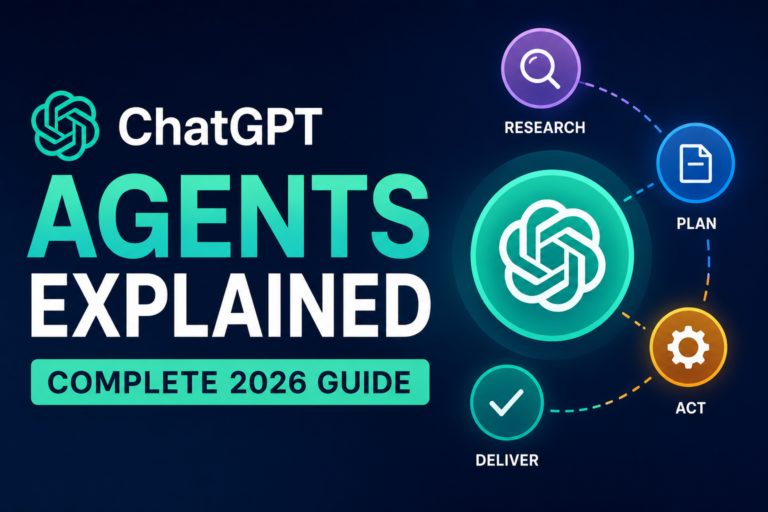
ChatGPT Tasks lets you tell ChatGPT to do something later. It can be a one-time reminder, a repeating task, or a monitoring task that checks for changes and only notifies you when something important happens. You can create tasks from the Scheduled page or by simply asking in chat. After that, you can update the schedule, pause the task, resume it, or delete it.
What Are ChatGPT Tasks?
ChatGPT Tasks is a feature for proactive help. Instead of asking for something right now and getting one answer right away, you can ask ChatGPT to act later.
It can send a reminder, create a daily or weekly briefing, or keep checking for a change and notify you only when there is something worth reporting.
Simple explanation: Tasks turns a normal prompt into a prompt with a clock attached to it.
That is why the best task prompts usually have two parts: what to do and when to do it. If the action is clear, the result is usually better. If the timing is clear too, the task is easier to trust and easier to manage later.
A good mental model
Write the instruction
Choose once or recurring
Set time or time window
ChatGPT confirms the task
You get a reminder or update
Who Can Use Tasks?
Scheduled tasks are available for eligible paid ChatGPT users on web and mobile. The Scheduled tab is available on web and mobile, but not everywhere in every app experience.
If you use ChatGPT in a personal account, task permissions are more direct. If you use ChatGPT in a Business or Enterprise workspace, app access may depend on workspace settings and what an admin has enabled.
Basic tasks
Simple reminders, daily summaries, weekly check-ins, and planning prompts.
Monitoring tasks
Tasks that check for changes and notify you only when something important happens.
Connected-app tasks
Tasks that may use apps like email or calendar when they are available and allowed.
How to Create Your First Task
The easiest first task is small, clear, and easy to check. A simple reminder is perfect. A daily summary also works well.
Step one: choose the job
Start with one useful action. Keep it narrow.
“Remind me to send the rent on the last day of each month at 9 AM.”
“Every weekday at 8 AM, give me a short summary of major AI news with source links.”
Step two: choose how often it should run
Ask yourself one question: Will I need this again after it runs? If the answer is no, make it one-time. If the answer is yes, make it recurring.
Step three: write the output style
This is where many people make a good task much better. Tell ChatGPT how the result should look: short paragraph, bullet list, three action items, links included, friendly tone, or one-line summary first.
“Every weekday at 7:30 AM, give me a 5-bullet news summary about AI tools. Put the most important item first and include links.”
“On October 2 at 6 PM, remind me to call my dentist. Keep it short.”
“Every Sunday at 5 PM, create a meal plan for five weekdays. Keep meals simple and budget-friendly.”
Step four: confirm the schedule
ChatGPT will propose the task schedule and save the task after you confirm it. Also check whether notifications are set the way you want.
Step five: allow notifications
On mobile, ChatGPT may ask for notification permission. On web, you may need to allow browser notifications. This matters because a task without a visible alert can feel like it failed.
Step six: review the saved task
After setup, look at the task name, run time, and expected output. If the title is unclear, fix it early. When you start using more than a few tasks, naming becomes part of productivity.
Important note: If you create a task inside a project that has files, the task may not be able to access those project files. If your idea depends on file context, check this before you rely on the task.
One-Time vs Recurring Tasks
A one-time task is best when you need one alert at one moment. A recurring task is best when you want ongoing structure, repeated reminders, or regular summaries. A monitoring task is useful when you want ChatGPT to check for change and notify you only when something matters.
| Type | Best for | How it works | Good example | Wrong choice when |
|---|---|---|---|---|
| One-time task | A single event, deadline, or reminder | Runs once at the scheduled time | “Remind me on August 14 at 3 PM to renew my passport.” | The task should repeat every day, week, or month |
| Recurring task | Habits, planning, check-ins, summaries | Runs on a repeating schedule | “Every Monday at 8 AM, give me my writing plan for the week.” | You only need one alert |
| Monitoring task | Updates only when something changes | Checks periodically and reports only when needed | “Let me know when my package is delivered.” | You need a fixed report every time, even if nothing changed |
My simple rule: A one-time task is like putting a pin in the calendar. A recurring task creates rhythm. It helps you remember things you forget, plan things you avoid, and revisit things that matter.
Best Real-Life Examples
The best task examples are boring in a good way. They solve real problems. They reduce mental load. They stop tiny jobs from piling up.
| Area | Task idea | Example prompt |
|---|---|---|
| Personal | Daily news summary | “Every weekday at 7 AM, give me a short summary of the top news in plain English with links.” |
| Personal | Weekly meal plan | “Every Sunday at 4 PM, build a simple meal plan for the next five weekdays. Keep it affordable.” |
| Personal | Birthday reminder | “Remind me every year three days before each saved birthday to buy a gift and send a message.” |
| Personal | Bill reminder | “On the 25th of every month at 9 AM, remind me to review upcoming bills.” |
| Personal | Packing checklist | “The day before any saved trip, remind me to make a packing checklist.” |
| Personal | Grocery reset | “Every Saturday at 10 AM, remind me to check the fridge and make a grocery list.” |
| Personal | Home cleaning plan | “Every Friday at 6 PM, send me a short weekend cleaning plan with 5 tasks.” |
| Health | Exercise plan | “Every Monday at 7 AM, create a simple workout plan for the week with rest days included.” |
| Health | Water reminder | “Every weekday at 2 PM, remind me to drink water and take a short stretch break.” |
| Health | Sleep routine | “Every night at 10 PM, remind me to start my wind-down routine and put away screens.” |
| Learning | Language study reminder | “Every weekday at 8 PM, remind me to practice Spanish for 15 minutes and give me one mini exercise.” |
| Learning | Vocabulary review | “Every Tuesday and Thursday at 7 PM, quiz me on 10 useful English words for work.” |
| Learning | Reading habit | “Every evening at 8:30 PM, remind me to read 10 pages and ask what I learned.” |
| Study | Exam planning | “Every Sunday at 5 PM, make my study schedule for the week based on my exam dates.” |
| Study | Revision check-in | “Every weekday at 6 PM, ask me what I reviewed today and what I should revise tomorrow.” |
| Work | Daily work priorities | “Every workday at 8:15 AM, help me choose my top 3 priorities for the day.” |
| Work | Weekly review | “Every Friday at 4 PM, ask me to review wins, blockers, and next steps from the week.” |
| Work | Meeting prep | “Every Monday at 8 AM, prepare a short checklist for my team meeting: goals, questions, and risks.” |
| Work | Inbox follow-up | “Every weekday at 3 PM, remind me to clear important follow-up emails.” |
| Work | Writing schedule | “Every weekday at 9 AM, give me a writing block plan for the day with one main goal and one backup goal.” |
| Work | Stock news recap | “Every weekday after market close, summarize major news about the companies on my watchlist in plain English.” |
| Work | AI news recap | “Every weekday at 6 PM, give me a short recap of major AI product updates and research news with links.” |
| Creative | Content idea list | “Every Tuesday at 10 AM, give me 10 blog post ideas for my niche, with one strong angle for each.” |
| Creative | Draft reminder | “Every Wednesday at 11 AM, remind me to work on my next article for 45 minutes.” |
| Creative | Social post batch | “Every Monday at 9:30 AM, draft 5 short post ideas based on my current writing goals.” |
| Admin | Document renewal reminder | “Remind me 30 days before any important document expires.” |
| Admin | Subscription check | “On the first day of every month, remind me to review subscriptions and cancel anything unused.” |
| Admin | Travel watch task | “Let me know when there is an important change to my saved travel plan.” |
| Connected apps | Calendar review | “Every evening at 7 PM, review tomorrow’s schedule and tell me what I should prepare, if my calendar is connected.” |
| Connected apps | Email digest | “Every weekday at 5 PM, summarize the important messages I should not miss, if my email app is connected.” |
My comments on the best examples
The daily news summary works because it reduces tab overload. You stop hunting and start scanning. Keep it short.
The weekly meal plan is one of the most underrated uses. It saves money, reduces evening stress, and quietly removes many small decisions.
The language reminder becomes much stronger if you ask for a tiny exercise, not just a reminder. A good task does not only remind you. It helps you start.
The stock or AI news recap is useful when written with limits. Ask for five items, plain language, and links. Otherwise the output can become longer than you want.
The writing schedule is excellent for people who struggle with blank-page stress. A recurring task can create a small start, and a small start is often enough.
How to Edit, Pause, or Delete Tasks
You can manage tasks from the Scheduled page and from Settings. You can also open an individual task from chat, then choose options like edit, pause, manage tasks, or delete.
To edit a task
- Open the Scheduled page or go to Settings → Notifications → Manage tasks.
- Select the task you want.
- Change the instruction, schedule, or notification setup.
- Save and confirm the new version.
You can also edit from the original chat by writing a follow-up message such as: “Make this weekly on Fridays at 4 PM.” This is often the fastest method.
To pause a task
- Open the task from chat or from the task list.
- Choose Pause.
- Resume it later when you need it again.
Pausing is useful when life changes for a while. Vacation week. Finals week. Product launch week. You keep the task, but you stop the noise.
To delete a task
- Open the task details.
- Choose Delete.
- Confirm deletion.
Easy detail to miss: Deleting the task does not delete the associated chat, but deleting the chat associated with a scheduled task can pause the task. If a task seems to stop for no clear reason, check whether the source chat was removed.
Common Mistakes
Being vague about the action
“Remind me about work stuff” is too soft. A task works better when it has a clear output: summary, checklist, questions, three priorities, short reminder, or links included.
Being vague about the timing
“Later” is not a plan. “Every weekday at 8 AM” is a plan. Even “every morning” is better than nothing.
Forgetting to define the format
If you want something short, say short. If you want bullets, say bullets. If you want links, say links. A small format instruction saves a lot of cleanup.
Creating too many similar tasks
Five overlapping reminders about the same thing usually turns into alert blindness. One well-designed recurring task is often better than three weak ones.
Forgetting notification permissions
If you miss alerts, check browser and mobile permissions before you blame the task.
Expecting unsupported behavior
Tasks are better for scheduled or recurring check-ins than minute-by-minute automation. They are not the same as advanced workflow tools with webhooks.
Using a project task that depends on project files
If file context matters, check whether your task can access the right information before you rely on it.
My Favorite Ways to Use Tasks
I like Tasks most when they remove friction, not when they try to run my whole life.
Morning priorities
It turns a messy start into a focused start. Not dramatic. Very effective.
Weekly review
Most people do not forget work. They forget reflection. A Friday review helps you reset.
Language practice
A reminder plus one micro-task is much harder to skip than a reminder alone.
Writing rhythm
“Give me one writing target and one easy starting sentence.” This lowers resistance.
Life admin bundle
Review bills, renew documents, cancel unused subscriptions, and check upcoming dates.
Simple rule
If I have to remember it every week, I should probably stop relying on memory.
Frequently Asked Questions
Can I create a task just by chatting with ChatGPT?
Yes. You can create a new task by asking ChatGPT directly in chat, or you can create one from the Scheduled page.
Can I edit a task by talking in the same chat later?
Yes. You can follow up in the original conversation with a new schedule or a small change, like “make this weekly on Fridays at 4 PM.”
Can Tasks send reminders and summaries, or only reminders?
Both. Tasks can be used for reminders, recurring work, daily briefings, monitoring, and lightweight automations.
Do I have to choose an exact time?
No. You can use exact times or broader windows like morning, afternoon, or evening.
Can Tasks use apps like Gmail?
Tasks may use apps like Gmail when those apps are available for your account or workspace. For work accounts, access may depend on admin settings and permissions.
Why did my task pause?
A task may pause after inactivity, if it needs action from you, or if the associated chat was deleted. Review paused tasks from the Scheduled page and then resume, edit, or delete them.
How often can a task run?
Tasks cannot run more than once per hour. If you want minute-by-minute automation, Tasks is probably not the right tool.
Can a task check for changes and alert me only when something changes?
Yes. That is the idea behind monitoring tasks. They check periodically and notify you when something important changes.
Can Tasks use files from a project automatically?
Not always. If you create a task in a project that has files, the task may not be able to access those project files. If file context matters, check this first.
If you remember only one thing from this guide, let it be this: a great task is not just scheduled. It is clearly written. Clear action. Clear timing. Clear format. Once you do that, ChatGPT Tasks becomes less like a reminder tool and more like a quiet assistant that shows up at the right moment.