What Is Grammarly?
Grammarly is an AI-powered writing tool that helps people improve their texts. It checks grammar, spelling, punctuation, clarity, and tone.
You can use Grammarly in different ways:
On the Website
Grammarly has an online editor.
You can:
- write directly in your browser
- copy and paste your text
- edit documents online
The website version is very useful because you can access it from any device with internet.
Browser Extensions
Grammarly also offers extensions for web browsers.
They work automatically in places like:
- email platforms
- social media
- online documents
The extension helps you write correctly while you type.
Desktop and System Apps
Grammarly has applications for operating systems such as:
- Windows
- macOS
These apps allow you to use Grammarly outside the browser, directly on your computer.
Mobile Support
Grammarly also works on mobile devices, helping users write better on the go.
The online version is flexible than only using extensions because:
- It works in one central place.
- You can manage documents easily.
- You can use advanced features.
- It does not depend on a specific app or platform.
The website gives full access to Grammarly’s tools in one simple environment. This tutorial will focus on using the web version of Grammarly, step by step.
Website, Plans, and Login
What Is the Website Address?
You can use Grammarly directly in your browser on the official website:
https://www.grammarly.com
This is the main place to access the online editor and manage your account.
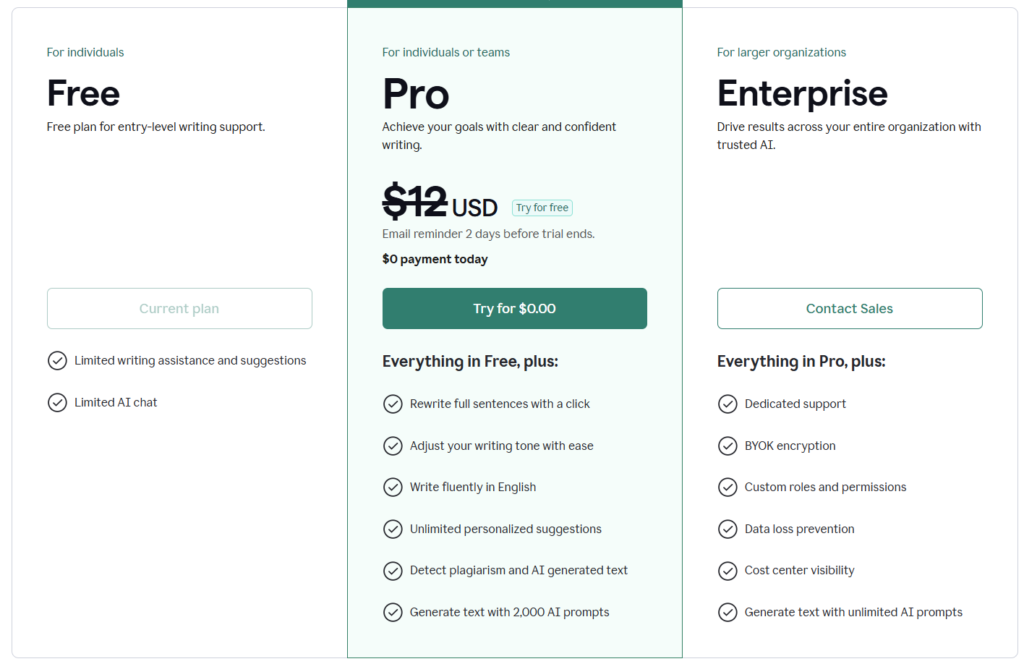
What Are the Available Plans?
Grammarly offers different plans:
1. Free Plan
- Basic grammar and spelling checks
- Simple writing suggestions
- Good for everyday writing
2. Pro Plan – $12 USD/mo. with Try for free posibillity
- Advanced grammar and clarity suggestions
- Tone improvements
- Vocabulary enhancements
- More detailed writing support
3. Enterprise Plan
- Designed for teams and organizations
- Collaboration features
- Advanced controls for companies
You can choose the plan that fits your needs. You can start with the free version and upgrade later if needed.
Do You Need to Log In?
Yes, you need to create an account and log in to use Grammarly.
You can sign up using:
- Google account
- Apple account
After logging in, you can access the website editor, save your documents, and use all available features based on your plan.
Once logged in, you are ready to start writing and improving your text.
The Main Menu
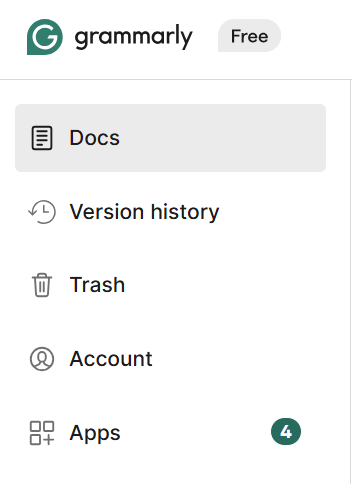
On the left side of Grammarly, you will see the main menu. It helps you manage documents and your account.
Docs
This is where you can find all your documents.
Here you can:
- create new texts
- open and edit existing documents
- organize your writing
This is the main working area.
History
This section shows your past activity.
You can see:
- previous edits
- changes made in documents
It helps you track your writing progress.
Trash
In Trash, you can find deleted documents.
If you delete a file by mistake, you can:
- restore it
- or remove it permanently
Account
This section allows you to manage your profile and subscription.
Here you can:
- change personal settings
- check your plan
- update account information
Apps
In this section, you can find Grammarly applications and integrations.
It may include:
- browser extensions
- desktop apps
- other available tools
The left menu helps you move between your documents, settings, and tools in a simple way.u move easily between writing, documents, and account settings. It keeps everything organized in one place.
Starting Work on a Document
When you want to start a new document in Grammarly, you can do it directly in the Docs section.
How to Create a New Document
- Go to Docs in the left menu.
- Click New Document (or the plus button, if visible).
- A blank editor will open.
- Start typing your text.
Will Grammarly Generate the Text for You?
Grammarly is mainly a writing and editing tool, not a full content generator.
This means:
- You can write your text from the beginning in Grammarly.
- You can paste a ready text and improve it.
- Grammarly will check and suggest corrections.
- It will help improve grammar, clarity, tone, and style.
Grammarly does not automatically create full documents for you in the normal editor.
You need to write or paste the content first, and then Grammarly helps you improve it.
Best Way to Use It
You can:
- Write a draft in Grammarly
- Or write in another program and paste the text into Grammarly
- Then review all suggestions before finishing
This way, you stay in control of your content, and Grammarly supports your writing process.
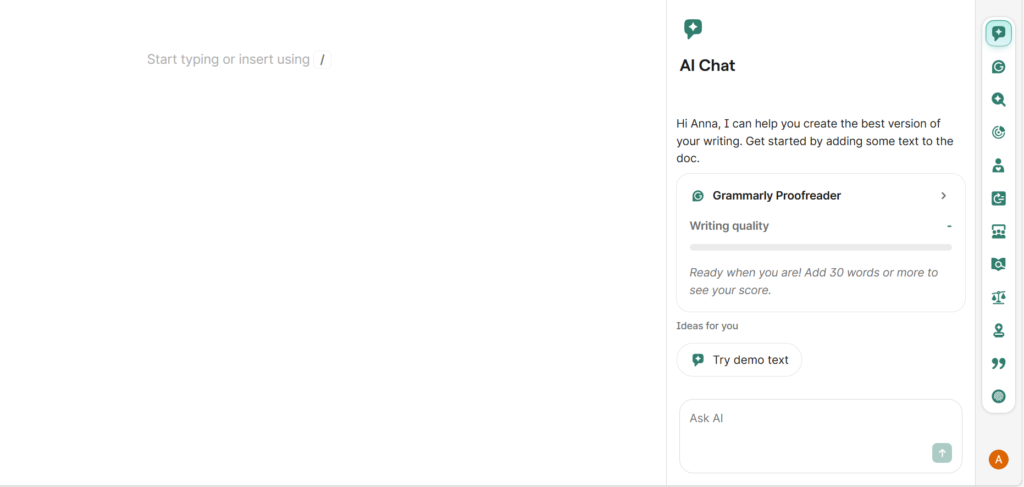
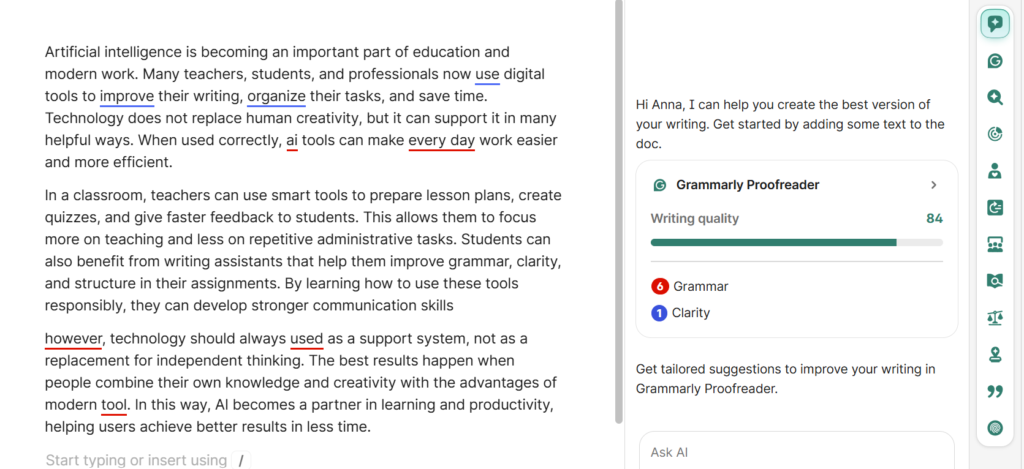
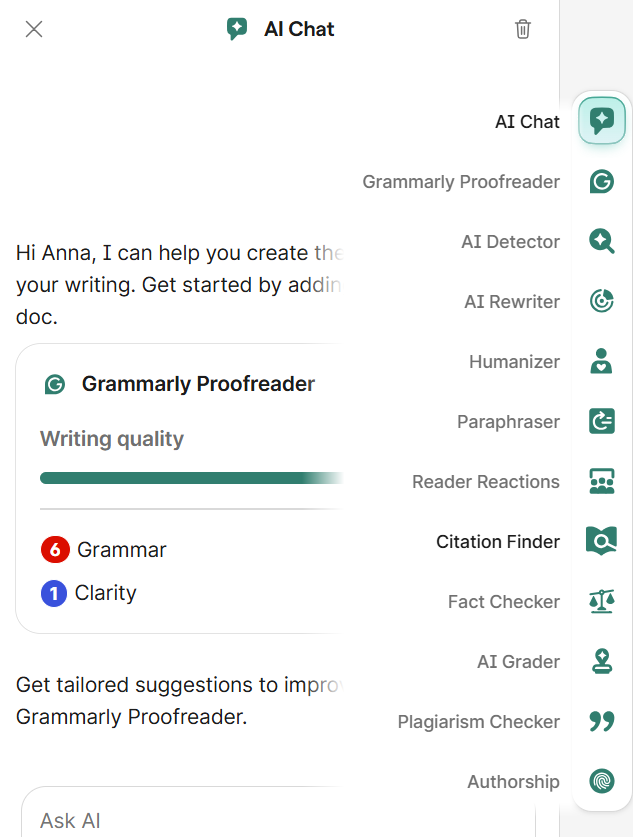
How to Edit a Document and What You See on the Right Side
When you open a document in Grammarly, you can edit it directly in the main editor area. Everything happens inside the document window.
How to Edit a Document
You can:
- Click anywhere in the text and start typing
- Delete or replace words
- Copy and paste text
- Accept or ignore suggestions
- Make manual changes anytime
Grammarly will automatically underline possible mistakes and improvements while you write. You can click on each suggestion to see details and decide whether to apply the change.
The Right-Side Panel (Suggestions Menu)
On the right side of the screen, you will see Grammarly’s suggestions panel. This is where all recommendations appear.
Depending on your plan, it may include:
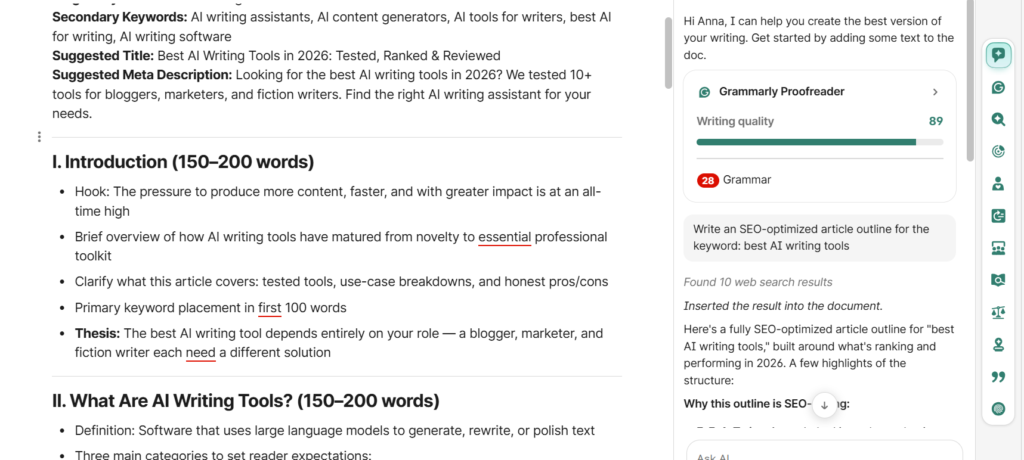
AI Chat
This tool allows you to communicate with Grammarly directly inside your document. You can ask questions, request changes, or get help with improving your text. AI Chat is designed to support your writing process and make editing faster and easier.
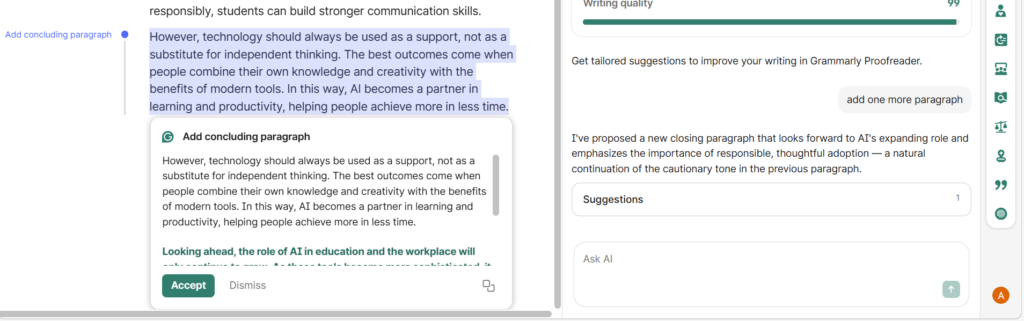
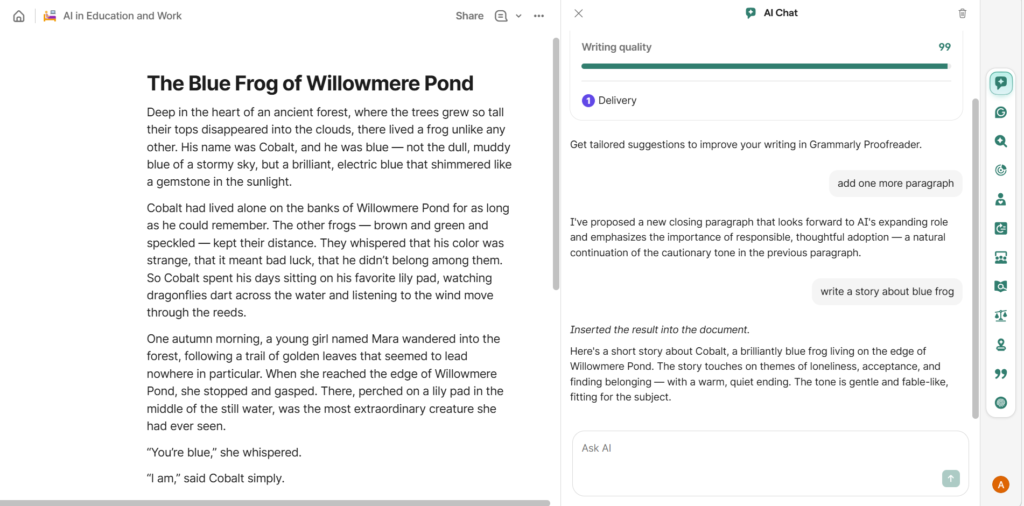
My discovery: text generated by Grammarly AI Chat also contains grammatical errors and sometimes needs to correct itself.
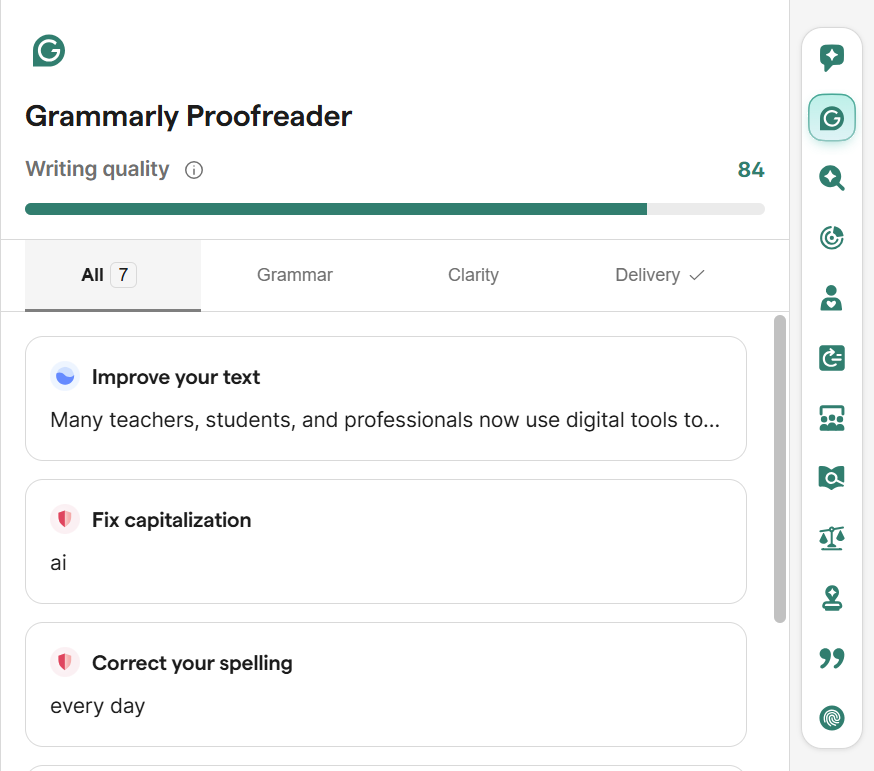
Grammar, Spelling and Clarity in Proofreader
When you are editing a document in Grammarly, the Proofreader section helps you improve the quality of your text. It focuses on basic writing corrections and clear communication. In this area, you can review suggestions for grammar, spelling, and clarity. These tools help you fix mistakes, improve sentence structure, and make your writing easier to read. The goal of Proofreader is to help you create correct, clear, and professional text.
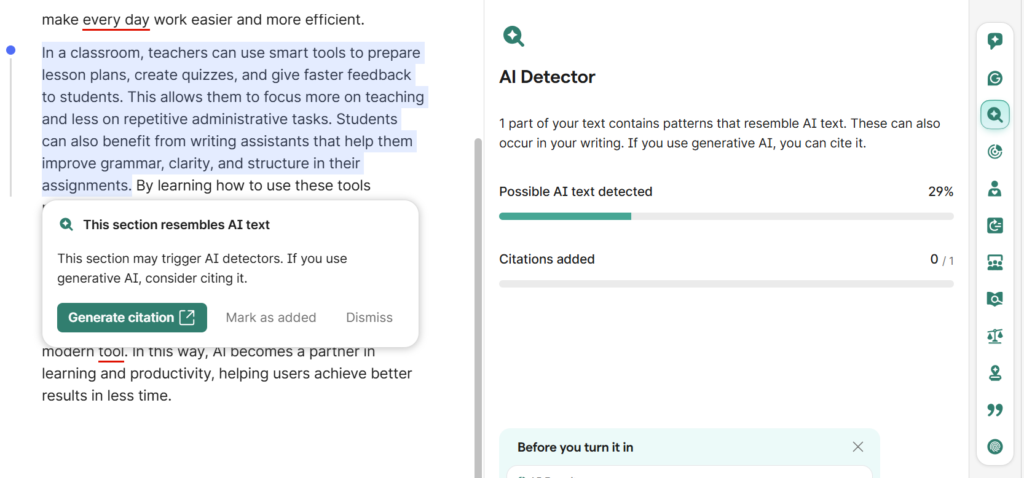
AI Detector
This tool helps you understand whether a text may contain AI-generated content. It analyzes your document and gives information about how likely it is that parts of the text were written by AI. AI Detector can be useful for checking originality and transparency, especially in academic or professional writing.
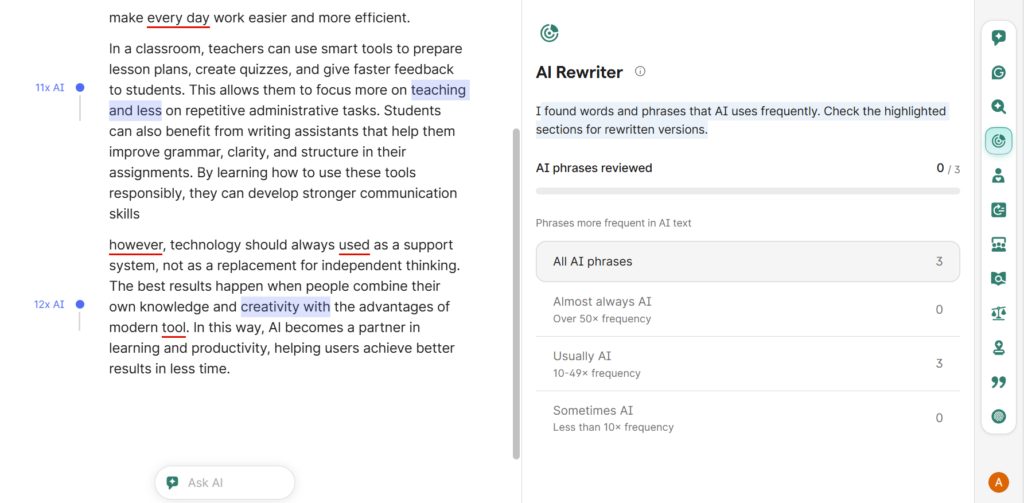
AI Rewriter
you can use the AI Rewriter tool to improve your text quickly. This feature helps you rewrite sentences or paragraphs in a clearer and better way. You can change the tone, make the text shorter or longer, or improve the style. AI Rewriter supports your writing by giving alternative versions of your text, while you decide which changes to use.
Humanizer:
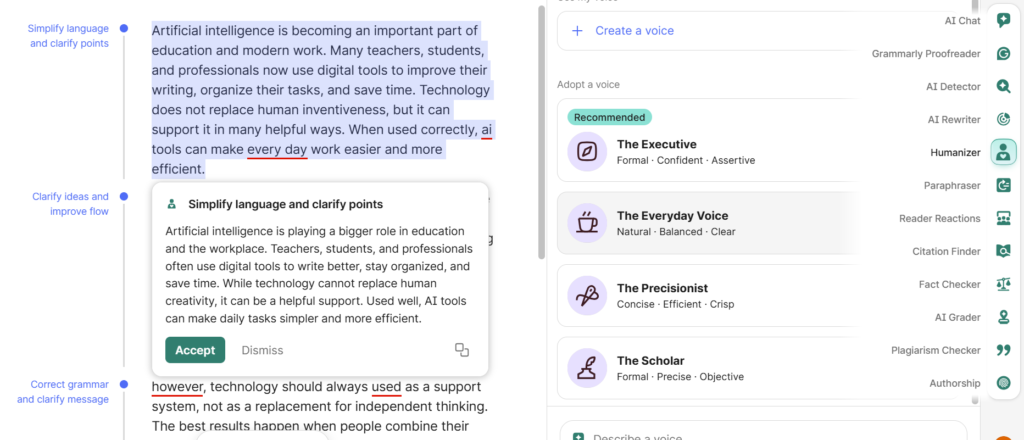
The Humanizer tool helps make your text sound more natural and personal. This feature can improve the tone and style of your writing, so it feels more like it was written by a real person. It is useful when your text sounds too formal, too robotic, or not very engaging. Humanizer supports you by suggesting changes that make your message clearer, smoother, and more human.
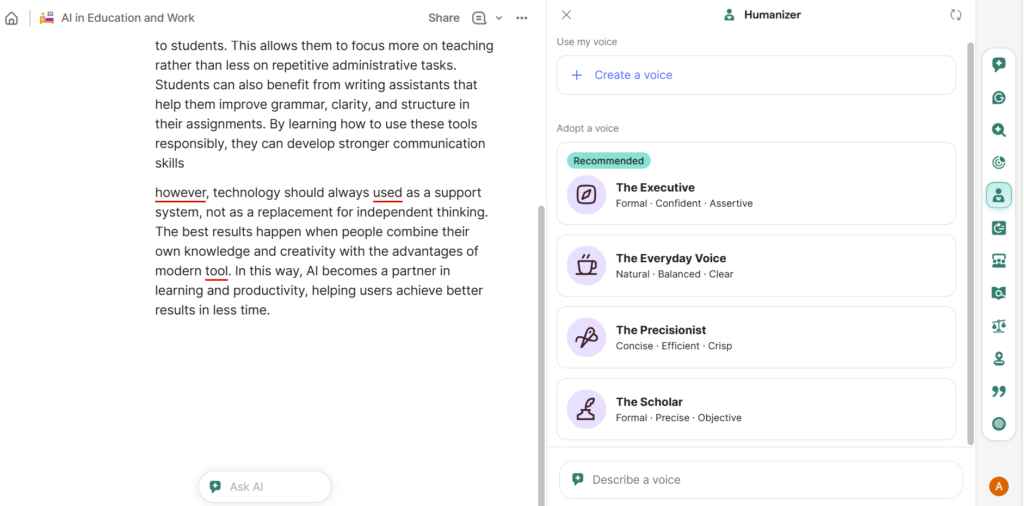
When I select Voice Type – all ide visible on the text
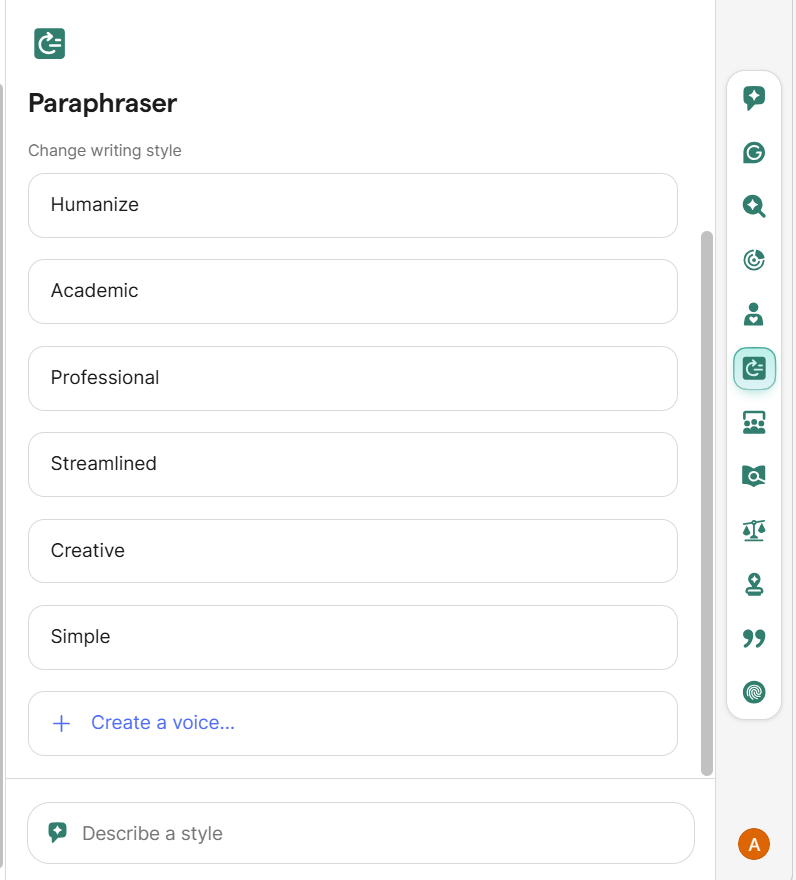
Paraphraser
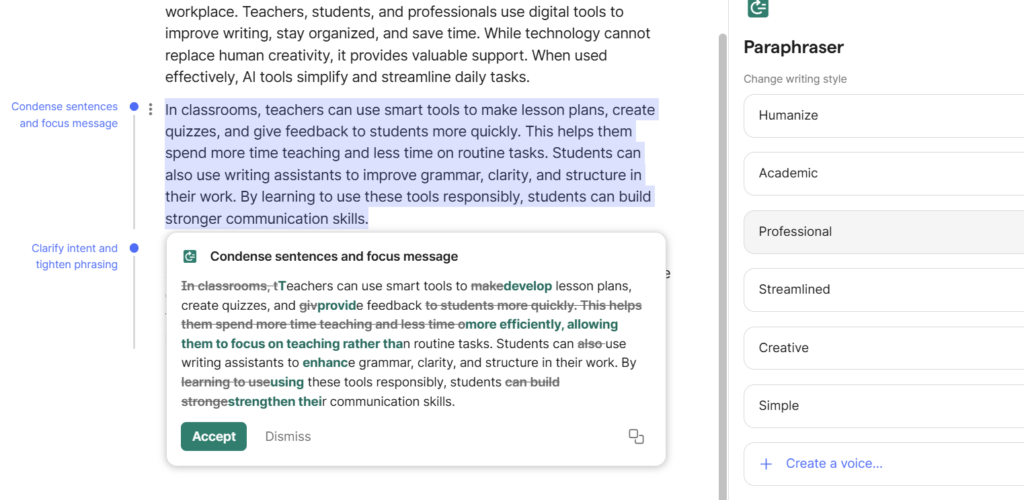
Paraphraser tool helps you rewrite sentences in a different way while keeping the same meaning. It is useful when you want to avoid repeating the same words or when you need to improve the style of your text. Paraphraser can help make your writing clearer, simpler, or more professional. You can compare different versions and choose the one that works best for your document.
Paraphraser with selected Professional option:
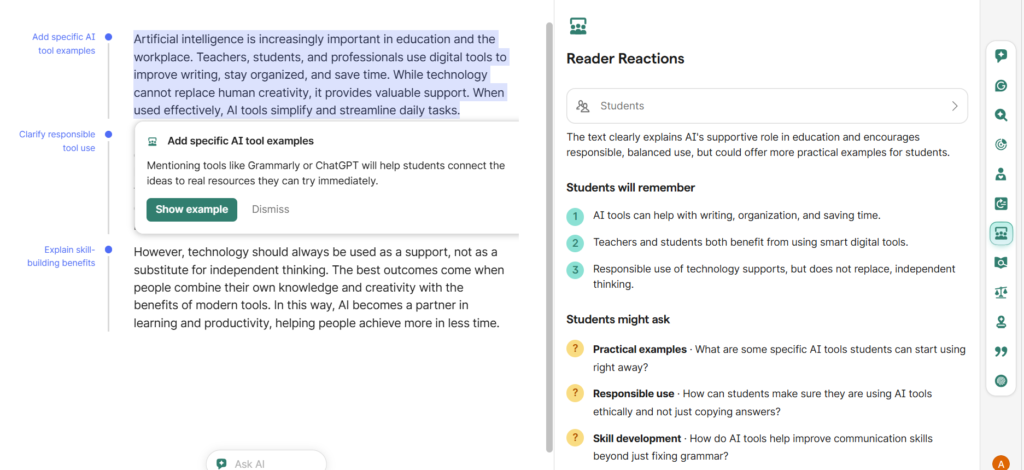
Reader reactions
The Reader Reactions feature helps you understand how your text may be perceived by readers. It shows possible reactions, such as whether your message sounds clear, confident, friendly, or confusing. This tool helps you see your writing from the reader’s point of view. By using Reader Reactions, you can improve your text and make sure your message is easy to understand and well received.
Citation Finder
The Citation Finder tool helps you find sources to support your writing. It can suggest relevant references for the information in your text. This feature is useful for academic work, research papers, and professional documents. Citation Finder helps you add credibility to your content and makes it easier to include proper sources in your document.
Fact Checker
The Fact Checker tool helps you review the accuracy of your statements. It can identify claims in your text and check whether they may need verification. This feature is useful when you are writing informative, academic, or professional content. Fact Checker supports you in creating reliable writing by encouraging you to confirm important information before publishing or sharing your document.
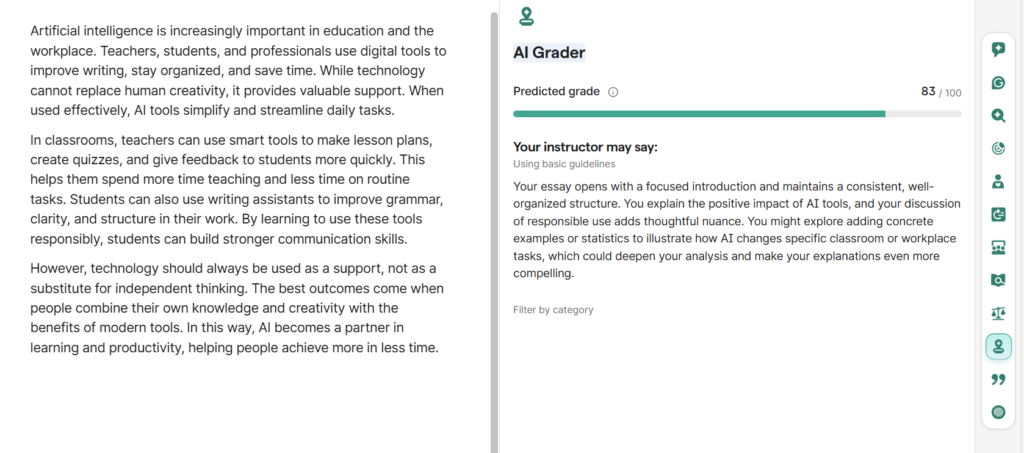
AI Grader
The AI Grader tool helps you evaluate your writing. It can give feedback on your text, similar to how a teacher reviews and grades an assignment. This feature is useful for students who want to improve their essays or practice writing. AI Grader helps you understand the strengths and weaknesses of your document so you can make improvements before submitting it.
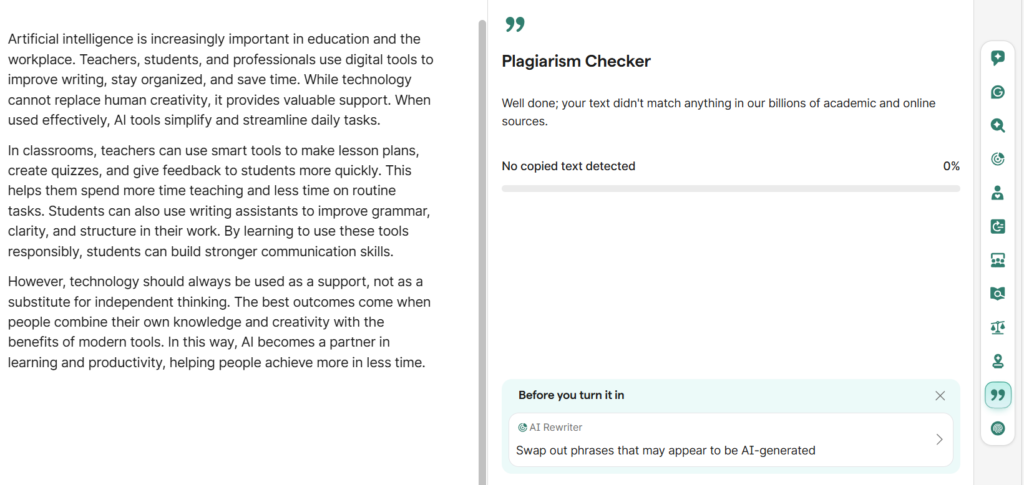
Plagiarism Checker
The Plagiarism Checker tool helps you check whether your text is original. It scans your content and compares it with online sources to find possible similarities. This feature is very useful for students, teachers, and professionals who want to make sure their work is unique. Plagiarism Checker helps you avoid unintentional copying and supports academic and professional integrity.
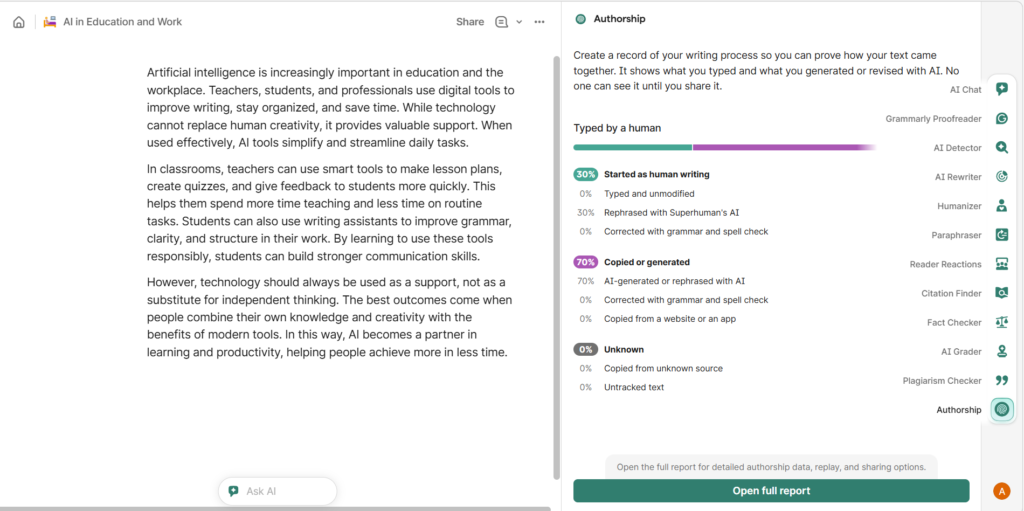
Autorship
The Authorship feature helps you understand how your text was created. It can show which parts of the document were written by you and which parts may have been generated or edited using AI tools. This feature supports transparency and clear writing practices. Authorship is especially useful for academic and professional work, where it is important to show how the content was developed.
Conclusion
Grammarly is a powerful online writing tool that helps you improve your text in many different ways. You can use it directly on the website, so you always have access to the full set of features in one simple environment. After logging in, you can create new documents, edit your text, and use the tools available in the right-side panel.
Inside the editor, Grammarly helps you with grammar, spelling, clarity, tone, rewriting, and more advanced features. Tools like AI Chat, Proofreader, AI Rewriter, Paraphraser, and others support you during the writing process. They help you improve your work step by step, while you stay in control of the final version.
Grammarly does not replace your ideas or creativity. It is a helpful assistant that supports better writing, clearer communication, and more professional documents.
FAQ – Grammarly (Based on Official Help Topics)
1. What is Grammarly?
Grammarly is an AI-powered writing tool that helps you improve grammar, spelling, clarity, tone, and overall writing quality. It works on the website, in browsers, and through apps.
2. Do I need an account to use Grammarly?
Yes. You need to create a free account and log in to use Grammarly’s tools and save your documents.
3. Is Grammarly free?
Yes, Grammarly offers a Free plan with basic grammar and spelling checks. There are also paid plans with advanced features.
4. Where can I use Grammarly?
You can use Grammarly:
- In the web editor (on the website)
- In browser extensions
- In desktop apps for Windows and Mac
- On mobile devices
5. What is the difference between Free and Premium?
The Free version includes basic grammar and spelling corrections.
Premium includes advanced suggestions such as clarity improvements, tone adjustments, vocabulary enhancements, and more detailed feedback.
6. What is the Proofreader feature?
Proofreader helps you check grammar, spelling, and clarity in your text. It shows suggestions to improve correctness and readability.
7. What is AI Chat?
AI Chat allows you to interact with Grammarly inside your document. You can ask questions, request rewrites, and get help improving your text.
8. What is AI Rewriter?
AI Rewriter helps you rewrite sentences or paragraphs while keeping the same meaning. You can adjust tone, length, and style.
9. What is the Paraphraser?
Paraphraser helps you rewrite text in a different way without changing the meaning. It is useful for improving style and avoiding repetition.
10. What is the Plagiarism Checker?
Plagiarism Checker helps you compare your text with online sources to detect similarities. It supports originality and academic integrity.
11. What is the AI Detector?
AI Detector analyzes text to estimate whether it may have been generated by AI tools. It helps with transparency and content review.
12. What is Authorship?
Authorship helps show how a document was created. It can indicate whether content was written, edited, or assisted by AI tools.
13. Can Grammarly generate full documents automatically?
Grammarly is mainly a writing and editing tool. You can write your text in the editor or paste existing content, and Grammarly will help improve it.
If you would like, I can also create:
- a shorter FAQ version
- an SEO-optimized FAQ section
- or a structured FAQ with schema markup for your website