rase is an AI-powered writing tool designed for SEO-focused content. It helps you find what’s ranking on Google and creates optimized content quickly. In this guide, we’ll show you how to set up and use Frase from scratch. You’ll learn how to create content briefs, write with AI, use Frase’s SEO tools, edit your work, and publish. Along the way, we’ll give simple examples, official tips, so you can try Frase’s free trial and see these steps in action
Why Frase is Perfect for Beginners
Frase combines AI writing with powerful SEO research, making it easy to create content that outperforms competitors. It’s especially great for bloggers, marketers, and content creators who want data-driven results.
Set Up Your Account
First, go to frase.io and sign up for a free trial. Click “Start My Free Trial” on the site’s home page. Frase will ask for your email to create an account. Once registered, you’ll receive some free document credits. For example, every new trial includes 1 Rank-Ready credit and 2 Research Project credits to explore the features. These credits let you try out Frase’s main workflows. You’ll also see your dashboard, which is the Frase home page for starting projects.
Dashboard Overview
On the Frase dashboard (Home tab), you have three main options:
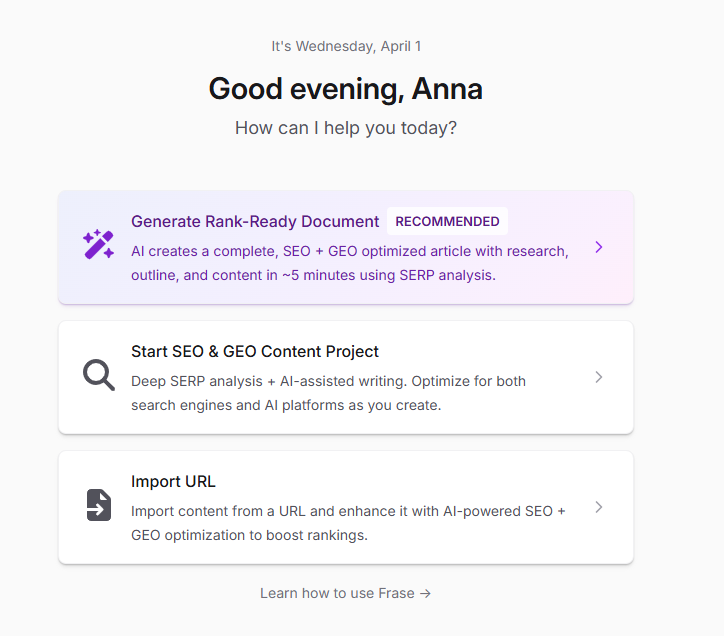
- Generate Rank-Ready Document: A quick way to let Frase do most of the work. It will research, make an outline, and draft the article for you.
- Start SEO & GEO Research Project: A hands-on mode where you control the outline and writing step by step. This is for more tailored content.
- Import URL: You can enter a web page you’ve already written to have Frase analyze and optimize it.
For beginners, the Rank-Ready option is easiest. Frase will auto-analyze the search results for your topic, create an outline, and draft the article in one flow. In that workflow, Frase handles everything: it reads top-ranking pages, suggests headings, then writes the draft. You can edit or approve the outline and final text as needed.
If you choose the SEO Research Project, you start with a blank doc and full control. Frase will show you competitor pages and topic data in the Research panel (see next section). You then build your own outline (using AI or manually) and write each part with or without AI help. This mode is good if you want to tweak each detail.
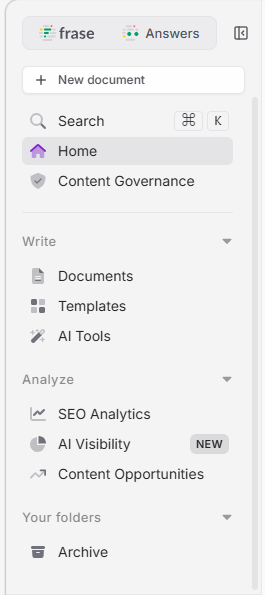
The left sidebar of Frase has AI Tools for content helpers (like writing titles or captions) and other features (not needed for basics). But to start, focus on the main workflows above.
3. Create a Content Brief
A content brief is like an article plan with goals, outline, and key topics. Frase can build this for you automatically or let you create one manually. To auto-generate a brief:
- Start a Research Project and enter your main keyword or topic.
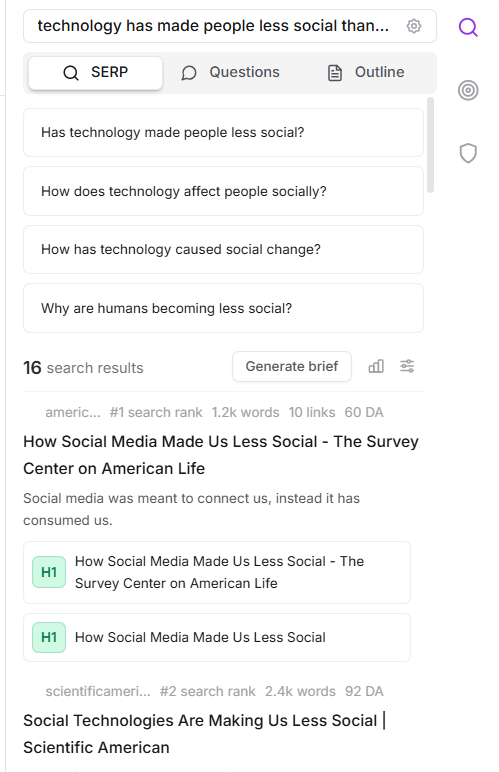
- In the Research panel on the right, go to the SERP tab. Then click “Generate Brief”.
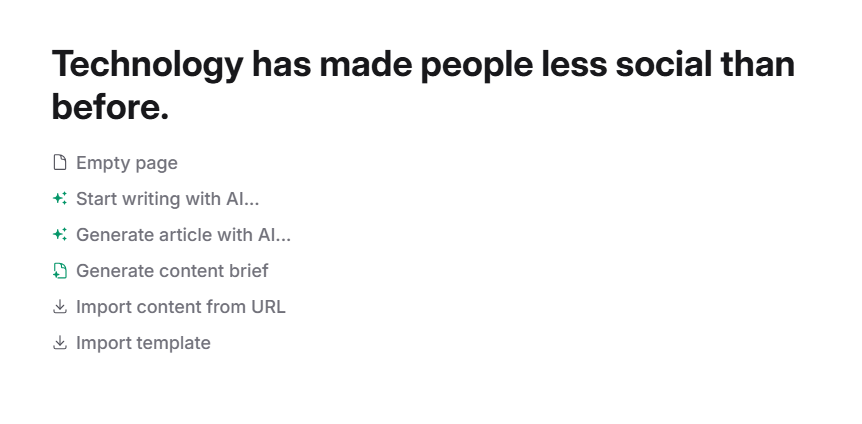
- Frase will show options for what to include (like suggested titles, headings, questions, stats, etc.). Keep the default selections or adjust them.
- Click “Generate Brief” and Frase will assemble a draft brief using data from top Google results.
- When it’s done, click “Insert brief” to add this outline to your document.
This brief will typically include the content goal, title suggestions, an outline, target keywords, questions to answer, and links from top pages. For example, if your topic is “healthy recipes,” Frase might suggest headings like “Breakfast Ideas”, “Easy Lunch Meals”, and show keywords or questions related to healthy cooking. An automated brief saves you hours of planning. You can also start from a template (like a blog post or product review brief) or make a brief from scratch by copying headings and questions into Frase. But for beginners, the one-click method above is fastest.
4. Write Content with AI
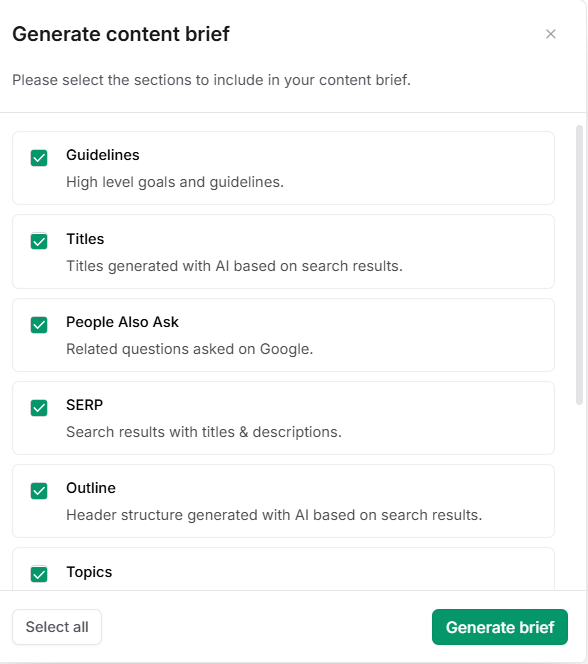
Now it’s time to fill in the outline. Frase has built-in AI Commands to generate or edit text in your document. To use them:
- Click on an empty line or highlight existing text and hit the spacebar once. You’ll see a prompt box.
- Type a command in simple English. For example, you could type:
- “Write a short introduction about the benefits of exercise.”
- “Add a paragraph about healthy breakfast ideas.”
- “Rewrite this paragraph to be more friendly.”
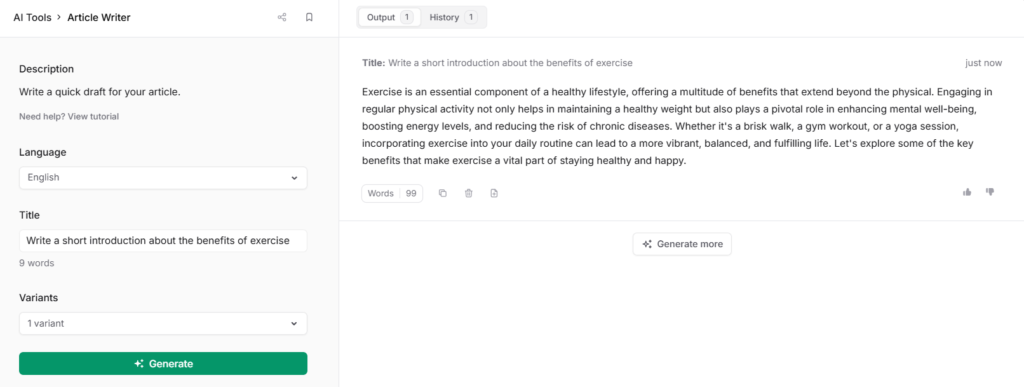
Frase will use AI to generate or modify text based on your instruction. The commands can include tone or style. For example, you can ask “Write a paragraph explaining cats for a beginner audience.”
After generating text, you can use AI Edit for polishing. To do this, select a sentence or paragraph and click the AI Edit button in the toolbar that appears. You’ll see one-click options like “Improve writing” (to tighten phrasing), “Make shorter/longer”, or “Change tone” (formal, friendly, etc.). For instance, to shorten a sentence, click “Make shorter” and Frase will trim it for you. You can also manually edit anything at any time.
Example: Let’s say you have an outline heading “How to bake bread.” You could type /write a paragraph about the steps to bake simple bread (Frase uses slash or space) and it will produce a draft paragraph. Then, highlight that paragraph and click Improve writing to smooth it out.
Remember to use your own words and ideas too. AI is a helper – you are still the author. Always read and tweak the output to add examples, data, or personality.
5. Use SEO Research and Content Scoring
Frase’s SEO features help you see what competitors are doing and how your content compares. In a Research Project, look at the Research panel on the right:
- SERP Tab: Shows the top Google results and their titles/headings. You can view competitor outlines and even click to copy any heading into your outline. This tells you what structure works for the topic.
- Questions Tab: Lists common questions from Google, Reddit, Quora, etc.. Click the + icon by a question to add it to your outline. Answering these questions helps match search intent.
- Outline Tab: Helps build your headings. You can click to pull headers from top pages or click “Generate Outline” to let AI suggest a full outline based on search intent. Drag and drop to rearrange any sections.
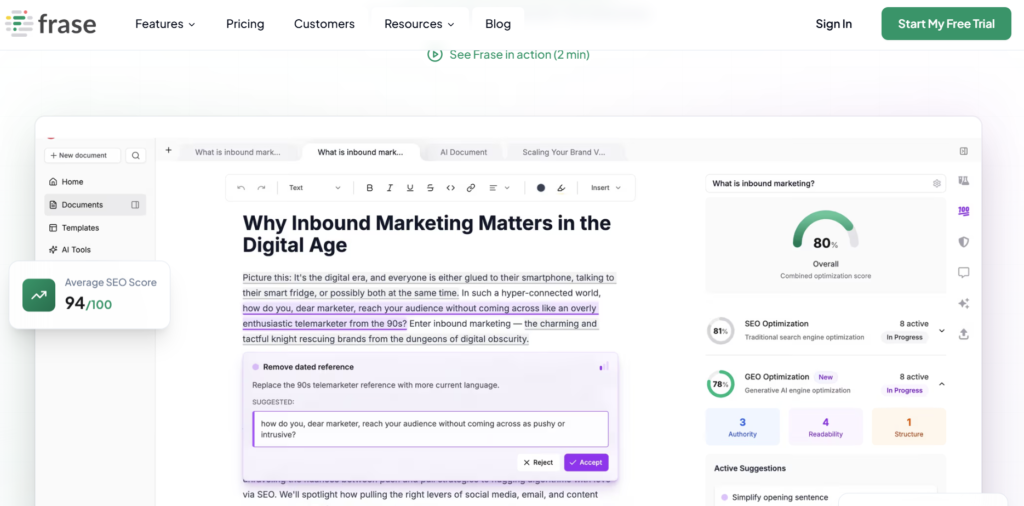
After writing some text, switch to the Optimize tab in the editor. At the top you see a Combined Optimization Score, which reflects both SEO and GEO (AI content) readiness. A higher score means your content covers what both search engines and AI platforms expect.
Below that, the SEO panel lists topics/keywords to include. For each topic, Frase shows how often you’ve used it versus the average in competitor articles. For example, if competitors mention “fitness routines” 10 times but you have it only twice, Frase flags it as underused. You can click to copy the term into your text. Aim to cover “Topic Gap” keywords your rivals use. A good rule is to target an SEO score at least 30% higher than the average competitor.
The GEO (Generative Engine Optimization) panel scores your content for AI readability. It checks:
- Authority: Are you citing sources and facts? (Add links and stats to improve this).
- Readability: Is the text clear and simple? (Use short sentences, active voice, avoid jargon).
- Structure: Is the content well organized with headings, lists, etc.?
For example, keep paragraphs short and bullet lists where possible – AI chatbots favor clear formatting. Frase may suggest rewrites for hard sentences. By following these tips (lead with answers, write simply, cite sources) you improve both SEO and GEO scores.
6. Edit and Publish Your Content
Once your content is written and scored well, it’s time to finalize and publish. First, proofread the article: fix any mistakes and make sure it sounds natural. Avoid common mistakes like publishing without reviewing. Always add your voice – AI is a starting point, not the final product. Check facts and figures to avoid hallucinations.
Frase integrates with popular publishing platforms. You can connect your WordPress, Webflow, or Sanity site to Frase in the settings. When the article is ready, click “Publish” and choose your CMS. Frase will transfer your content and fill in formatting, meta fields, and images automatically. You can publish as a draft or live – no need to copy/paste manually.
Alternatively, export your content to other formats. Frase can export to Google Docs or Notion with full formatting. This means all headings, links, and lists stay intact. You can also download HTML, PDF, or Markdown if you use a different system. The Frase WordPress plugin can bring Frase’s SEO & AI tools right into your WordPress editor, showing real-time scoring as you write.
Example: If you use WordPress, connect it in Frase first. Then click Publish to WordPress when done. Frase will create a new post with your article, title, and images set up.
7. Pricing and Plans (High-Level)
Frase offers a free trial to explore all features. No credit card is required for the trial, and you get 7 days of full access. After that, paid plans start at about $49 per month for the Starter plan. Starter is for solo users (1 site, 1 user, up to 10 AI-written articles per month). It includes the same AI agent and features as higher plans, but with lower usage limits.
The Professional plan is around $115 per month. It adds more capacity (for example, 3 user seats and up to 40 AI articles/month) and more audit pages. It also includes more brand voice profiles and docs. Both plans give you access to all Frase tools – the difference is mainly volume (more articles, seats, and domains with higher plans). There is also an Enterprise or Scale plan (around $299/mo) for large teams and agencies, with even more limits.
Plans differ in how many “credits” or quotas you get. For instance, Starter includes 2 Rank-Ready document credits and 15 research credits per month, while Professional gives 10 Rank-Ready and 75 research credits. Credits are used when Frase generates content or analyzes the SERP. You can always add more credits or upgrade your plan if needed.
8. Tips and Common Mistakes
- Write simply: Use short sentences and plain language. Remember, Frase’s GEO score favors clear writing. Imagine explaining the topic to a friend.
- Edit the AI: Never publish AI text without your review. Always add your own insight and fix any errors. Check dates, stats, and facts – AI can get details wrong.
- Stay on topic: Use the brief and outline to guide you. Don’t wander off the keyword. Frase highlights missing keywords and lets you insert them. For example, if competitors mention “keyword research” more times, Frase will mark it for you. Include those key terms naturally.
- Use structure: Break your content with headings, bullet lists, and short paragraphs. This helps both SEO and readability. List steps or tips using bullets when possible.
- Check intent: Always keep the reader’s question in mind. Lead with the answer to user intent. For example, if the query is “how to save money,” begin with a clear answer or summary.
- Use visuals: If possible, add images or charts. Frase guides recommend adding real screenshots for tutorials and data charts for facts. Visuals help people engage and understand better.
Avoid these mistakes: Focusing only on word count, overusing the same keyword, or leaving the AI output untouched. Instead, follow Frase’s recommendations and check your work.
Example of a tip in practice: If Frase suggests a topic like “best running shoes” under the SEO panel, make sure to include a heading or paragraph about that topic. If you don’t have data on it, consider a sentence like “Many experts recommend shoes like X for running, as they provide cushioning and support.” This way you cover what readers and AI expect.
Conclusion
Using Frase in 2026 is straightforward for beginners. Start with the free trial to explore its powerful AI tools. Follow the steps above: set up your account, explore the dashboard, generate a content brief, write with AI assistance, optimize using the research and scoring tools, then edit and publish. Take advantage of Frase’s SEO and AI guidance to make your content rank higher. And remember our referral link – sign up through it to support us and get started quickly. Happy writing!
Ready to try Frase? Start your free trial here and unleash AI-assisted content creation!
Want to see how this tool compares to others?
Check our full comparison before you decide.